


How to create an IO scanner variable in the M580 DTM.
Issue
How to create an IO scanner variable in the M580 DTM
Product Line
M580, EcoStruxure Control Expert (formerly know as Unity Pro)
Environment
Unity Pro v13.1, Windows 10 version 1902, BMEP583040 v2.70
Resolution
The following steps can be used to create an IO scanner variable in the M580 DTM.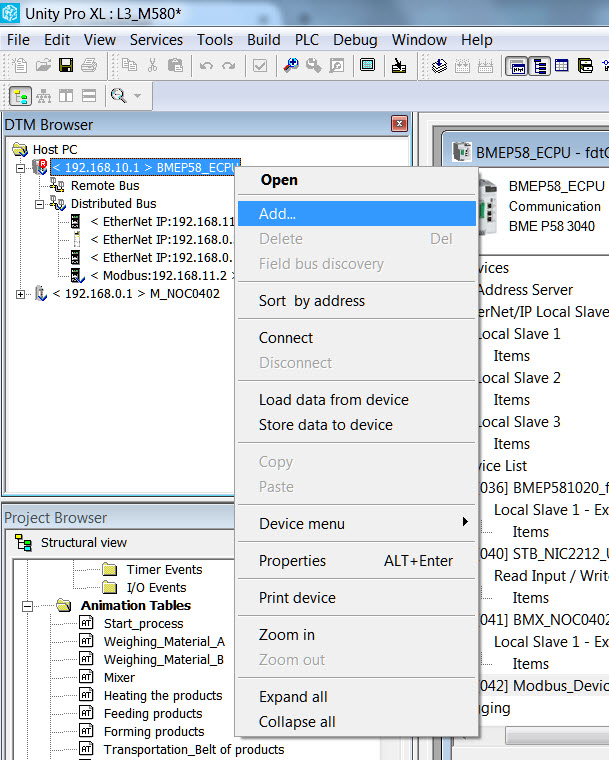
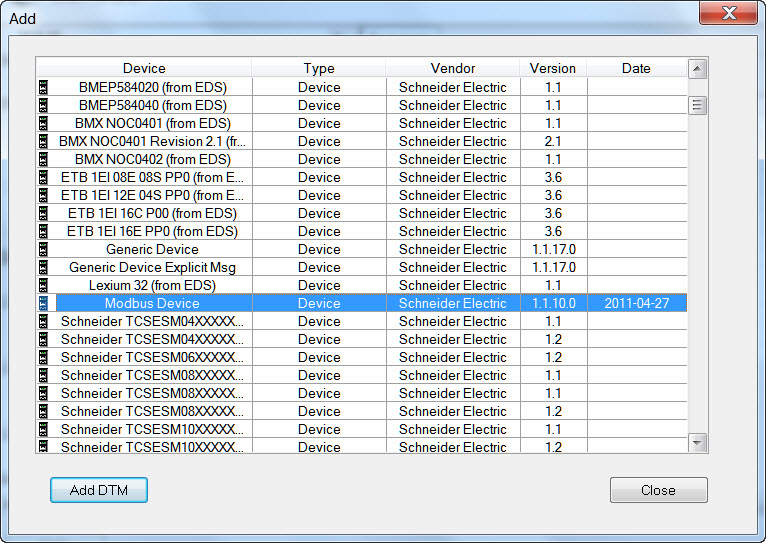
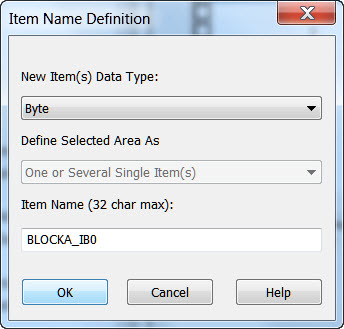
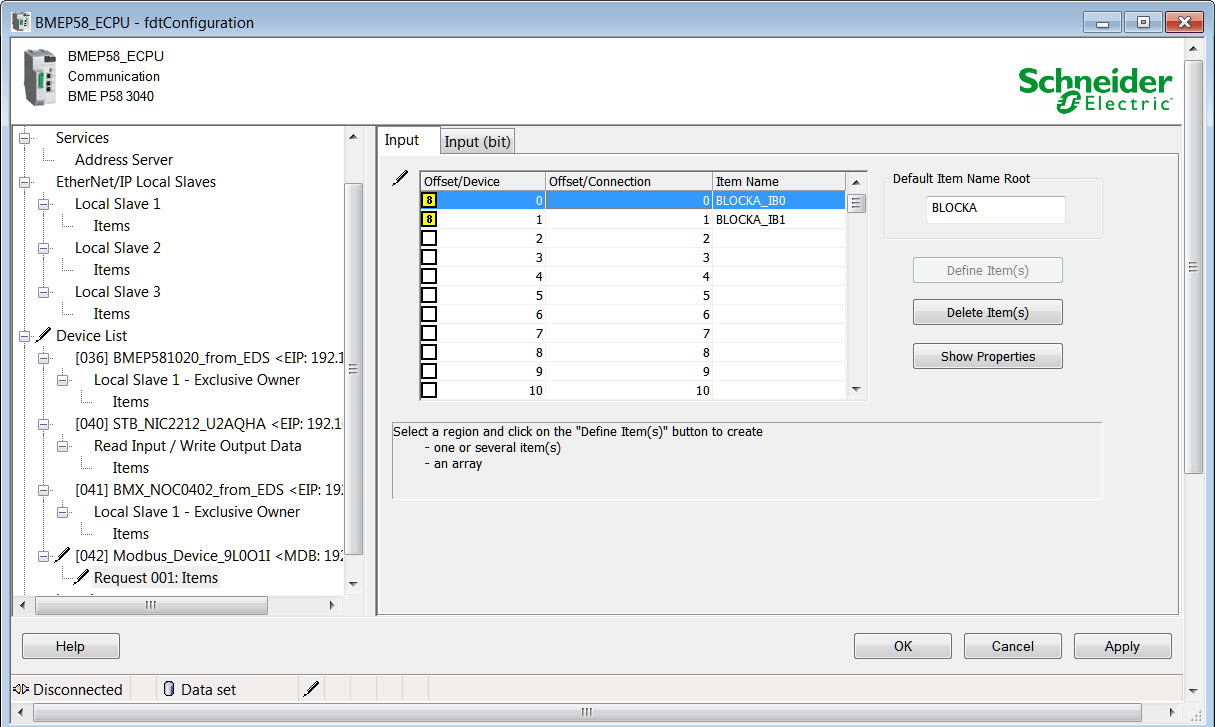
Open the Data Editor.
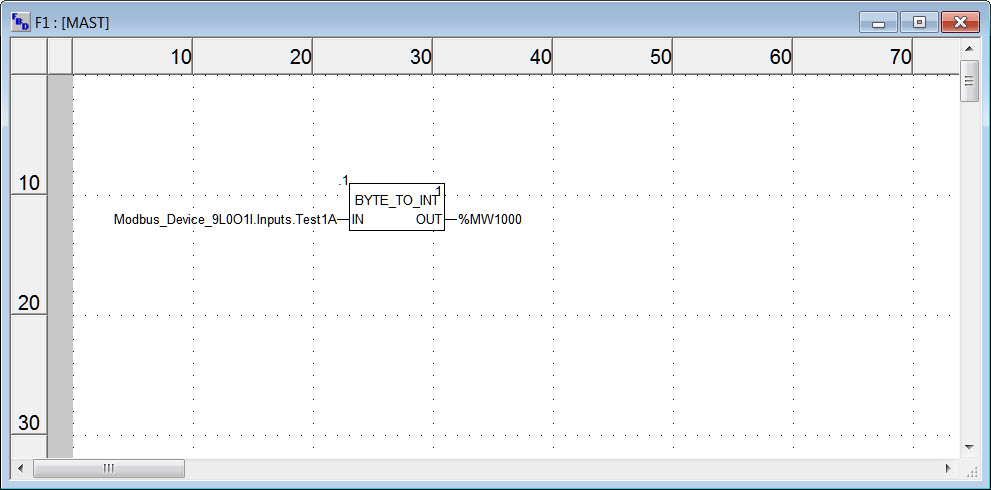
If you try to assign a %MW variable to the Device DDT variable, it will fail.
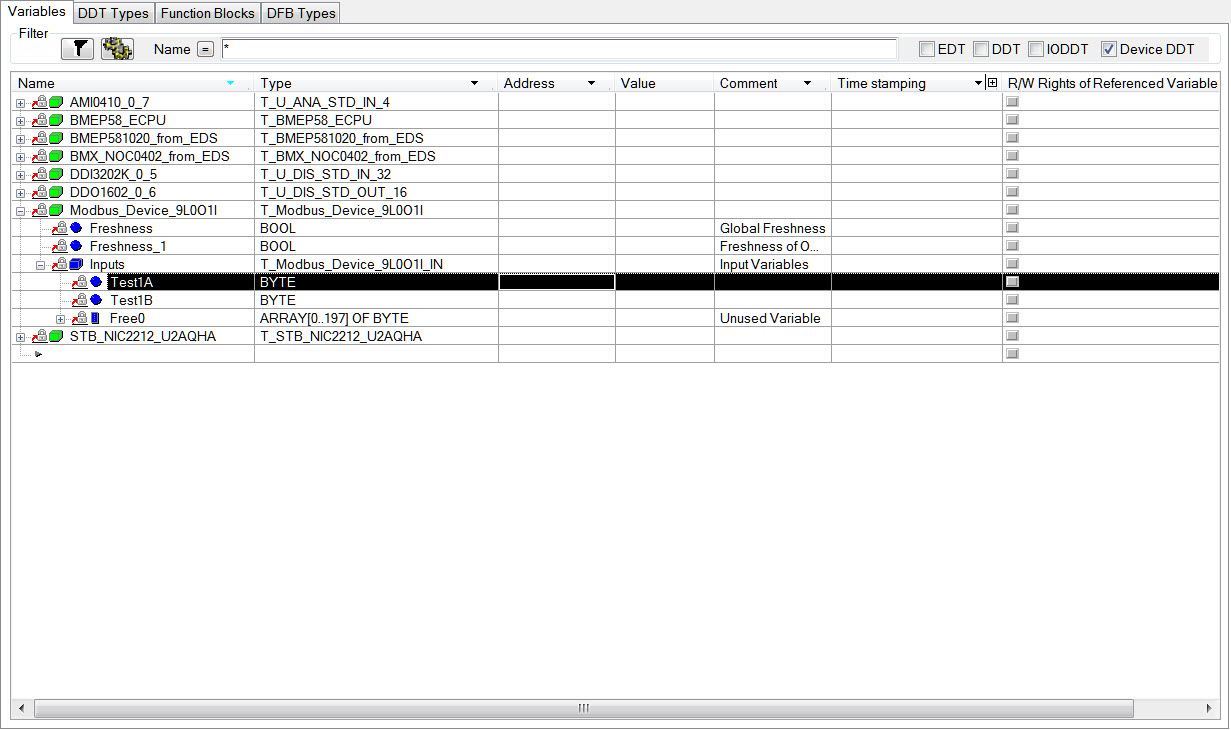
Note: In order to assign a register to the Device DDT variable, it must be converted to an INT.
How to create an IO scanner variable in the M580 DTM
Product Line
M580, EcoStruxure Control Expert (formerly know as Unity Pro)
Environment
Unity Pro v13.1, Windows 10 version 1902, BMEP583040 v2.70
Resolution
The following steps can be used to create an IO scanner variable in the M580 DTM.
- Open the DTM Browser.
- Right click on the M580 and select Add.
- Click on Modbus Device in the Add window.
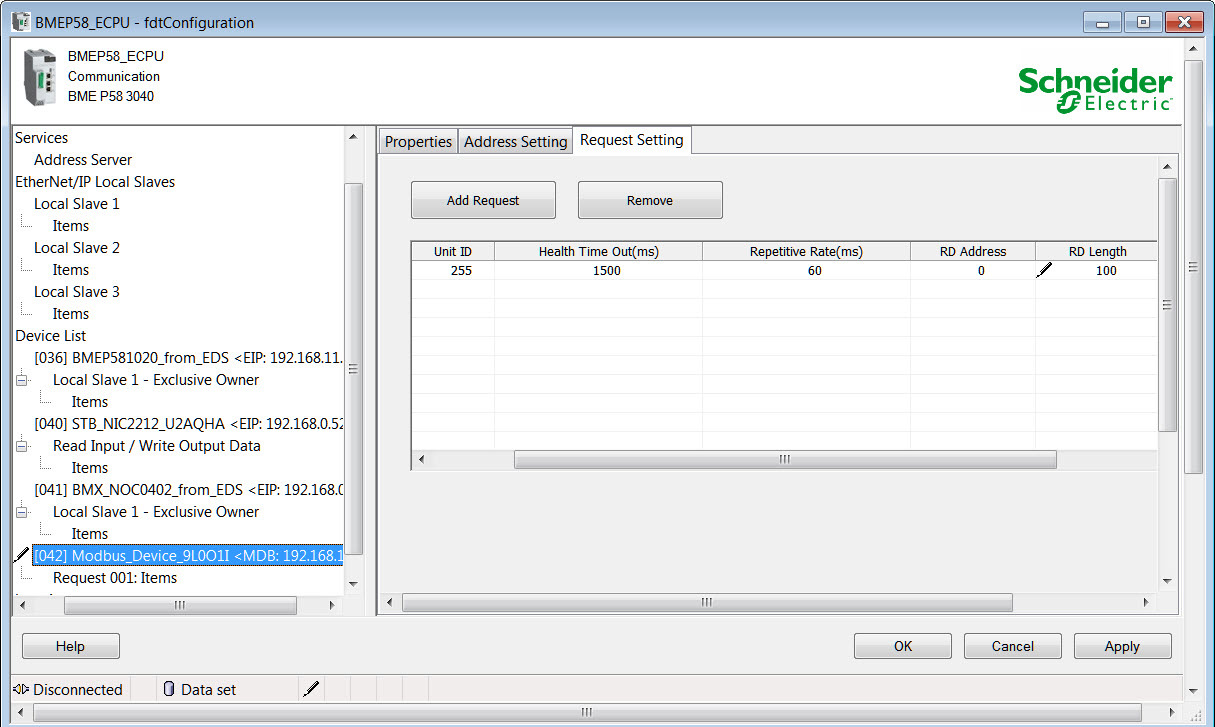
- Click on Add Request to add an item in the Request Setting table (i.e., add a request for a length of 100)
- Click on Apply.
- Click on OK.
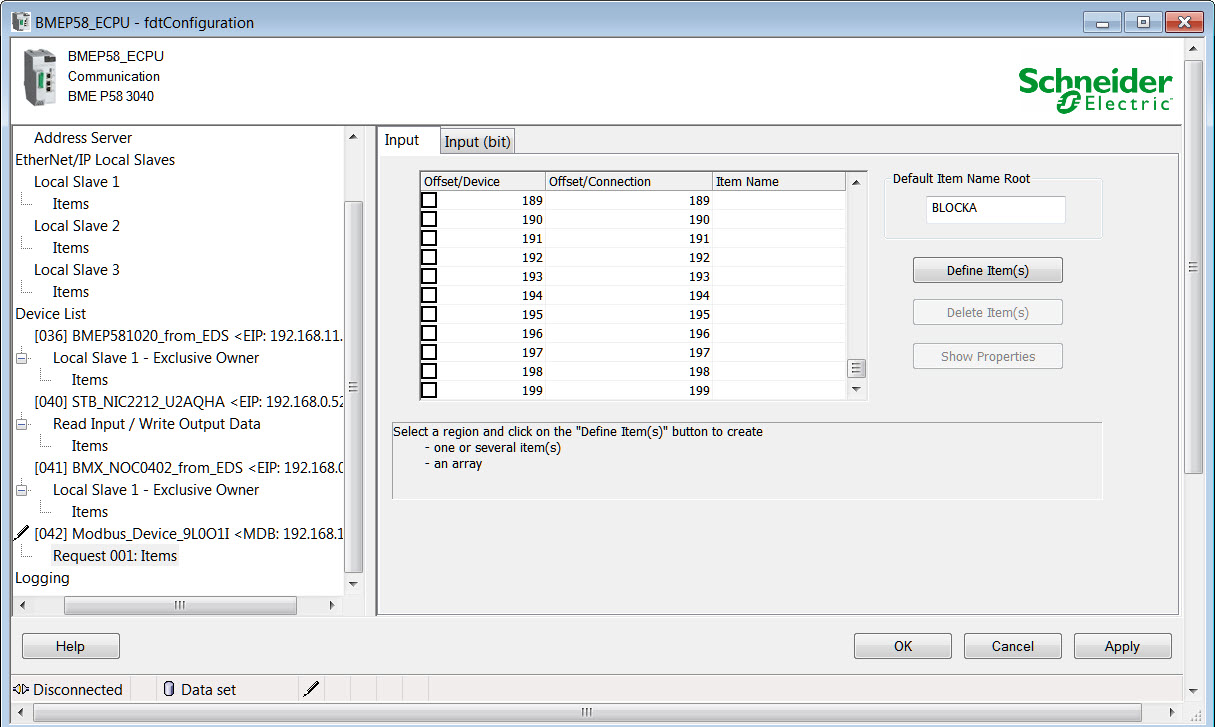
- Click on Request Items
- If you scroll through the list, it will show 200 items. (2 bytes per word) for both the Input and Output tab
- Click on a line item to select it.
- Click on Define Item(s).
- Select a variable type.
- Enter a name for the variable.
- Click on OK.
- Click Apply.
Open the Data Editor.
If you try to assign a %MW variable to the Device DDT variable, it will fail.
Note: In order to assign a register to the Device DDT variable, it must be converted to an INT.