


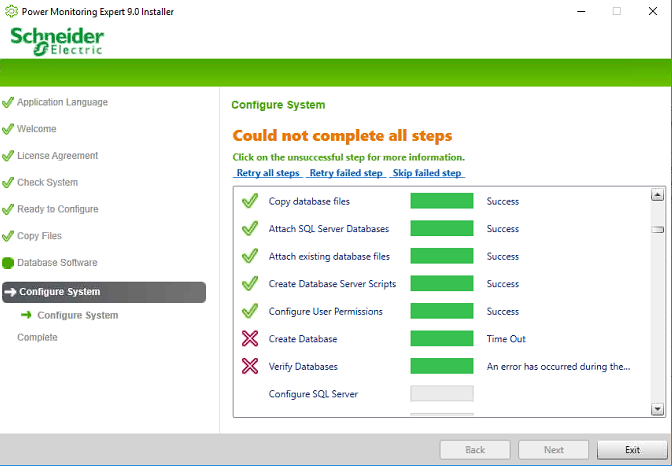
PME upgrade times out at 'Create Database' step, fails at 'Verify Databases' step
Issue
When upgrading to PME from an earlier version, the 'Create Database' step times out, causing the 'Verify Databases' step to fail.
Product Line
Power Monitoring Expert 9.x
Power Monitoring Expert 2020
Power Monitoring Expert 2021
Power Monitoring Expert 2022
Power Monitoring Expert 2023
Environment
Software Upgrade
Cause
The default timeout for the 'Create Database' step is 20 minutes for PME 9.0 and 30 minutes for PME 2020 and later versions. If the databases are large, it can sometimes take longer than 30 minutes to finish upgrading the databases, resulting in this step timing out. Since the database upgrade doesn't complete, the installer does not pass the 'Verify Databases' step.
Resolution
*Warning: Take backups of any files prior to modifying them. Ensure the backups are in a location that will not be overwritten (i.e. the Desktop).
If Windows Authentication was used during Database Software step: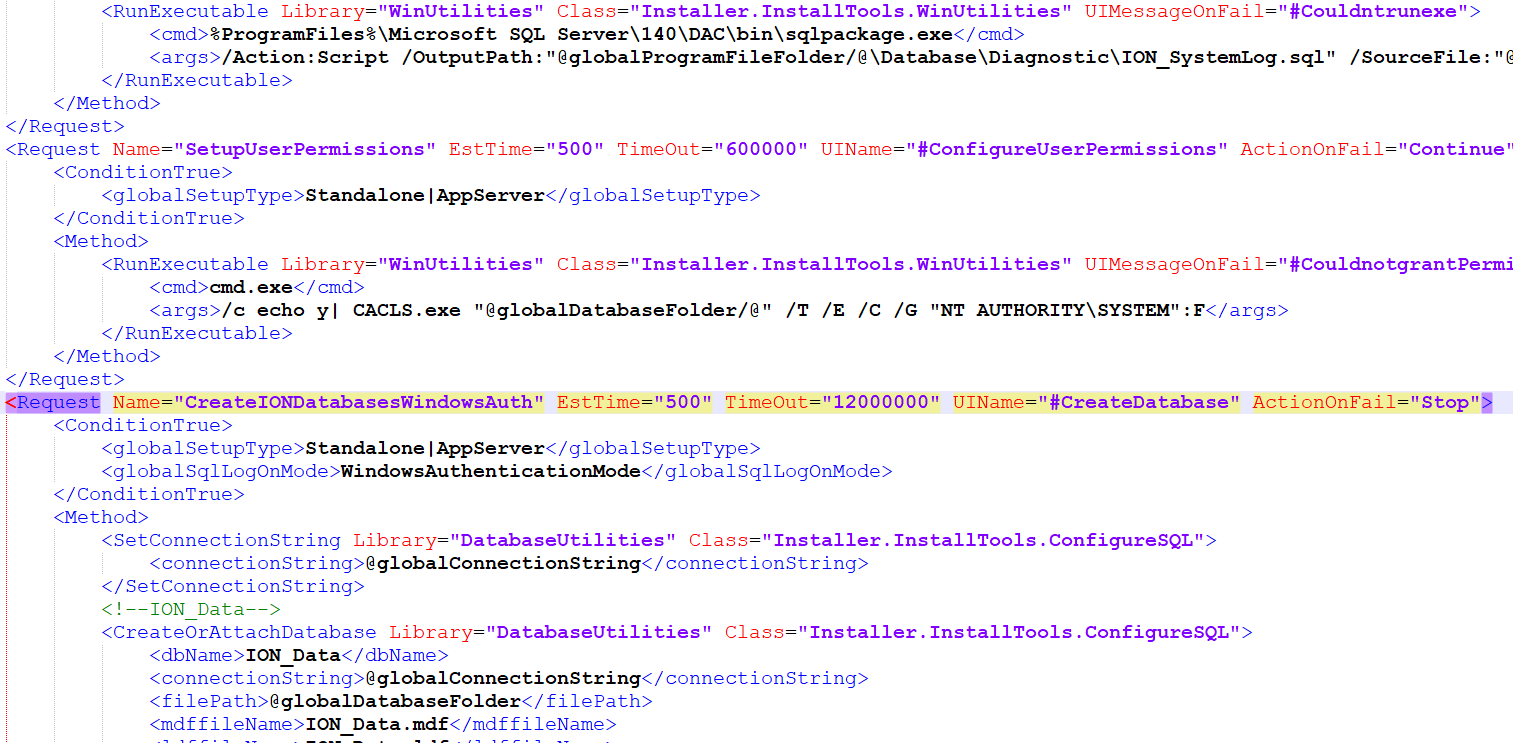
When upgrading to PME from an earlier version, the 'Create Database' step times out, causing the 'Verify Databases' step to fail.
Product Line
Power Monitoring Expert 9.x
Power Monitoring Expert 2020
Power Monitoring Expert 2021
Power Monitoring Expert 2022
Power Monitoring Expert 2023
Environment
Software Upgrade
Cause
The default timeout for the 'Create Database' step is 20 minutes for PME 9.0 and 30 minutes for PME 2020 and later versions. If the databases are large, it can sometimes take longer than 30 minutes to finish upgrading the databases, resulting in this step timing out. Since the database upgrade doesn't complete, the installer does not pass the 'Verify Databases' step.
Resolution
*Warning: Take backups of any files prior to modifying them. Ensure the backups are in a location that will not be overwritten (i.e. the Desktop).
- Click Exit and close out of the installer
- The installation media cannot normally be edited, so either copy the install disc to the hard drive or download and extract the PME installer .iso using a .iso file extractor (e.g. 7-Zip)
- Navigate to setup\ BrokerFragments
- Right-click > Edit the Database.Core.broker.xml file
If Windows Authentication was used during Database Software step:
- Locate the following line, where the current 'TimeOut' is set to 1200000 ms, or 20 minutes:
<Request Name="CreateIONDatabasesWindowsAuth" EstTime="500" TimeOut="1200000" UIName="#CreateDatabase" ActionOnFail="Stop">
- Change the 'TimeOut' parameter to 12000000 ms, or 200 minutes:
<Request Name="CreateIONDatabasesWindowsAuth" EstTime="500" TimeOut="12000000" UIName="#CreateDatabase" ActionOnFail="Stop">
- Save the Database.Core.broker.xml file
- Navigate back to the root directory of the extracted installation media, then right-click MainSetup.exe > Run as Administrator to re-run the installer with the new timeout setting
- Locate the following line, where the current 'TimeOut' is set to 1200000 ms, or 20 minutes:
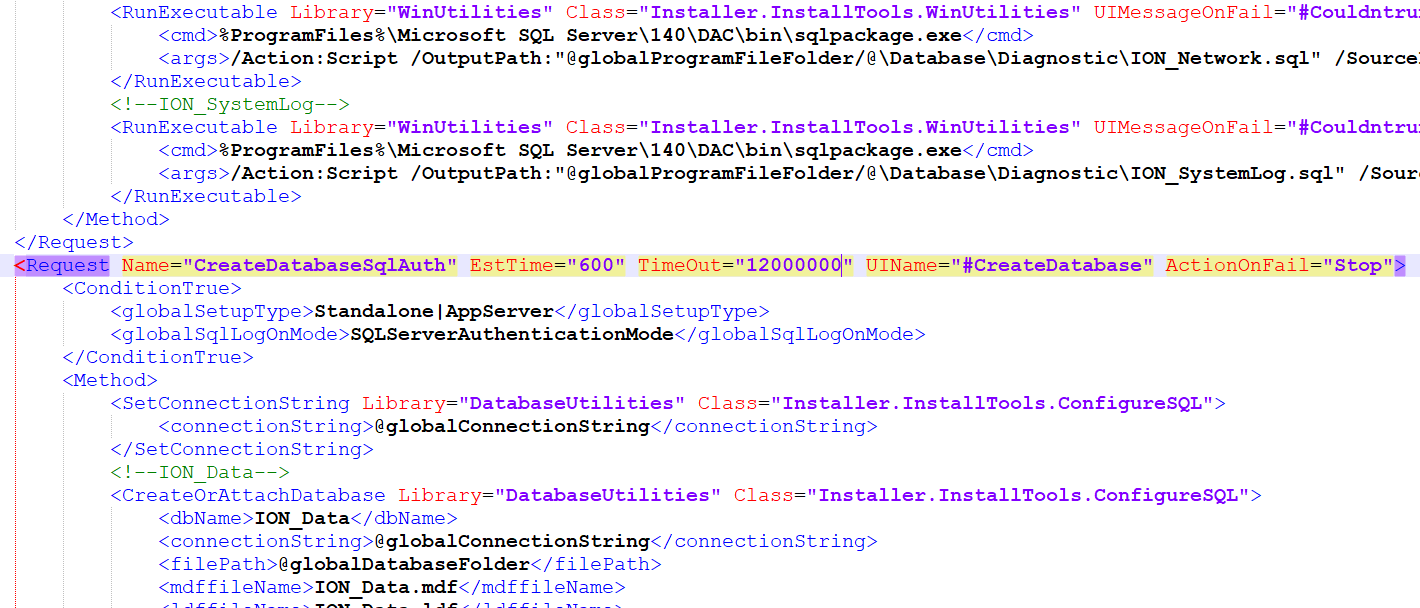
<Request Name="CreateIONDatabasesSqlAuth" EstTime="500" TimeOut="1200000" UIName="#CreateDatabase" ActionOnFail="Stop">
- Change the 'TimeOut' parameter to 12000000 ms, or 200 minutes:
<Request Name="CreateIONDatabasesSqlAuth" EstTime="500" TimeOut="12000000" UIName="#CreateDatabase" ActionOnFail="Stop">
- Save the Database.Core.broker.xml file
- Navigate back to the root directory of the extracted installation media, then right-click MainSetup.exe > Run as Administrator to re-run the installer with the new timeout setting