


How do I connect to a PLC from EcoStruxure Machine Expert through a VPN?
Issue
I am trying to connect and download an application to a PLC programmed by EcoStruxure Machine Expert through a VPN. What are the steps to perform this action?
Product Line
EcoStruxure Machine Expert
Environment
PLC programming software in Windows, PLC on the other side of a Virtual Private Network
Resolution
To connect from your Machine Expert to a PLC through a VPN, you will need to use the Static Remote Connection feature of the Gateway Management Console:
1) Open the Gateway Management Console (you can find it by just clicking on the Windows Start bar and typing "Gateway Management Console" or from the taskbar menu icon.
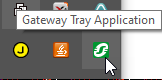
2) Go to the "Static Remote Connections" tab and type in the the IP Address of the PLC in the Remote IP address field followed by the port 1105.
Example: 10.0.0.241:1105
3) Click Add connection
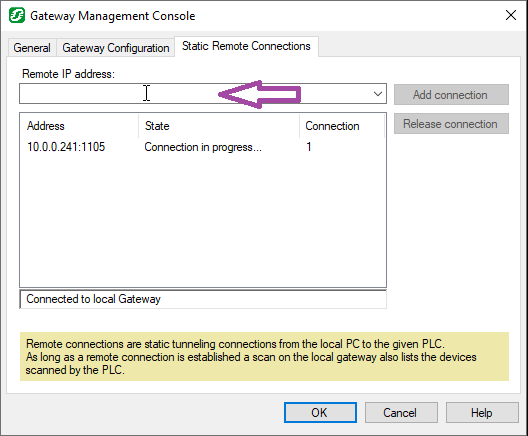
4) Click OK to close the dialog
5) In Machine Expert Logic Builder -> Devices Tree -> Double-click on the name of your PLC to bring up the Controller Selection screen.
This is where the list of all your PLCs on the network are.
6) Press the refresh button at the top of the Controller Selections screen
7) If you do not see the PLC appear, use the Connection Mode: Nodename via NAT (Remote TCP)
You will have to enter a NAT Address of Gateway address on the same internal network of the PLC and you will have to enter the Target Nodename which comprises of:
<Exact Model number><Space>@<MACAddress with no dashes>

8) Click the Test button
9) Refresh the Controller Selection screen
10) Once the PLC appears in the Controller Selection screen, double-click on it to make the text appear bold. This will indicate the desired PLC to be downloaded to or logged into.
11) Then login or download your application to the PLC as desired.
I am trying to connect and download an application to a PLC programmed by EcoStruxure Machine Expert through a VPN. What are the steps to perform this action?
Product Line
EcoStruxure Machine Expert
Environment
PLC programming software in Windows, PLC on the other side of a Virtual Private Network
Resolution
To connect from your Machine Expert to a PLC through a VPN, you will need to use the Static Remote Connection feature of the Gateway Management Console:
1) Open the Gateway Management Console (you can find it by just clicking on the Windows Start bar and typing "Gateway Management Console" or from the taskbar menu icon.
2) Go to the "Static Remote Connections" tab and type in the the IP Address of the PLC in the Remote IP address field followed by the port 1105.
Example: 10.0.0.241:1105
3) Click Add connection
4) Click OK to close the dialog
5) In Machine Expert Logic Builder -> Devices Tree -> Double-click on the name of your PLC to bring up the Controller Selection screen.
This is where the list of all your PLCs on the network are.
6) Press the refresh button at the top of the Controller Selections screen
7) If you do not see the PLC appear, use the Connection Mode: Nodename via NAT (Remote TCP)
You will have to enter a NAT Address of Gateway address on the same internal network of the PLC and you will have to enter the Target Nodename which comprises of:
<Exact Model number><Space>@<MACAddress with no dashes>
8) Click the Test button
9) Refresh the Controller Selection screen
10) Once the PLC appears in the Controller Selection screen, double-click on it to make the text appear bold. This will indicate the desired PLC to be downloaded to or logged into.
11) Then login or download your application to the PLC as desired.