


How to create a new electrical switchboard in EcoStruxure Power Build Easy Series application
Issue: Steps toCreate an electrical switchboard in EcoStruxure Power Build Easy Series
Product Line: EcoStruxure Power Build easy Series.
Resolution:
Step 1: After you save your project it will redirect you to switchboard section which rolls over to “Switchboards” tab
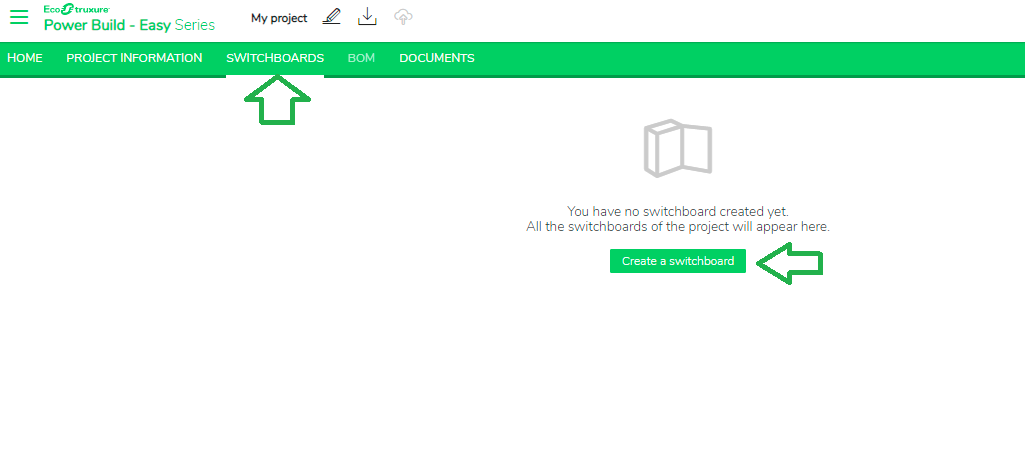
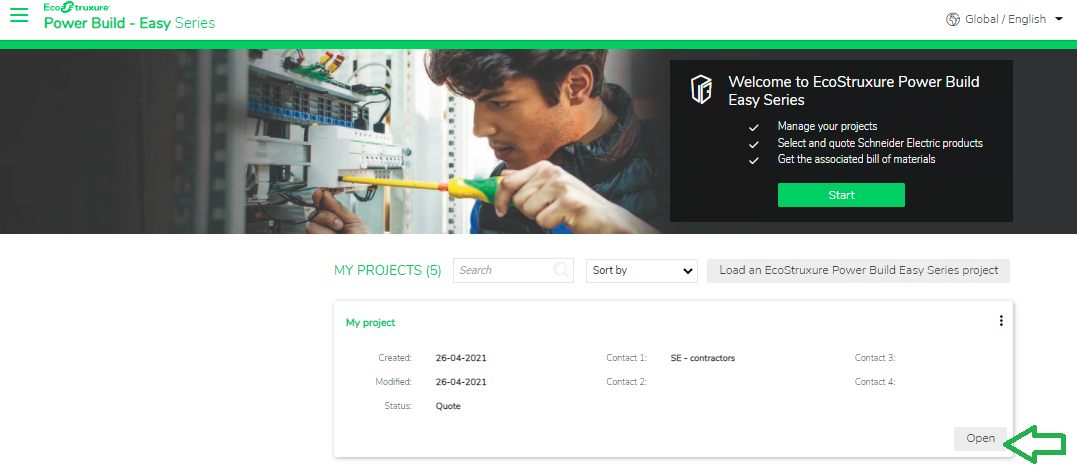
Step 2: You can also create a new switchboard after opening an existing project. This will redirect you to Switchboard page.
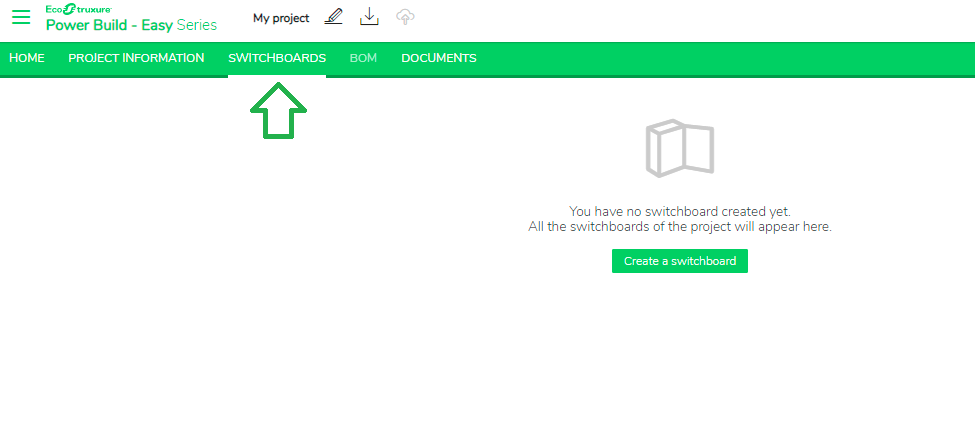
Step 3: If you don't have any switchboard for your project, you can create a new one by clicking the 'Create a switchboard' button.
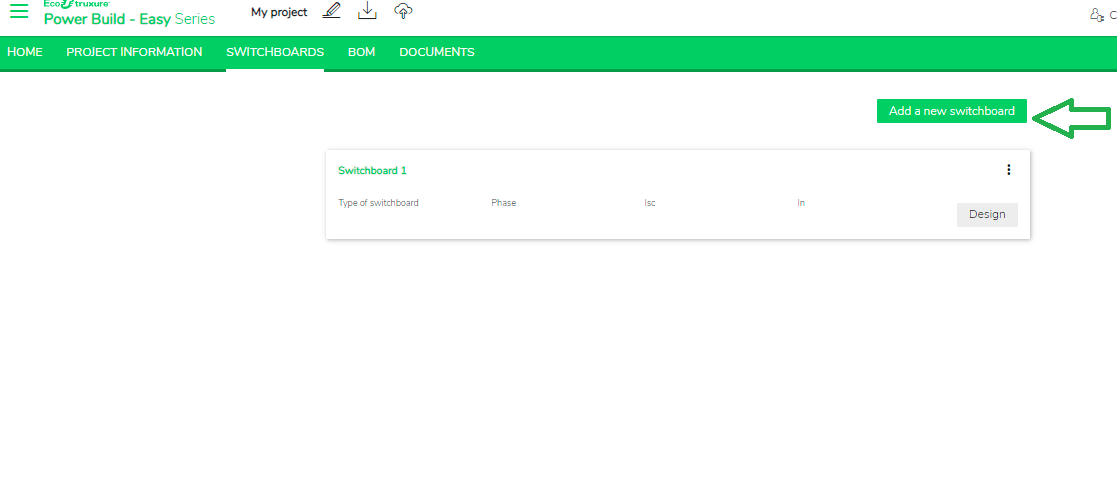
Step 4: If you already have switchboards for your project, you can create a new one by clicking the 'Add a new switchboard' button.
Product Line: EcoStruxure Power Build easy Series.
Resolution:
Step 1: After you save your project it will redirect you to switchboard section which rolls over to “Switchboards” tab
Step 2: You can also create a new switchboard after opening an existing project. This will redirect you to Switchboard page.
Step 3: If you don't have any switchboard for your project, you can create a new one by clicking the 'Create a switchboard' button.
Step 4: If you already have switchboards for your project, you can create a new one by clicking the 'Add a new switchboard' button.