


How to edit or copy a file to or from the PowerChute Network Shutdown Linux VM from a Windows OS.
Issue:
Need to edit or copy a file to or from the PowerChute Linux VM using an application on a Windows OS.
Product:
PowerChute Network Shutdown
Environment:
PowerChute Network Shutdown Linux VM
Microsoft Windows Desktop OS or Server with GUI and text editor application, e.g., Notepad, Word
and SCP application, e.g., WinSCP, Filezilla
Cause:
Informational
Solution:
SSH must be enabled on the PowerChute VM to allow the connection from the Windows system.
To verify SSH has been enabled on the VM, log into the VM as root and enter the command systemctl status sshd. To return to the terminal prompt, enter Ctrl C.
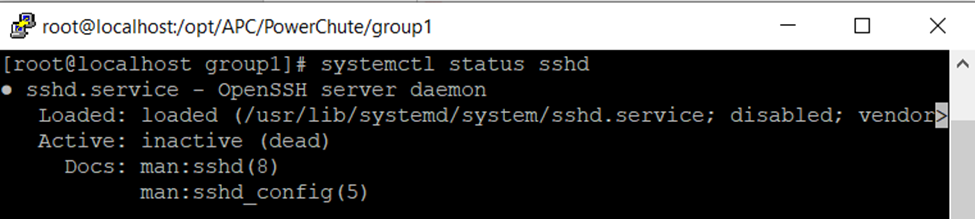
In the example above, the connection failed because SSH was inactive on the PowerChute VM.
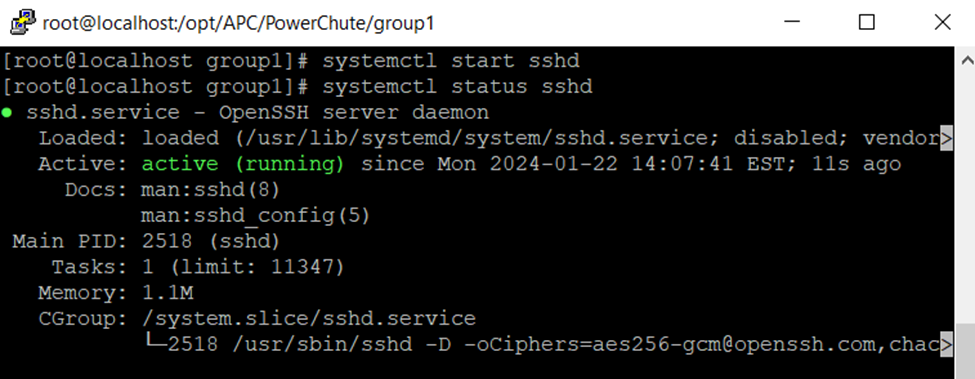
To start SSH, enter the command systemctl start sshd,then enter the command systemctl status sshd to verify the service started.
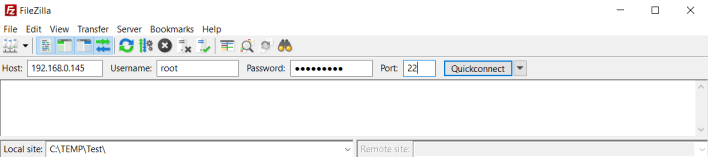
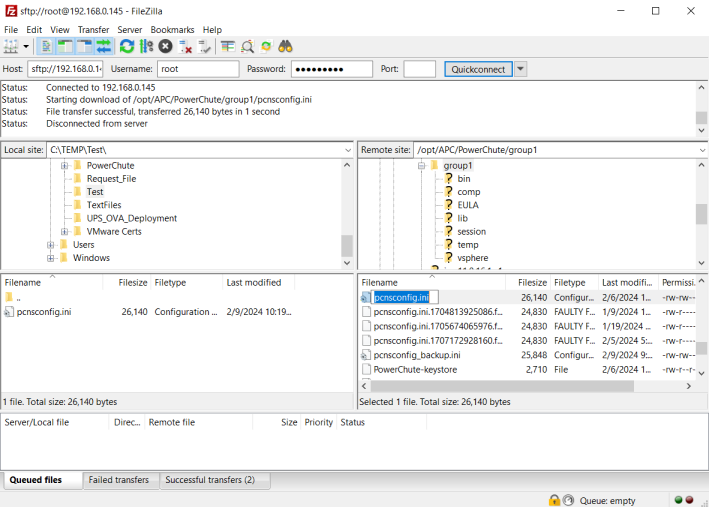
Next, launch Winscp or Filezilla on the Windows system and enter the PowerChute VM's IP address, or domain name, and login credentials. In the example below, we used Filezilla to log into the VM.
Note: The default port is 22.
Next, in the right panel, navigate to the file you would like to edit or copy. The default path for PowerChute is /opt/APC/PowerChute/group1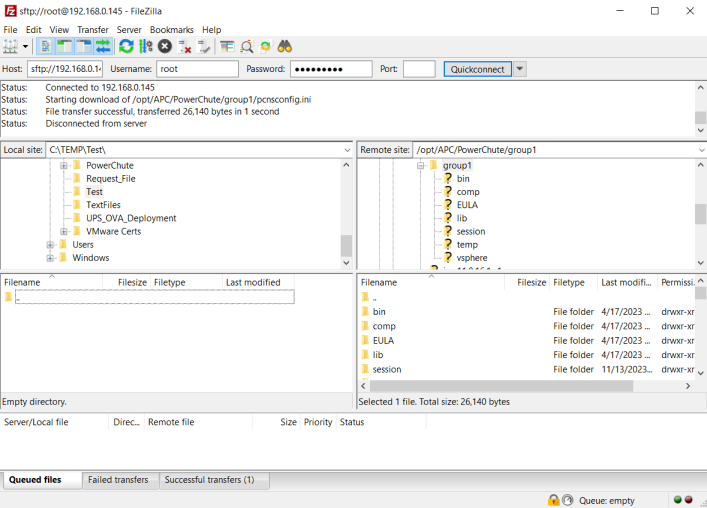
To copy a file on the PowerChute VM to the Windows system, select the file in the right panel and drag and drop the file onto the left panel.
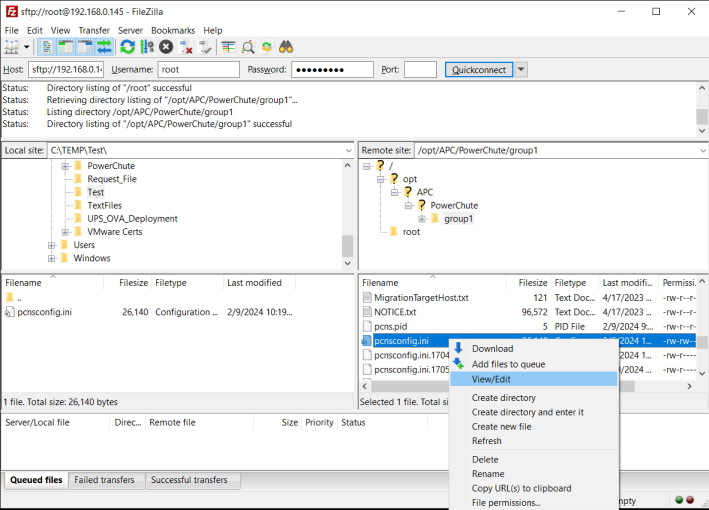
To edit a file on the PowerChute VM right click on the file and select View/Edit to open the file with a text editor.
When the edits have been made save the file. You will then be asked to upload the file back to the server. Select "Finish editing and delete local file", then click Yes. 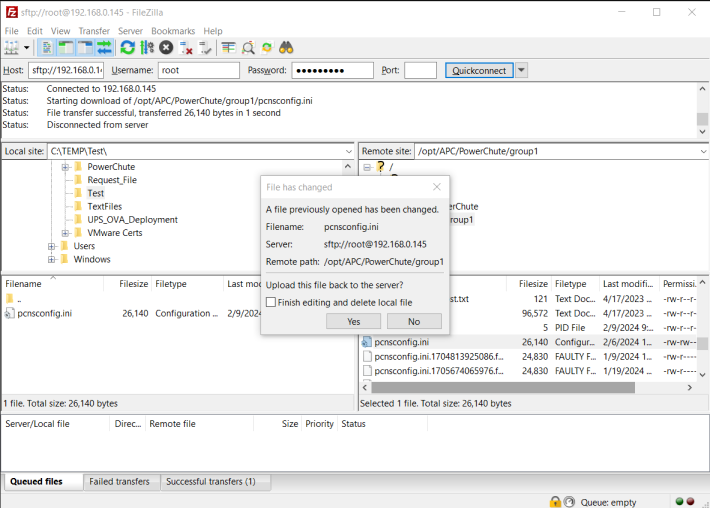
Need to edit or copy a file to or from the PowerChute Linux VM using an application on a Windows OS.
Product:
PowerChute Network Shutdown
Environment:
PowerChute Network Shutdown Linux VM
Microsoft Windows Desktop OS or Server with GUI and text editor application, e.g., Notepad, Word
and SCP application, e.g., WinSCP, Filezilla
Cause:
Informational
Solution:
SSH must be enabled on the PowerChute VM to allow the connection from the Windows system.
To verify SSH has been enabled on the VM, log into the VM as root and enter the command systemctl status sshd. To return to the terminal prompt, enter Ctrl C.
In the example above, the connection failed because SSH was inactive on the PowerChute VM.
To start SSH, enter the command systemctl start sshd,then enter the command systemctl status sshd to verify the service started.
Next, launch Winscp or Filezilla on the Windows system and enter the PowerChute VM's IP address, or domain name, and login credentials. In the example below, we used Filezilla to log into the VM.
Note: The default port is 22.
Next, in the right panel, navigate to the file you would like to edit or copy. The default path for PowerChute is /opt/APC/PowerChute/group1
To copy a file on the PowerChute VM to the Windows system, select the file in the right panel and drag and drop the file onto the left panel.
To edit a file on the PowerChute VM right click on the file and select View/Edit to open the file with a text editor.
When the edits have been made save the file. You will then be asked to upload the file back to the server. Select "Finish editing and delete local file", then click Yes.