


How to work on project SSD file which was created in older version of EcoStruxure Power Build – Rapsody
Issue: How to work on old project SSD file created in a version older than V2.1.X.
Product line: EcoStruxure Power Build – Rapsody
Note: It is recommended to make a backup of original SSD project file before working on it
Resolution: There are 2 option to work on old project SSD file.
Option 1:
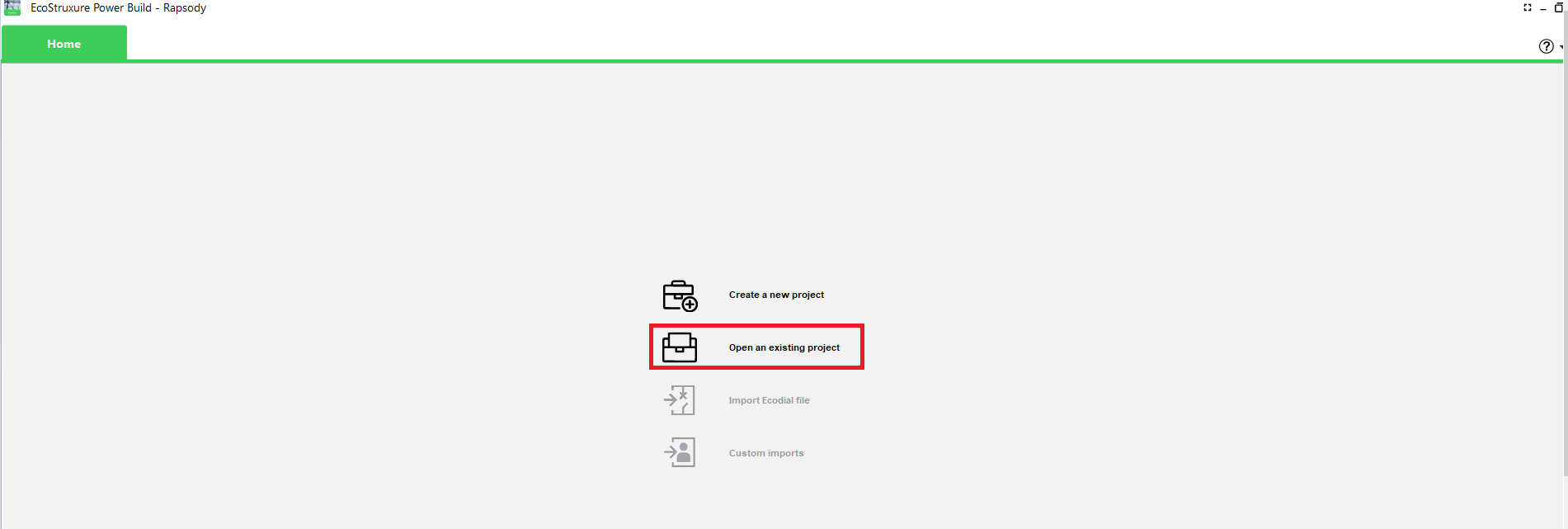
Step1: If the project SSD file was created in a version V2.1.X then, user can use the option “Open an Existing Project” to import the project into Rapsody software.
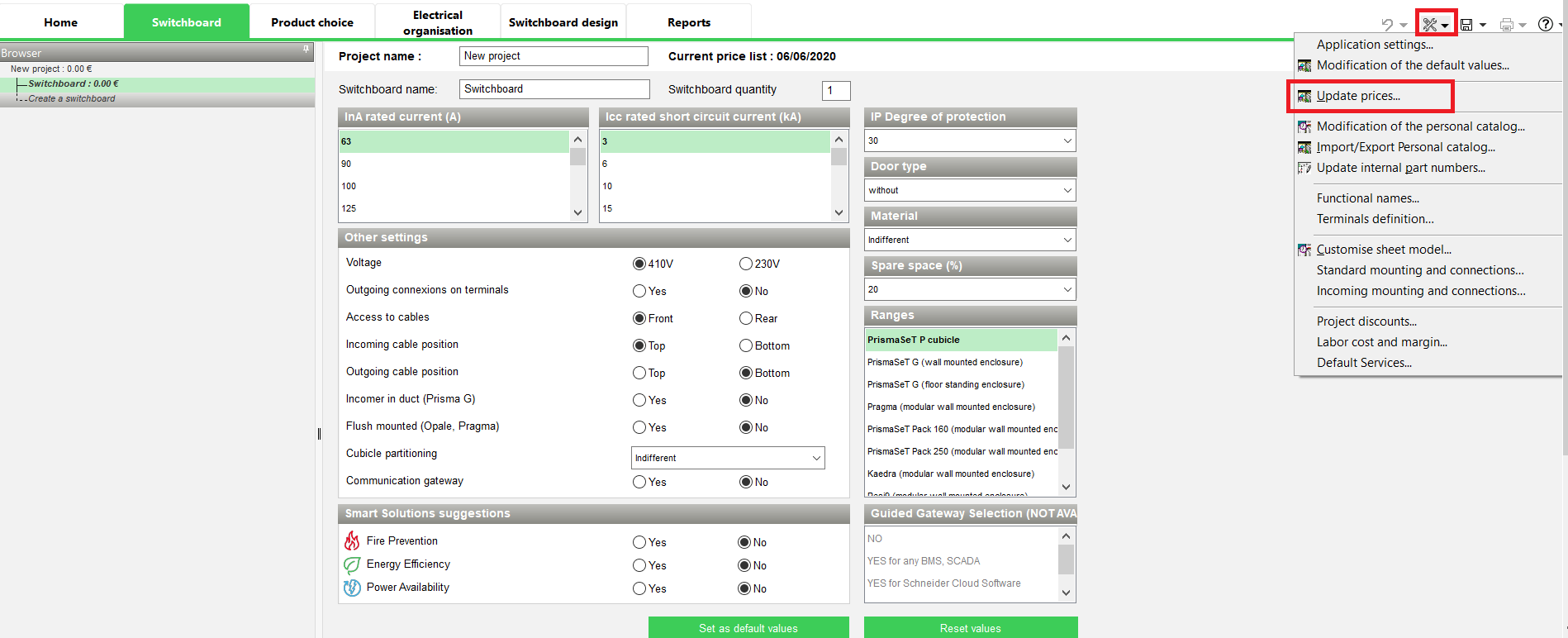
Step2: Update project & prices.
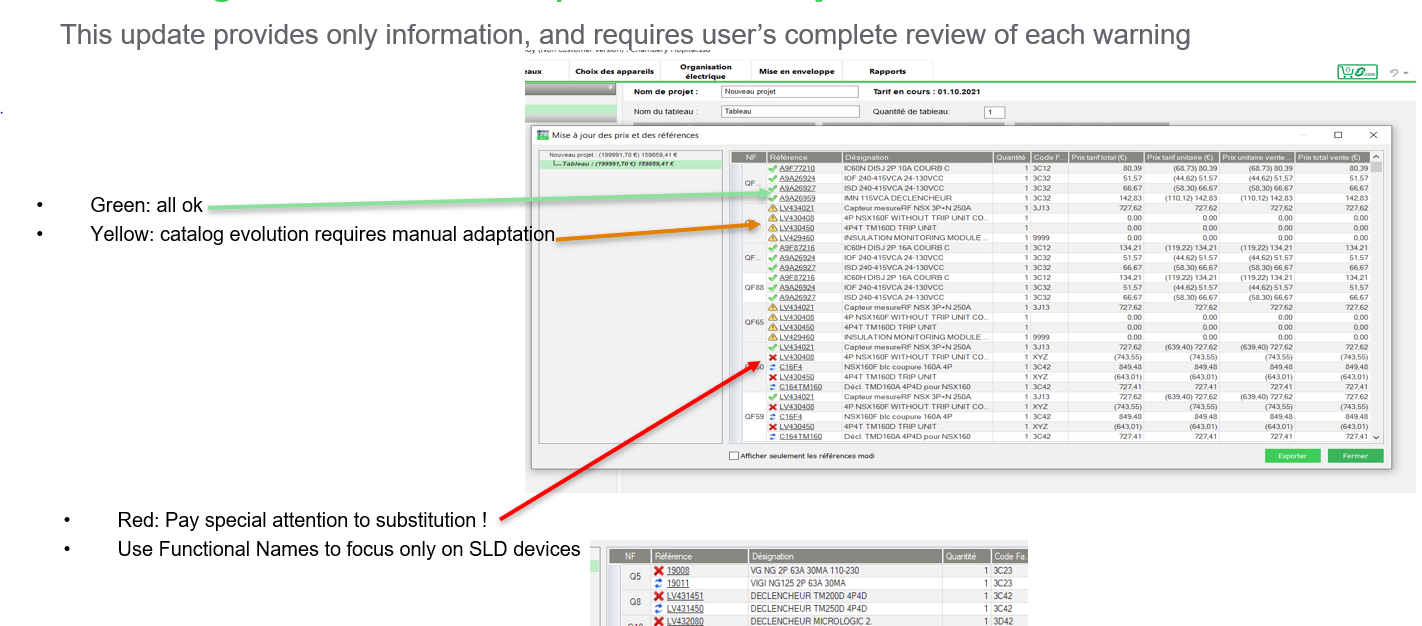
Step3: Clean the references which may show “Warning” sign in Product Choice tab and remove if any blank line present. (as shown below)
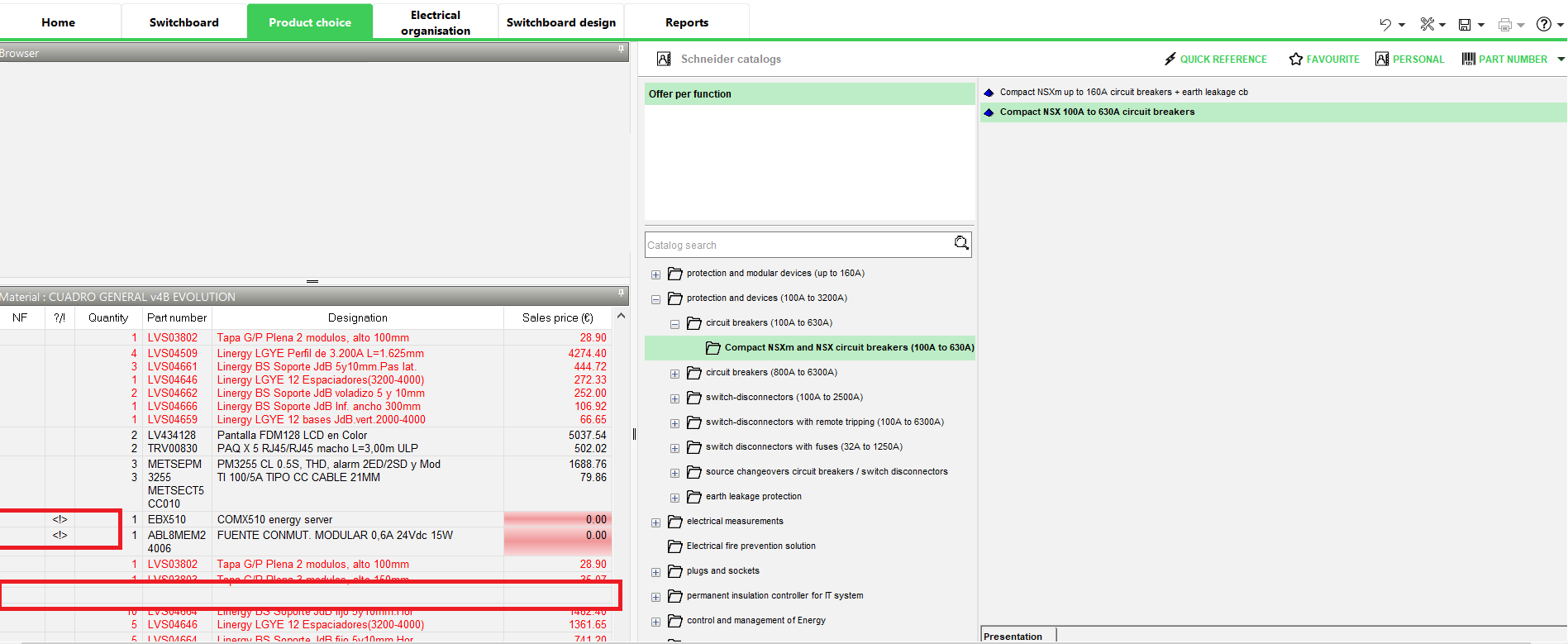
Once the project references are cleaned, update the price again (step 2) to verify no more warning signs for references and then save the project before switchboard design.
Option 2:
If the project SSD is created prior to version 2.1.x and user wants to re-work on it. Then user should follow the below steps:
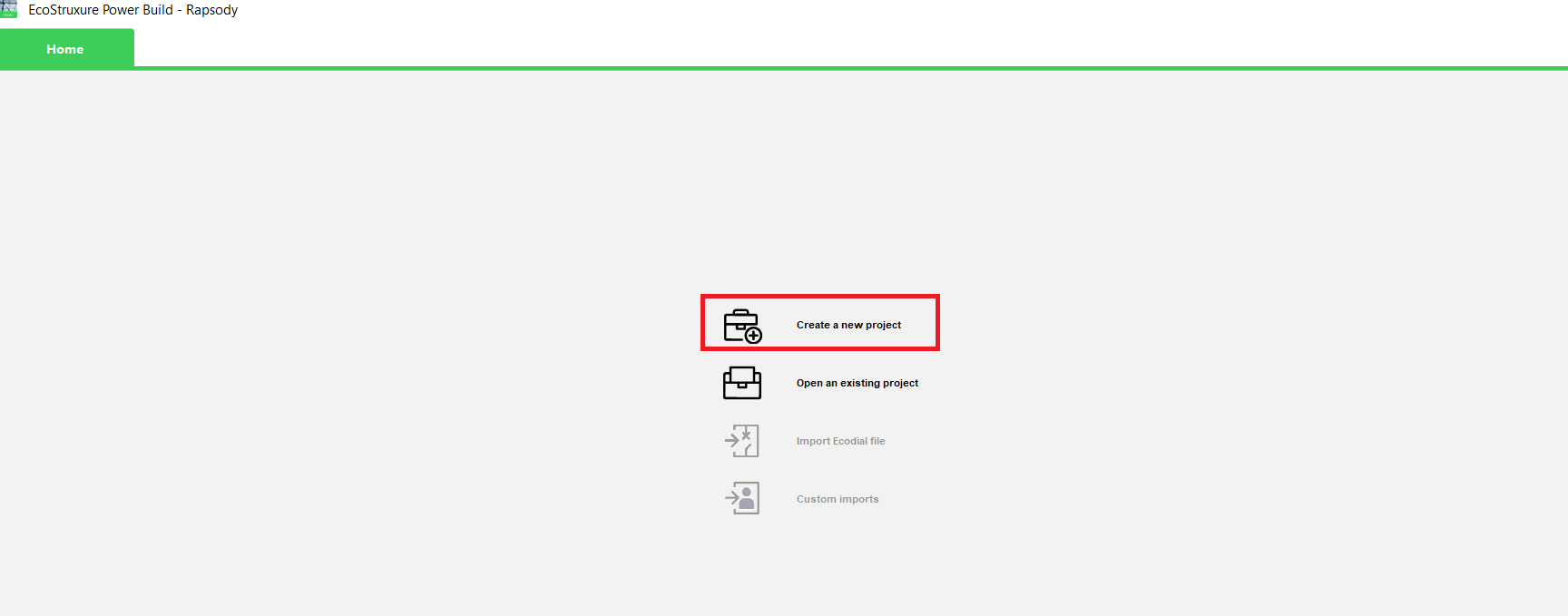
Step 1: Launch the EcoStruxure Power Build – Rapsody software and click on “Create a new Project”
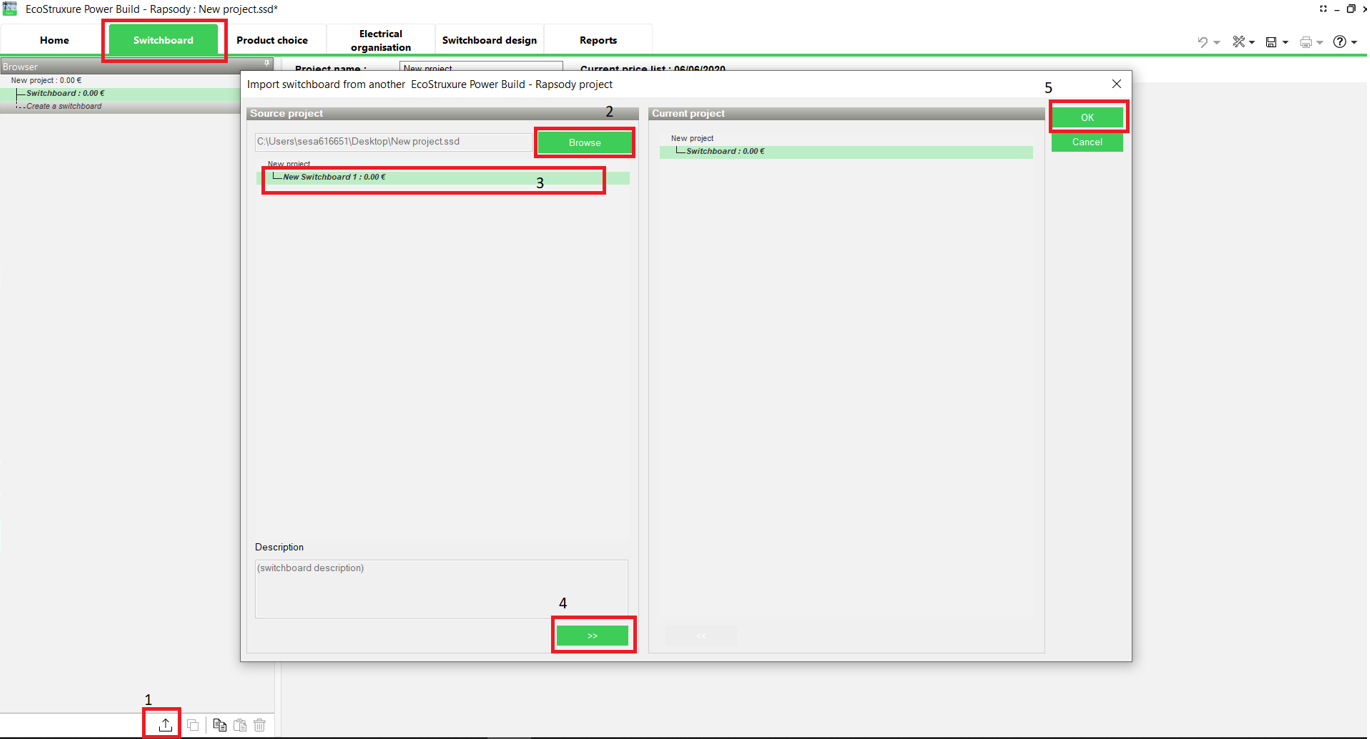
Step 2: On Switchboard Tab, import the switchboard from the old SSD. If there are multiple switchboards in project, then import one switchboard and follow Step 2 from option 1 and clean the switchboard and save the project.
Step 3: Once the first switchboard references are cleaned, import another switchboard from the old SSD and repeat the process to clean the switchboard.
Step 4: Once all the switchboards are cleaned and references are corrected, save the project and proceed to Switchboard design.
Product line: EcoStruxure Power Build – Rapsody
Note: It is recommended to make a backup of original SSD project file before working on it
Resolution: There are 2 option to work on old project SSD file.
Option 1:
Step1: If the project SSD file was created in a version V2.1.X then, user can use the option “Open an Existing Project” to import the project into Rapsody software.
Step2: Update project & prices.
Step3: Clean the references which may show “Warning” sign in Product Choice tab and remove if any blank line present. (as shown below)
Once the project references are cleaned, update the price again (step 2) to verify no more warning signs for references and then save the project before switchboard design.
Option 2:
If the project SSD is created prior to version 2.1.x and user wants to re-work on it. Then user should follow the below steps:
Step 1: Launch the EcoStruxure Power Build – Rapsody software and click on “Create a new Project”
Step 2: On Switchboard Tab, import the switchboard from the old SSD. If there are multiple switchboards in project, then import one switchboard and follow Step 2 from option 1 and clean the switchboard and save the project.
Step 3: Once the first switchboard references are cleaned, import another switchboard from the old SSD and repeat the process to clean the switchboard.
Step 4: Once all the switchboards are cleaned and references are corrected, save the project and proceed to Switchboard design.