


When attempting to connect from EcoStruxure Machine Expert to a PLC or Simulator, the message "Gateway not configured properly" appears.
Issue
When attempting to connect from EcoStruxure Machine Expert to a PLC or Simulator, the message "Gateway not configured properly" appears.
Product Line
EcoStruxure Machine Expert
SoMachine
Resolution
There are a few known possible cases where this could occur:
Case 1: The Gateway service (CoDeSys Gateway V3) cannot be started because of a USB driver component that is not installed.
1) Attempt to Start the Gateway from the Gateway Management Console:
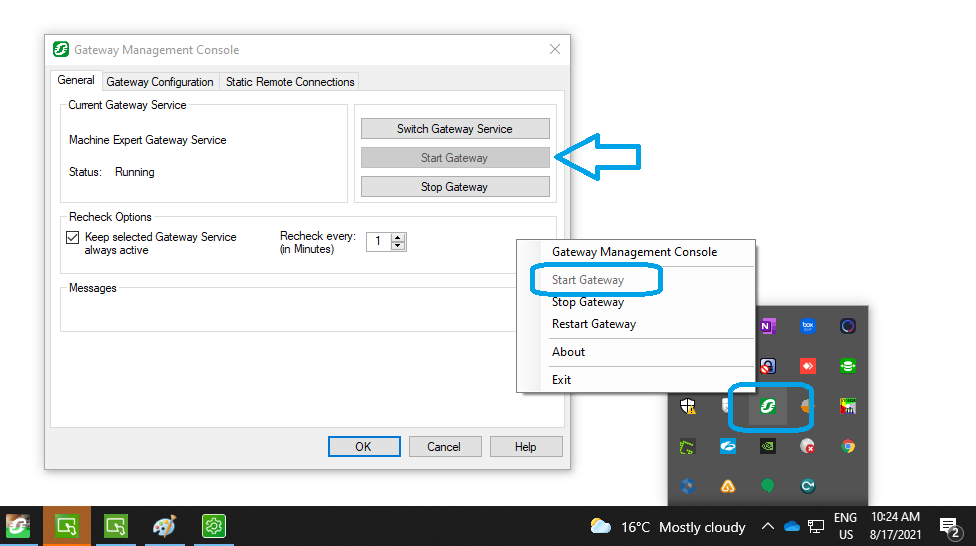
2) If the service Starts, then Case 1 is not the issue. If this does NOT start, it is possible that the XBTZG935 USB driver is not installed.
3) To install this driver, close all SoMachine and/or EcoStruxure Machine Expert instance(s), then go to Windows File Explorer to this path:
C:\Program Files (x86)\Schneider Electric\EcoStruxure Machine Expert\Tools\Gateway\Driver\XBTZG935Setup\
4) From there run xbtzg935setup.exe as Administrator.
5) Reboot the PC
6) Check Windows Services that the service "XBTZG935 USB Link Cable" is running:
7) Start EcoStruxure Machine Expert and refresh the Device Communication Settings
Case 2: EcoStruxure Machine Expert Logic Builder may not have Windows permissions to connect to the Gateway Console ("CoDeSys Gateway V3") Service.
Attempt to run EcoStruxure Machine Expert as Administrator and retry.
Case 3: There are multiple versions of EcoStruxure Machine Expert and/or SoMachine installed on the same Windows device.
When there are multiple versions of EcoStruxure Machine Expert/SoMachine installed on one machine, the Gateway is not overwritten by the LAST-installed software suite and running the last-installed Logic Builder may cause it not to recognize the older version of the Gateway service.
-> In this case, follow these steps:
1) Run either the SoMachine Configuration Manager or Schneider Electric Software Installer tool of the FIRST-installed software
2) Uninstall this version of SoMachine or EcoStruxure Machine Expert.
3) In your newest version of EcoStruxure Machine Expert, install the "Gateway" component (if you create a support ticket with tech support, they can provide you a separate installer package if needed)
4) Reinstall the older SoMachine or EcoStruxure Machine Expert that you uninstalled in Step 1
Case 4: The issue occurs only when using Simulation Mode.
In this case, try deleting the cache of the Simulator:
1) Close all instances of SoMachine and EcoStruxure Machine Expert
2) Delete the folder: C:\ProgramData\CODESYS\Simulation\
3) Launch SoMachine or EcoStruxure Machine Expert
4) Attempt to Login to your Simulator once again.
If the issue persists, contact Schneider Electric Technical Support for Industrial Automation for further assistance.
When attempting to connect from EcoStruxure Machine Expert to a PLC or Simulator, the message "Gateway not configured properly" appears.
Product Line
EcoStruxure Machine Expert
SoMachine
Resolution
There are a few known possible cases where this could occur:
Case 1: The Gateway service (CoDeSys Gateway V3) cannot be started because of a USB driver component that is not installed.
1) Attempt to Start the Gateway from the Gateway Management Console:
2) If the service Starts, then Case 1 is not the issue. If this does NOT start, it is possible that the XBTZG935 USB driver is not installed.
3) To install this driver, close all SoMachine and/or EcoStruxure Machine Expert instance(s), then go to Windows File Explorer to this path:
C:\Program Files (x86)\Schneider Electric\EcoStruxure Machine Expert\Tools\Gateway\Driver\XBTZG935Setup\
4) From there run xbtzg935setup.exe as Administrator.
5) Reboot the PC
6) Check Windows Services that the service "XBTZG935 USB Link Cable" is running:
7) Start EcoStruxure Machine Expert and refresh the Device Communication Settings
Case 2: EcoStruxure Machine Expert Logic Builder may not have Windows permissions to connect to the Gateway Console ("CoDeSys Gateway V3") Service.
Attempt to run EcoStruxure Machine Expert as Administrator and retry.
Case 3: There are multiple versions of EcoStruxure Machine Expert and/or SoMachine installed on the same Windows device.
When there are multiple versions of EcoStruxure Machine Expert/SoMachine installed on one machine, the Gateway is not overwritten by the LAST-installed software suite and running the last-installed Logic Builder may cause it not to recognize the older version of the Gateway service.
-> In this case, follow these steps:
1) Run either the SoMachine Configuration Manager or Schneider Electric Software Installer tool of the FIRST-installed software
2) Uninstall this version of SoMachine or EcoStruxure Machine Expert.
3) In your newest version of EcoStruxure Machine Expert, install the "Gateway" component (if you create a support ticket with tech support, they can provide you a separate installer package if needed)
4) Reinstall the older SoMachine or EcoStruxure Machine Expert that you uninstalled in Step 1
Case 4: The issue occurs only when using Simulation Mode.
In this case, try deleting the cache of the Simulator:
1) Close all instances of SoMachine and EcoStruxure Machine Expert
2) Delete the folder: C:\ProgramData\CODESYS\Simulation\
3) Launch SoMachine or EcoStruxure Machine Expert
4) Attempt to Login to your Simulator once again.
If the issue persists, contact Schneider Electric Technical Support for Industrial Automation for further assistance.
게시 대상: 슈나이더 일렉트릭 Korea

도움이 필요하신가요?
제품 선택기
애플리케이션에 적합한 제품과 액세서리를 빠르고 쉽게 찾을 수 있습니다.
견적 받기
영업 관련하여 온라인으로 문의하시면 전문가가 연락드립니다.
구매처
해당 지역의 가장 가까운 슈나이더 일렉트릭 대리점을 쉽게 찾을 수 있습니다.
지원 센터
한 곳에서 모든 요구 사항에 대한 지원 리소스를 찾아보십시오.