


Ecostruxure Process Expert[2021]: How to resolve Build error "file not found" of Control project.
This knowledge base article explains user on how to resolve Build error "file not found" of a Control project. This document is applicable for all versions of Ecostruxure Process Expert.
User had restored a EPE Project using DBK backup and tries to build Control project which fails with error "file not found" and also user is not able to open configuration from Topology.
In this case to get more information, please check the error in system server console which can be seen as below.

With this User can understand that the stu file is not compatible to open from Control Expert participant of Ecostruxure Process Expert. This can happen when the project backup taken from particular PC which has different version of DTM files than the current restored PC.
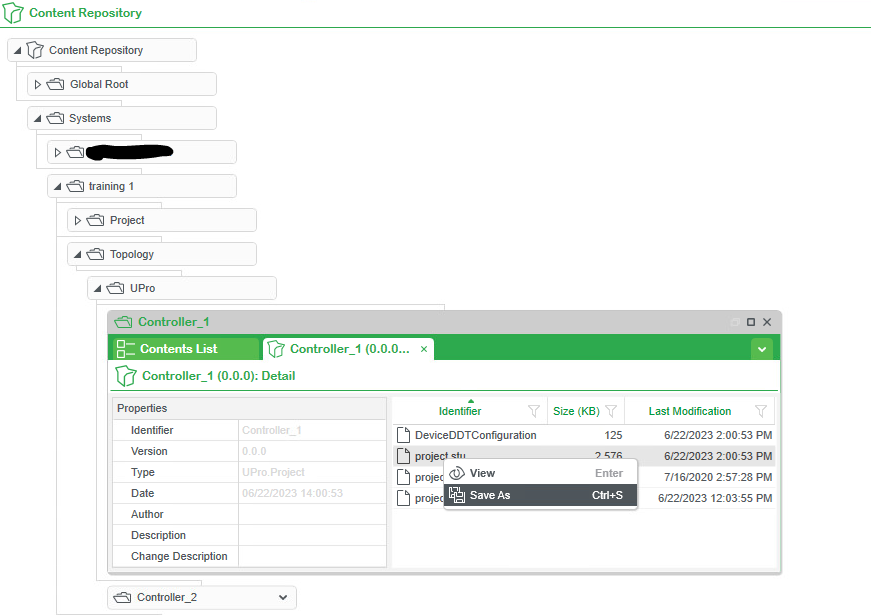
In order to get more details of DTM versions, please go to the content repository of particular project, navigate to Topology, then Upro and controller name. After that right click on single item and view details.
User can see some files including project.stu file. Right click on project.stu file and save the file from Topology to a known location as shown below.
Then try to open Project.stu file from control expert directly and the DTM validation popup will appear providing the details of DTM version of Project and DTM version on PC.
Therefore, install the required DTM version on the PC which will match with DTMs of Project and then the Control project will be Opened & Build without any issue and also Topology configure will be opened.
User had restored a EPE Project using DBK backup and tries to build Control project which fails with error "file not found" and also user is not able to open configuration from Topology.
In this case to get more information, please check the error in system server console which can be seen as below.
With this User can understand that the stu file is not compatible to open from Control Expert participant of Ecostruxure Process Expert. This can happen when the project backup taken from particular PC which has different version of DTM files than the current restored PC.
In order to get more details of DTM versions, please go to the content repository of particular project, navigate to Topology, then Upro and controller name. After that right click on single item and view details.
User can see some files including project.stu file. Right click on project.stu file and save the file from Topology to a known location as shown below.
Then try to open Project.stu file from control expert directly and the DTM validation popup will appear providing the details of DTM version of Project and DTM version on PC.
Therefore, install the required DTM version on the PC which will match with DTMs of Project and then the Control project will be Opened & Build without any issue and also Topology configure will be opened.