


Video: How to reset alarms/events on the MiCOM using MiCOM S1 Studio (Easergy Studio)?
Issue
Clearing alarms, faults and events from MiCOM devices
Product Line
MiCOM S1 Studio 4.0 and above
Easergy Studio
Resolution
Below is a video on Easergy Studio and also steps using MiCOM S1 Studio. They are both the exact same process.
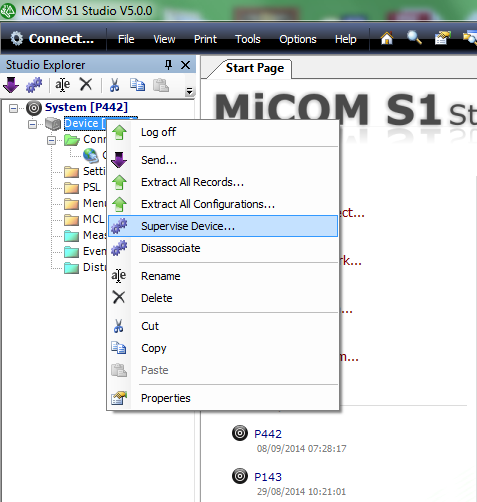
In S1 Studio right click on the device and select "Supervise Device".
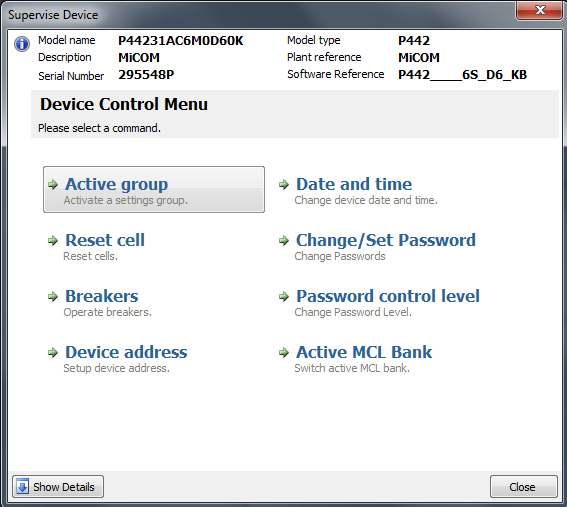
Once the "Supervise Device" box popup select "Reset Cell"
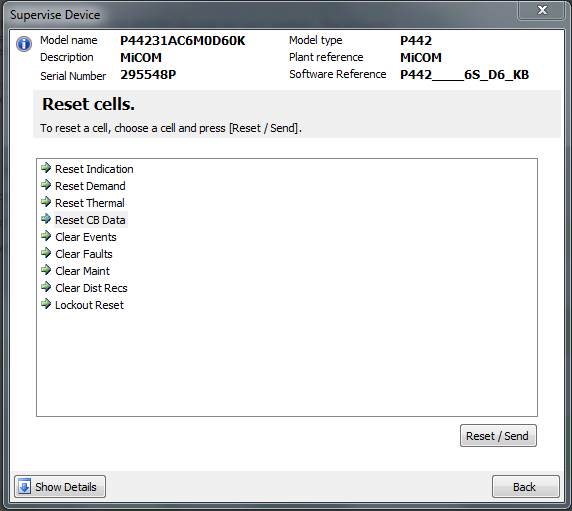
The "Reset Cell" box will popup. Choose the cell to reset and click "Reset/Send".
Clearing alarms, faults and events from MiCOM devices
Product Line
MiCOM S1 Studio 4.0 and above
Easergy Studio
Resolution
Below is a video on Easergy Studio and also steps using MiCOM S1 Studio. They are both the exact same process.
In S1 Studio right click on the device and select "Supervise Device".
Once the "Supervise Device" box popup select "Reset Cell"
The "Reset Cell" box will popup. Choose the cell to reset and click "Reset/Send".
Released for: Schneider Electric United Arab Emirates
