


How to delete a DTM that was added with an EDS file from the library.
Issue
This resolution explains how to remove a DTM (added to the library through an import of an eds file) from the DTM library.
Product Line
Unity
Environment
Windows 10
Resolution
Use the following steps to remove a DTM (added to the library through an import of an eds file) from the DTM library.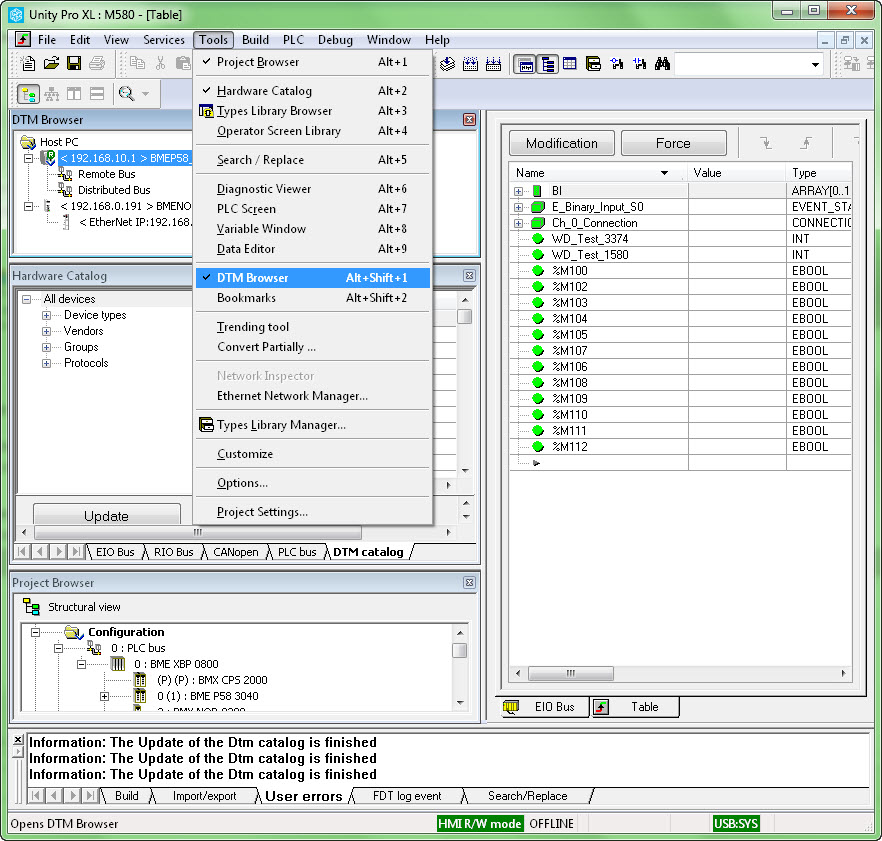
This resolution explains how to remove a DTM (added to the library through an import of an eds file) from the DTM library.
Product Line
Unity
Environment
Windows 10
Resolution
Use the following steps to remove a DTM (added to the library through an import of an eds file) from the DTM library.
- Open the DTM Browser.
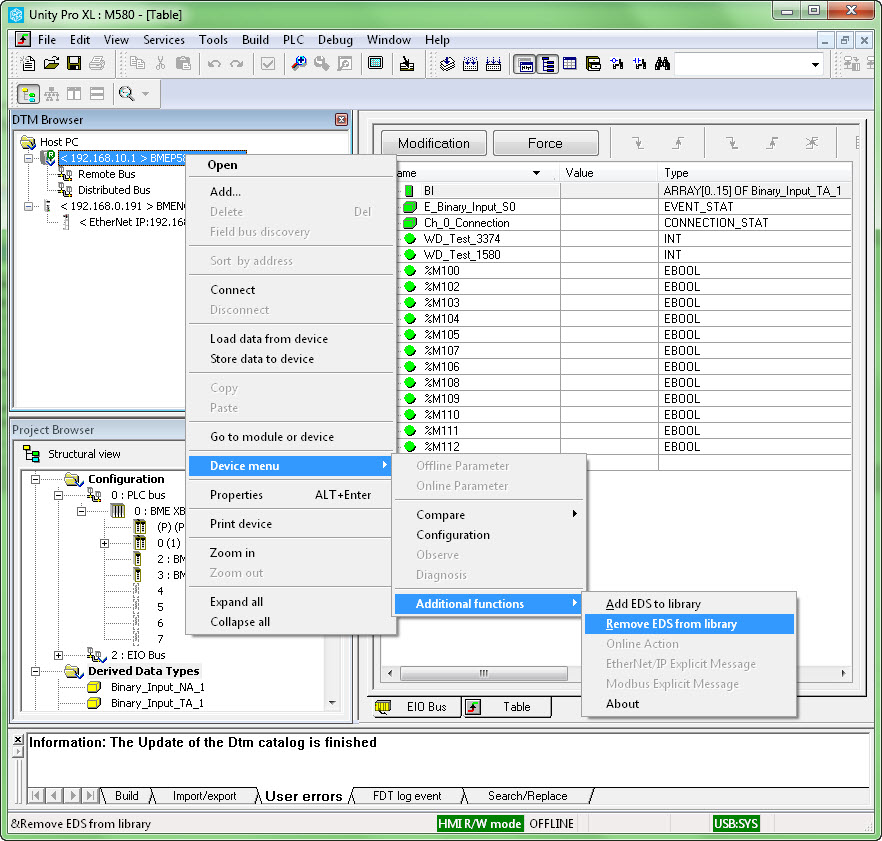
- Right click on the host IP address in the 'DTM Browser' window.
- Select 'Add'
- Select 'Device Menu'
- Select 'Additional functions.
- Select Remove 'EDS from library.'
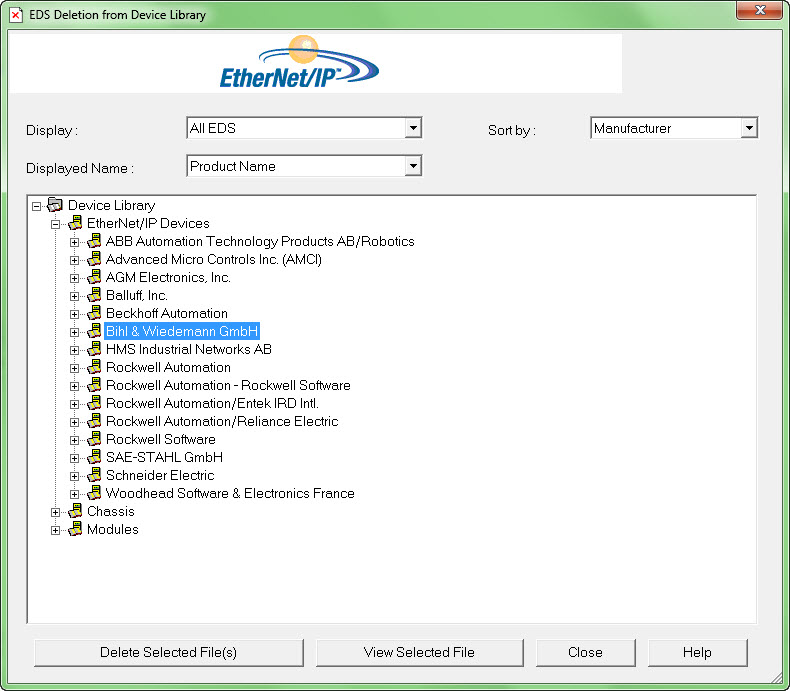
- Click on the DTM name from the list on the 'EDS Delete from Device library.
- Click on the 'Delete Selected Files' button.
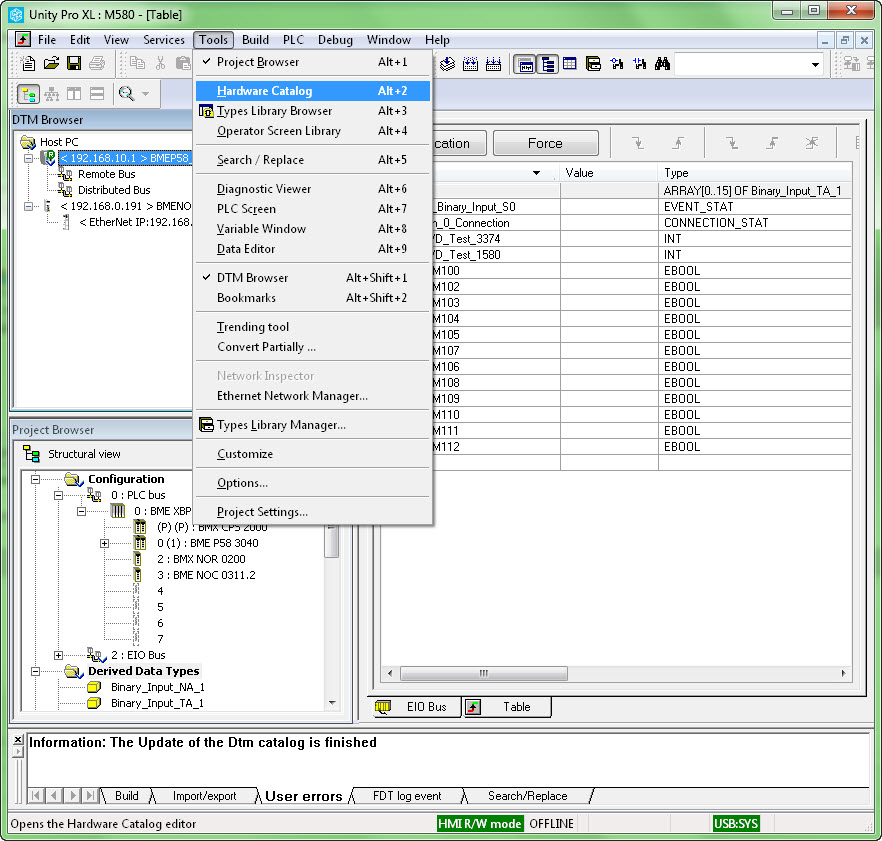
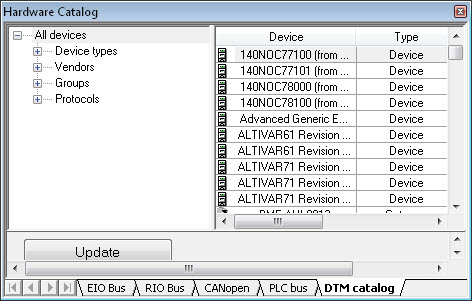
- Open the Hardware catalog.
- Click on the 'DTM Catalog' tab.
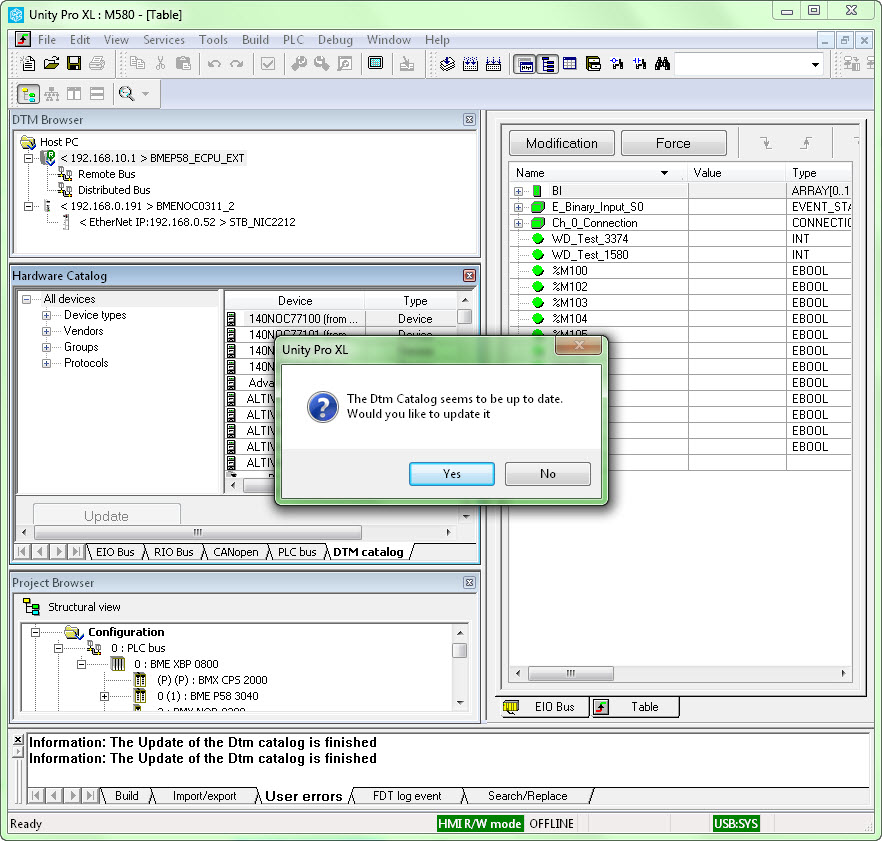
- Click on 'Update'.
- Click on Yes to confirm the update.
Released for: Schneider Electric Macedonia
