


How do you import the tags from the RSLogix5000 L5K file in Vijeo Designer using the Link Variables feature?
Issue
How do you import the tags from the RSLogix5000 L5K file in Vijeo Designer using the Link Variables feature?
How do you import the tags from the RSLogix5000 L5K file in Vijeo Designer using the Link Variables feature?
Product Line
Vijeo Designer
Environment
Configuration software in Windows PC
Resolution
Vijeo Designer
Environment
Configuration software in Windows PC
Resolution
From RSLogix5000, you will need to re-save the project file as a L5K file format. By going to the File menu and select Save As..

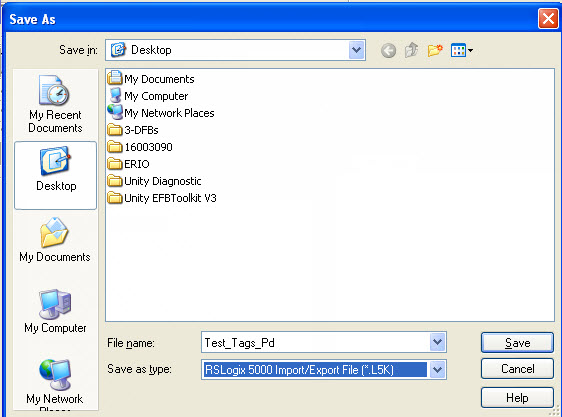
From the SaveAs window, create a path and file name of where you want to save the file. Make sure you select L5K as the file type then select Save
In Vijeo Designer, create the Rockwell Ethernet IP native driver. In this example, I am using the CompactLogix PLC. But you need to select the controller you are using.


Input the IP address

<right-click> on the Variables node and select Link Variables.
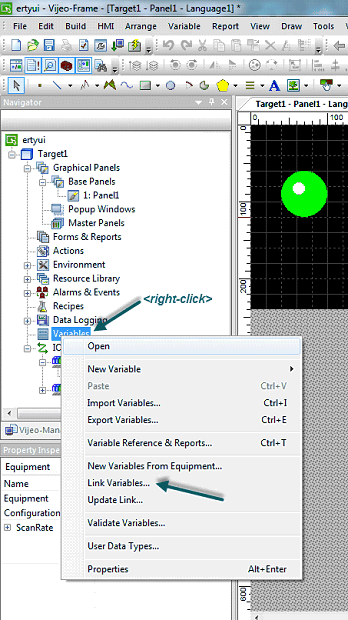
From the Link Variables window, locate the path of the L5K file that you have saved. Select File of Type as Rockwell L5K Files and EQUIPMENT name of the EIP driver you have created then select OK.

From the New Variables from EQUIPMENT, select the tags you want to import into Vijeo Designer. Under the When adding variables: option, select how you want to save the tag names and select add.

Once the link variables are complete, you will see all of the variables you have imported in the variable editor window.

From the SaveAs window, create a path and file name of where you want to save the file. Make sure you select L5K as the file type then select Save
In Vijeo Designer, create the Rockwell Ethernet IP native driver. In this example, I am using the CompactLogix PLC. But you need to select the controller you are using.
Input the IP address
<right-click> on the Variables node and select Link Variables.
From the Link Variables window, locate the path of the L5K file that you have saved. Select File of Type as Rockwell L5K Files and EQUIPMENT name of the EIP driver you have created then select OK.
From the New Variables from EQUIPMENT, select the tags you want to import into Vijeo Designer. Under the When adding variables: option, select how you want to save the tag names and select add.
Once the link variables are complete, you will see all of the variables you have imported in the variable editor window.