


How to update the exec firmware on a BMENOR2200.
Issue
How to update the exec firmware on a BMENOR2200.
Product Line
BMENOR2200
Environment
Ecostruxture Automation Device Maintenance
Resolution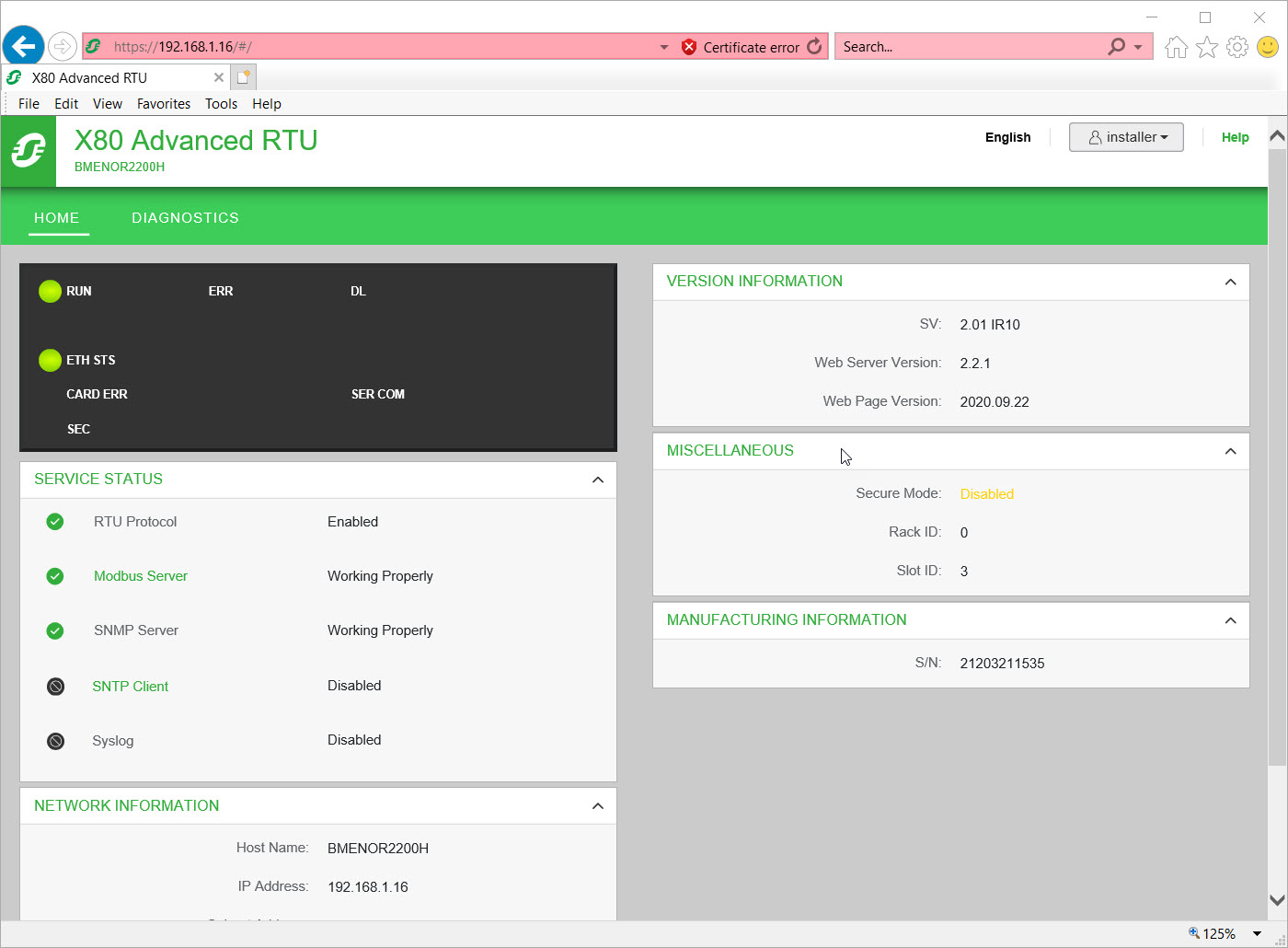
How to update the exec firmware on a BMENOR2200.
Product Line
BMENOR2200
Environment
Ecostruxture Automation Device Maintenance
Resolution
Use the following steps to update the exec firmware.
- Place the module into non secure mode.
- Open and log into BMENOR2200 web server homepage to ensure that it is reachable.
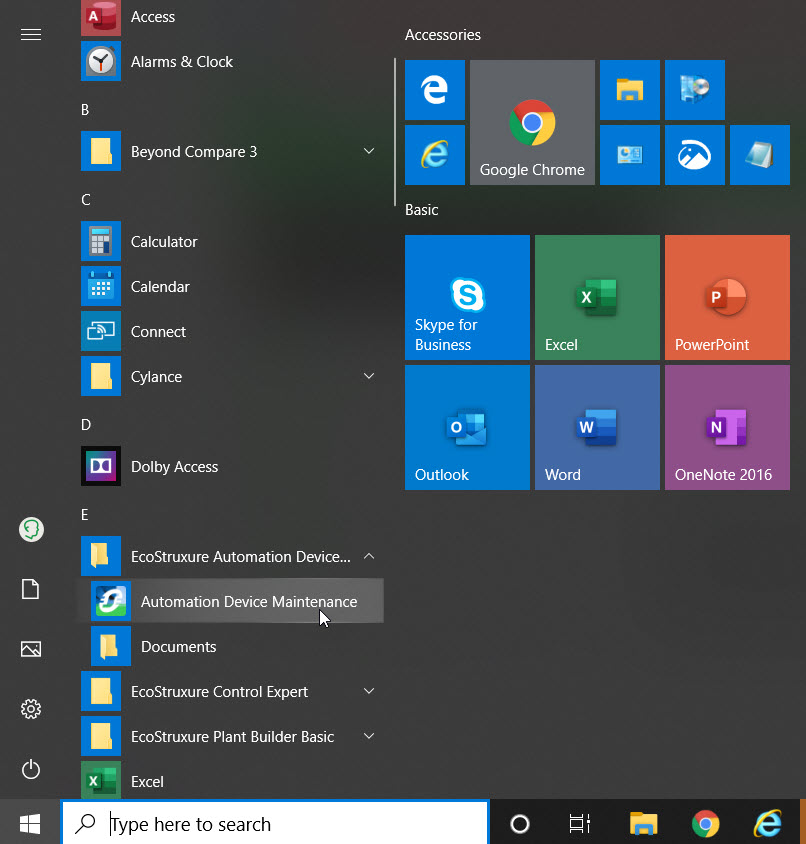
- Start the 'EcoStruxure Automation Device Maintenance' software.
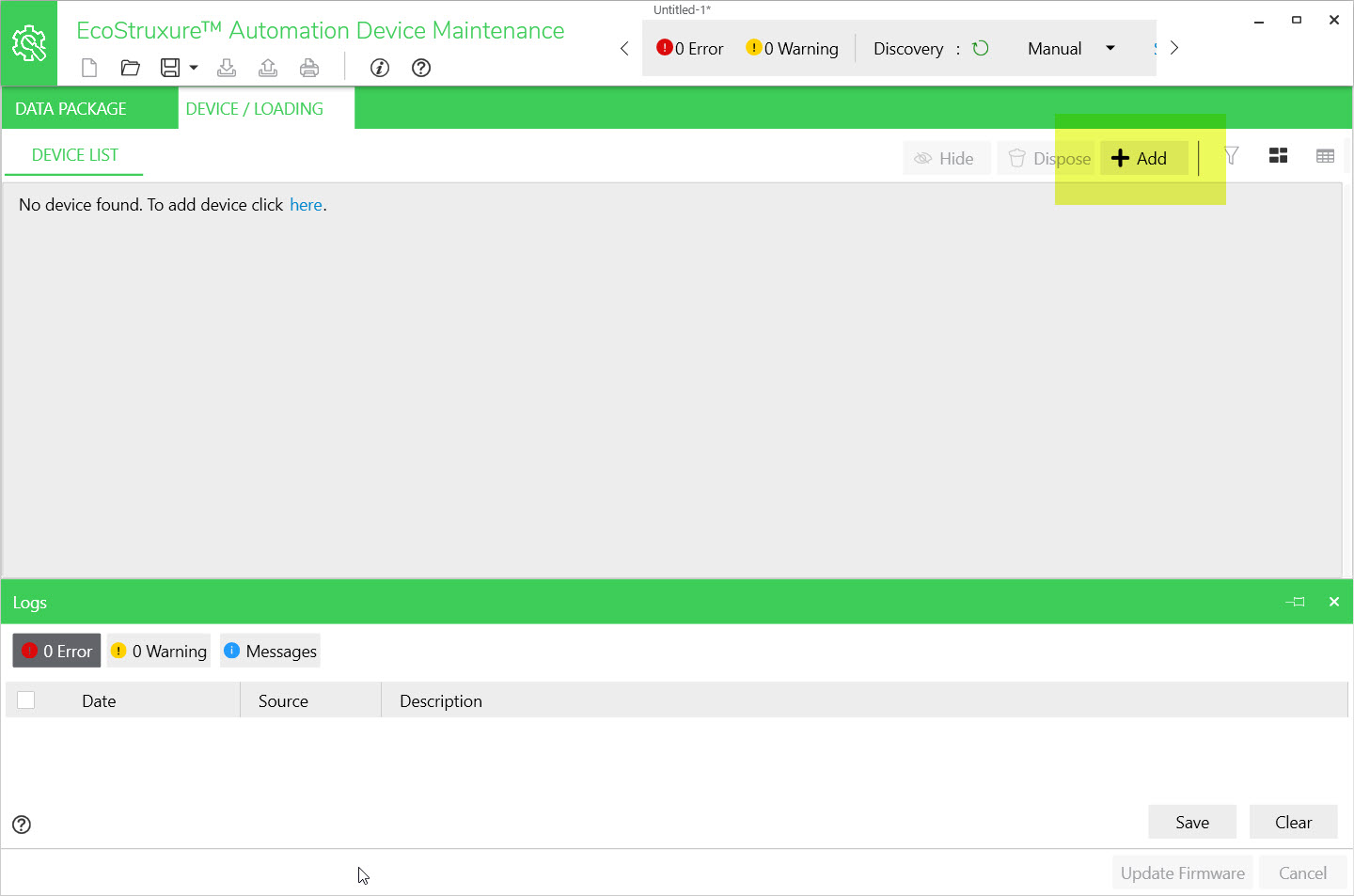
- Click on the Add button.
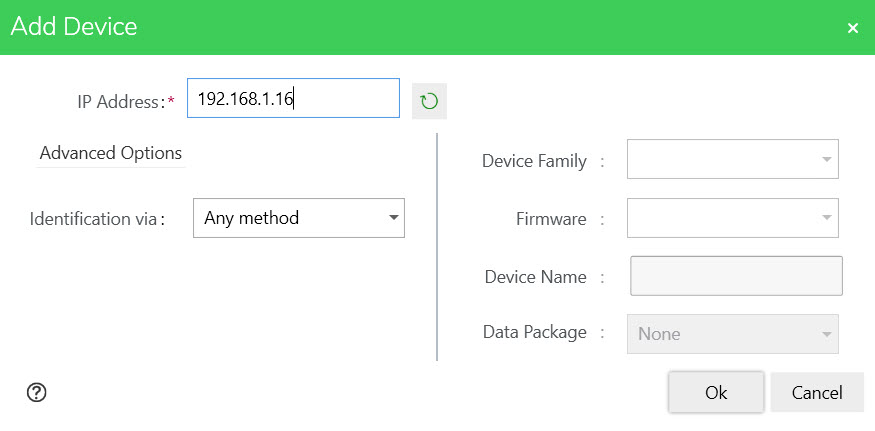
- Enter the NOR022 IP address.
- Select 'Identification via' as 'Any Method'.
- Click on OK.
- Click on 'Yes' in the 'Unidentified Device' pop-up window.
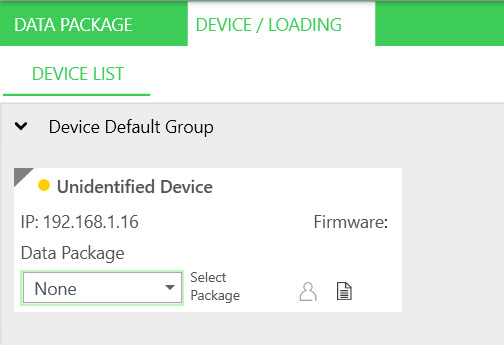
- Verify that the NOR2200 is reachable (The dot next to 'Unidentified Device' should change will be shown as yellow.
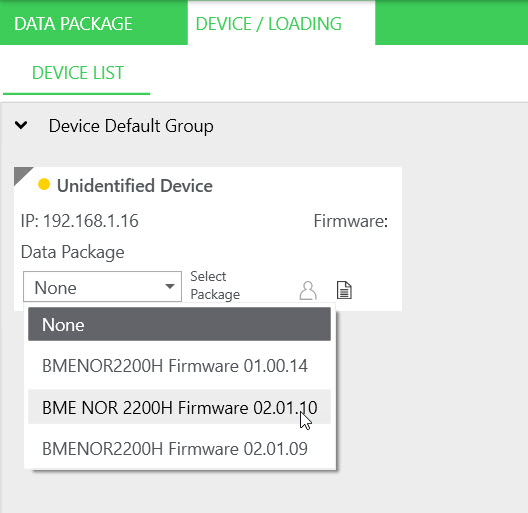
- Select the Data Package version for the NOR2200.
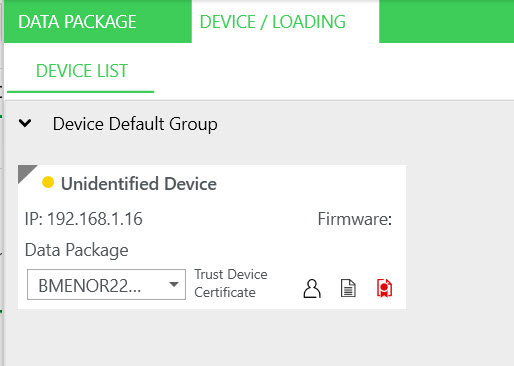
- Click on the red 'Trust' icon.
- Select the 'Trust the server certificate temporarily for the current session' checkbox. (Note: If this step is skipped, you will not be able to connect to the NOR2200.)
- Click on the 'Trust Device Certificate' button.
- Click on the 'Device Login' icon.
- Enter the username and password.
- Click on 'Save'.
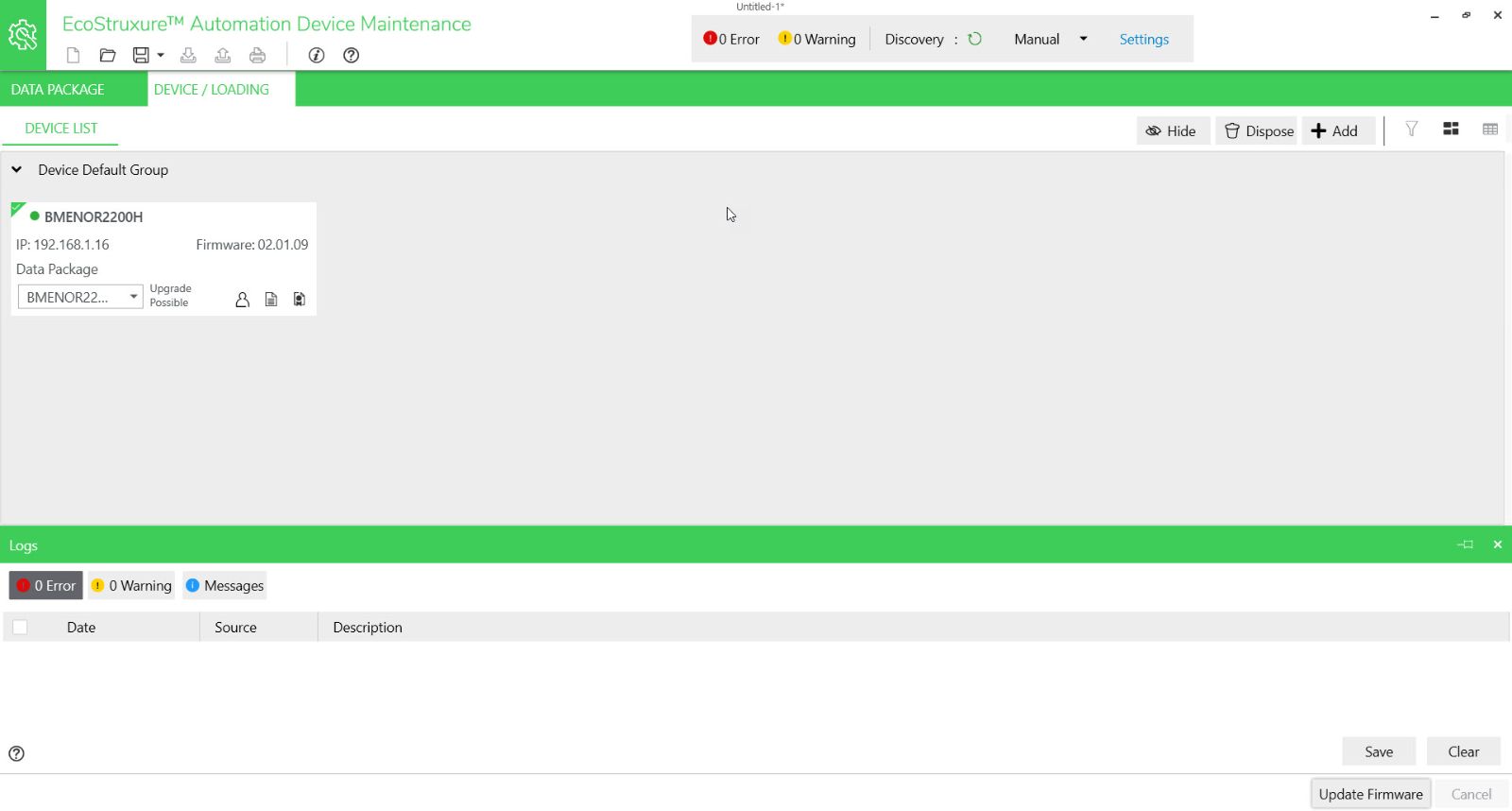
- The yellow dot will turn green.
- Click on the Green dot.
- Click on the 'Update Firmware' button.
- The exec firmware will start to load.