


UPS Firmware Update does not automatically install after the firmware file transfer using the Network Management Card
Issue: In rare situations, the UPS firmware update may not install automatically after the firmware file was transferred to the UPS.
Product Line: Smart-UPS On-Line models starting with SRT, SRTL,
except UPS models SRTL2K2RM1UNC, SRTL2K2RM1UINC, SRTL3KRM1UC, SRTL3KRM1UIC, SRTL5KRM2U, SRTL5KRM2UI
Resolution:
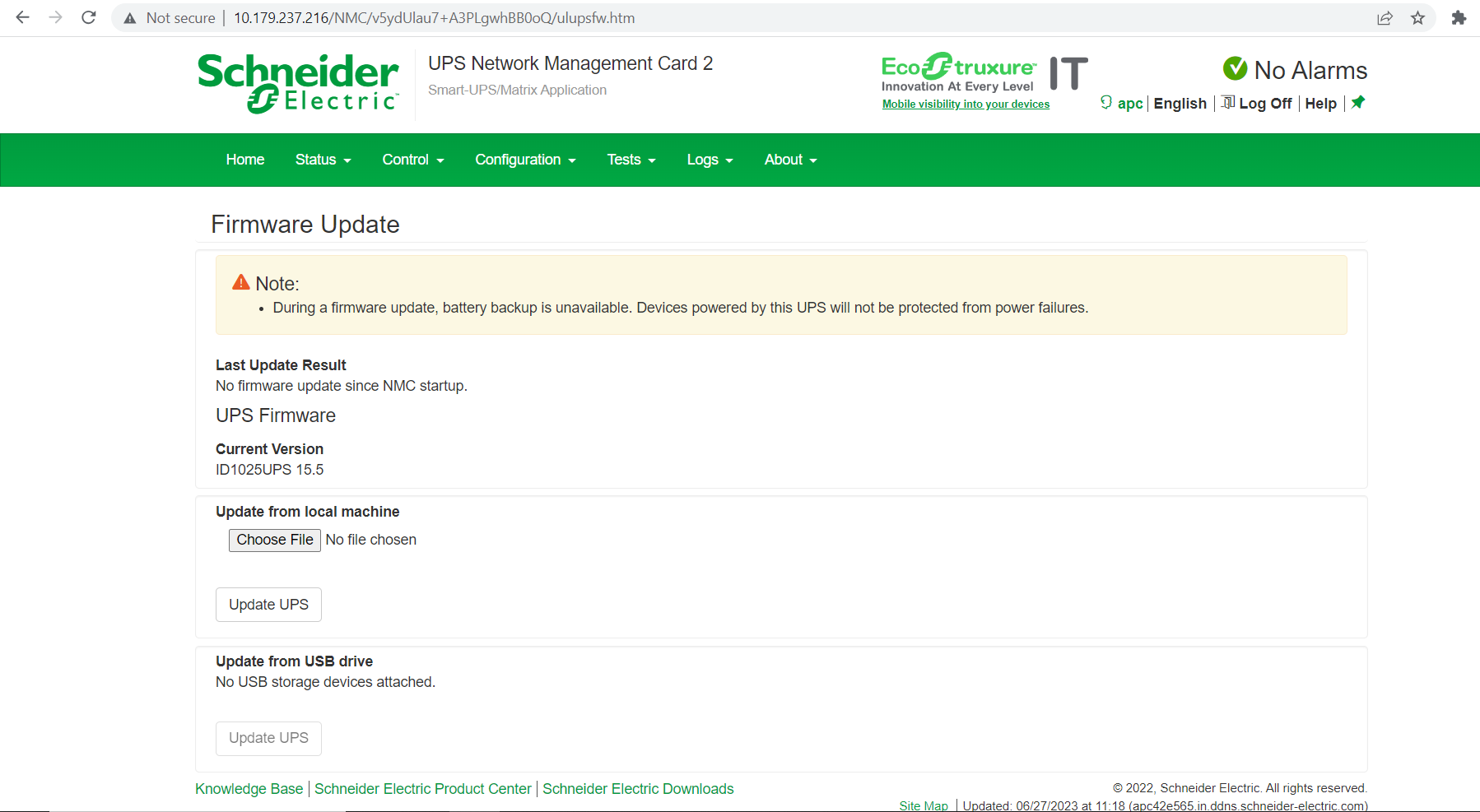
After the firmware file is transferred to the UPS using the Network Management Card (NMC), in the Configuration menu - Firmware Update, you will see the following prompt, where the validation of the firmware file takes place.
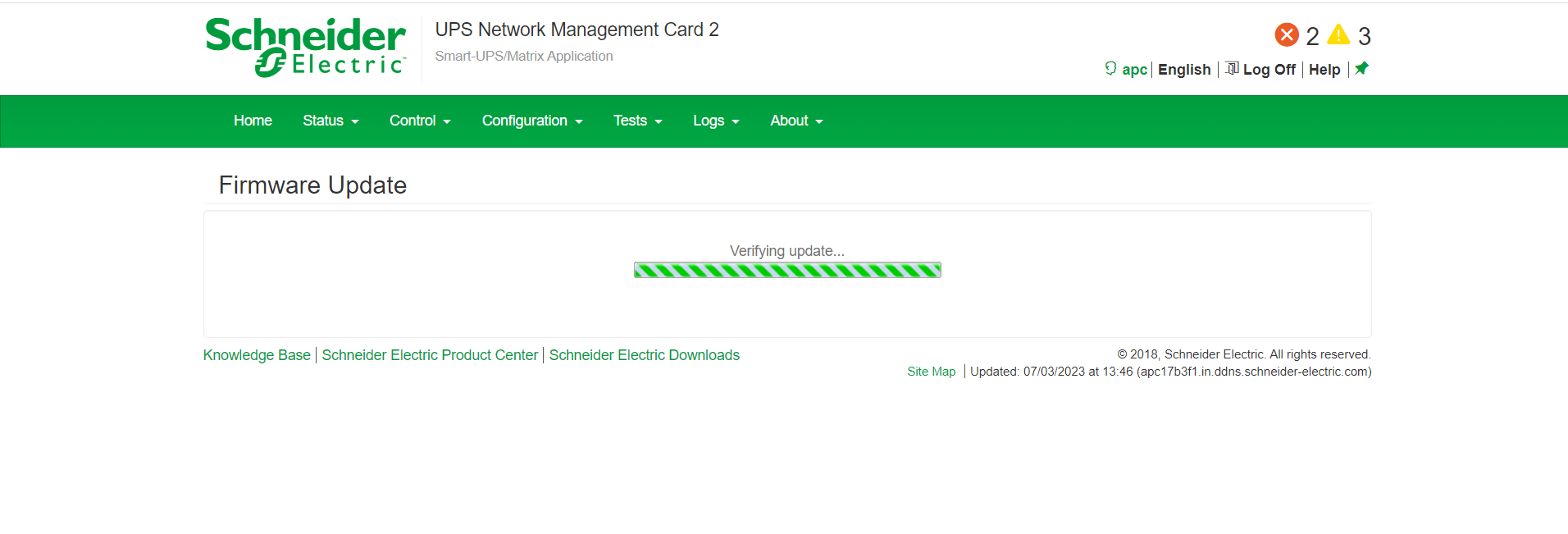
In most situations, after the validation is completed, the UPS will start installing the firmware automatically.
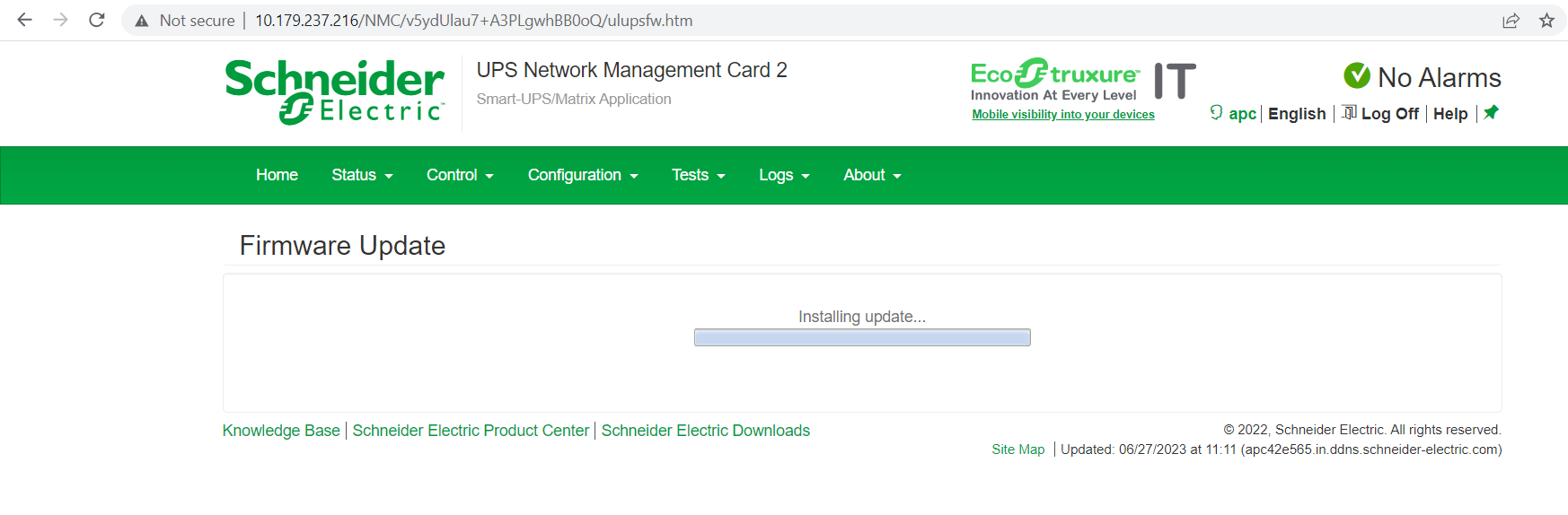
If the firmware update pending prompt appears on the NMC screen in Configuration menu - Firmware Update, the installation of the firmware file will need to be started manually. Follow the below instructions to initiate the installation of the firmware file.
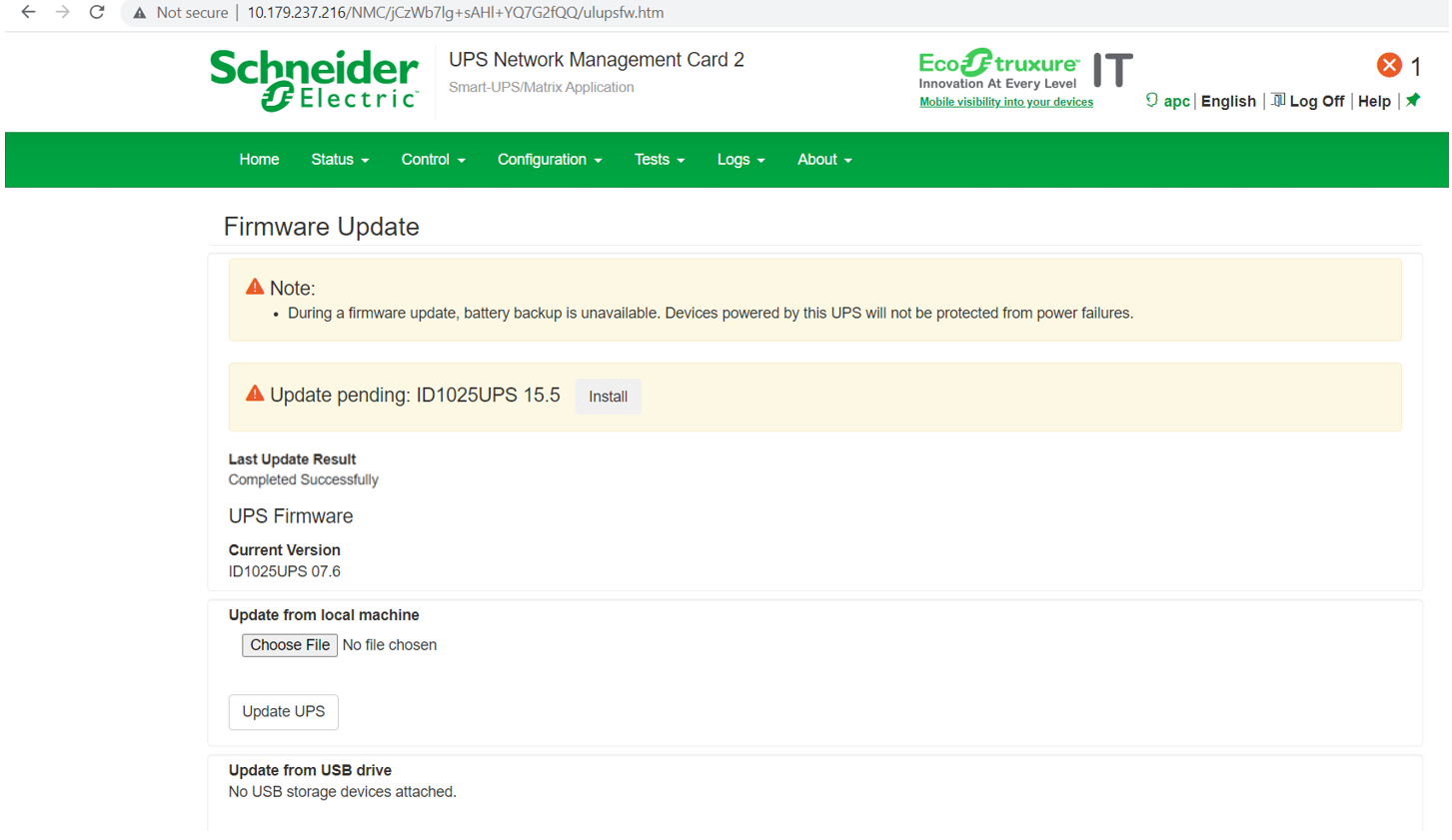
1. From the Configuration menu - Firmware Update, the pending update will be prompted as shown below. Click on the ‘Install’ button to start the installation.
2. After initiating the firmware installation, the below installation screen will be displayed. Wait for the installation to complete.
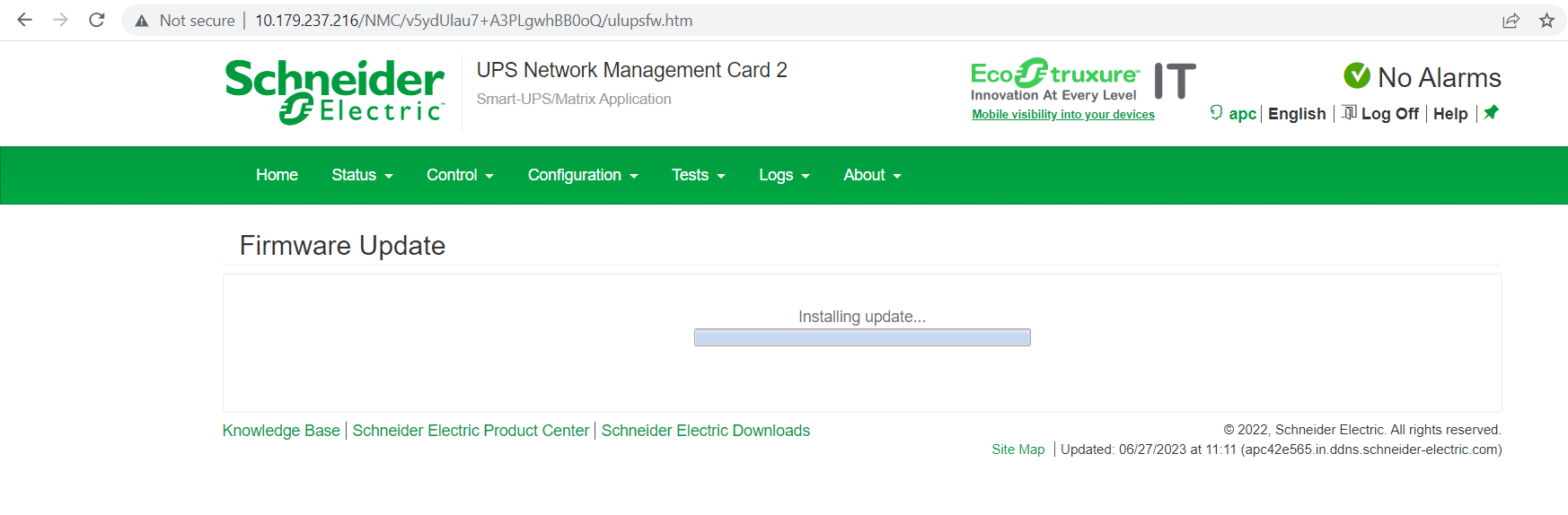
3. After the firmware installation is completed, navigate to Configuration menu - Firmware Update, and check the Current Version, to confirm that the UPS firmware has been updated.
Product Line: Smart-UPS On-Line models starting with SRT, SRTL,
except UPS models SRTL2K2RM1UNC, SRTL2K2RM1UINC, SRTL3KRM1UC, SRTL3KRM1UIC, SRTL5KRM2U, SRTL5KRM2UI
Resolution:
After the firmware file is transferred to the UPS using the Network Management Card (NMC), in the Configuration menu - Firmware Update, you will see the following prompt, where the validation of the firmware file takes place.
In most situations, after the validation is completed, the UPS will start installing the firmware automatically.
If the firmware update pending prompt appears on the NMC screen in Configuration menu - Firmware Update, the installation of the firmware file will need to be started manually. Follow the below instructions to initiate the installation of the firmware file.
1. From the Configuration menu - Firmware Update, the pending update will be prompted as shown below. Click on the ‘Install’ button to start the installation.
2. After initiating the firmware installation, the below installation screen will be displayed. Wait for the installation to complete.
3. After the firmware installation is completed, navigate to Configuration menu - Firmware Update, and check the Current Version, to confirm that the UPS firmware has been updated.