


PlantStruxure PES [V3.1 + SP1]: Language Translation for Supervision Templates Texts
Goals and Symptoms
How to translate Supervision Templates (Genies/Faceplates) texts provided by the SGC_Include2.ctz library.
Facts and Changes
PES V3.0, V3.1SP1
Causes and Fixes
Struxureware PE provides for the Supervision part an Objects library (Genies / Faceplates) contained in the Included project SCG_Include2.Ctz.
By default the texts of these Genies / Faceplates are in English, their use in projects developed in countries requires most of the time a translation into the languages relative to the country.
Follow the below steps to translate the Supervision texts from default English into any desired language
I. Step1: Translate in the Desired Language the texts of the Genies / Faceplates used in System
1. Outside Struxureware PE, go to Vijeo Citect(VJC)directory containing the project SGC_Include2 in which all the Genies / Faceplates provided by the Struxureware PE library are defined.
Note: The path where the SGC_Include2 directory is located is:
C:\ProgramData\Schneider Electric\Vijeo Citect 7.30\User
2.In the SGC_Include2 directory, select the file Spanish.Dbf which contains all the Genies / Faceplates strings translated from English to Spanish and save the file in one of the following DBF file depending the language in which user wanted to translate the texts (French.Dbf, Italian.Dbf, German.Dbf, Spanish.Dbf,Japanese.Dbf, Corean.Dbf, Russian.Dbf).
3. Open the language DBF file previously saved, the column NATIVE contains the English texts and the column LOCAL the corresponding texts translated in Spanish. In the column LOCAL, remove all the Spanish texts.

4. User will spot the English texts of the Genies / Faceplates that user want to use in the System, locate these texts in the column NATIVE of the Dbf file and translate them in the language wished in the column LOCAL.
Now, Save the language DBF file.
Note: The path where the SGC_Include2 directory is located is:
C:\ProgramData\Schneider Electric\Vijeo Citect 7.30\User
2.In the SGC_Include2 directory, select the file Spanish.Dbf which contains all the Genies / Faceplates strings translated from English to Spanish and save the file in one of the following DBF file depending the language in which user wanted to translate the texts (French.Dbf, Italian.Dbf, German.Dbf, Spanish.Dbf,Japanese.Dbf, Corean.Dbf, Russian.Dbf).
3. Open the language DBF file previously saved, the column NATIVE contains the English texts and the column LOCAL the corresponding texts translated in Spanish. In the column LOCAL, remove all the Spanish texts.
4. User will spot the English texts of the Genies / Faceplates that user want to use in the System, locate these texts in the column NATIVE of the Dbf file and translate them in the language wished in the column LOCAL.
Now, Save the language DBF file.
II. Step2: Create a Vijeo Citect (VJC)Project including the language DBF file containing the Genies / Faceplates texts translated
1.Outside Struxureware PE ,user have to create a new VJC project that will include the language DFB file (created in the Step1) containing the translated texts of Genies / Faceplates used in the System.
2. Copy the language DBF file (created in the Step1) under the directory containing the VJC project created Just before
Note: The directory of the new VJC project is at the same level than the directory of the SGC_Include2 project.
3.In the new VJC project from the Citect Project Editor (menu System -> Languages),select the language corresponding to the DFB file created in the Step 1.
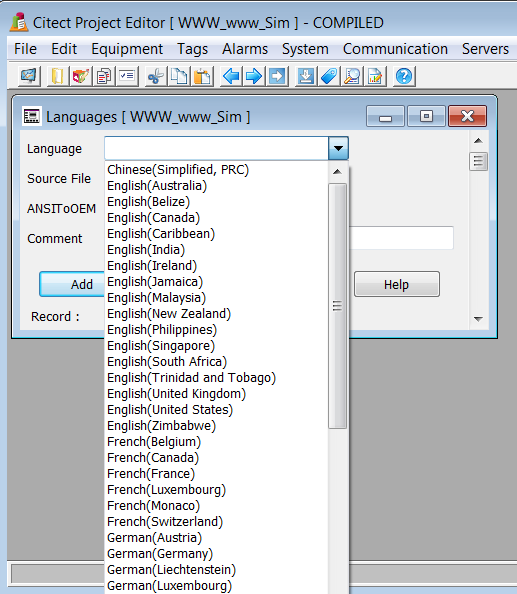
4. Backup the new VJC project to create the corresponding CTZ file.
2. Copy the language DBF file (created in the Step1) under the directory containing the VJC project created Just before
Note: The directory of the new VJC project is at the same level than the directory of the SGC_Include2 project.
3.In the new VJC project from the Citect Project Editor (menu System -> Languages),select the language corresponding to the DFB file created in the Step 1.
4. Backup the new VJC project to create the corresponding CTZ file.
III. Step3: Include in the Supervision Part of the System with the new VijeoCitect(VJC) Project containing the Genies / Faceplates Translated.
1. Run Struxureware PE.
2. Start the Struxureware PE Server.
3. Start the Struxureware PE Engineering Client.
4. Select desired System and Open the Project Explorer.
5. In the Supervision part, select the Supervision project and the “Include Projects” command.

2. Start the Struxureware PE Server.
3. Start the Struxureware PE Engineering Client.
4. Select desired System and Open the Project Explorer.
5. In the Supervision part, select the Supervision project and the “Include Projects” command.
6. Include the new VJC project (created in the Step2) which contains the translated texts of the Genies / Faceplates used in your System.