


How to Generate a Project Summary in Power SCADA Operation?
!!!Confidential ContentIssue
Generating a project summary report in PSO 8.2 and above.
Product Line
PowerSCADA Operation 8.2 (PSO 8.2)
PowerSCADA Operation 9.0
Environment
PowerSCADA Studio
Cause
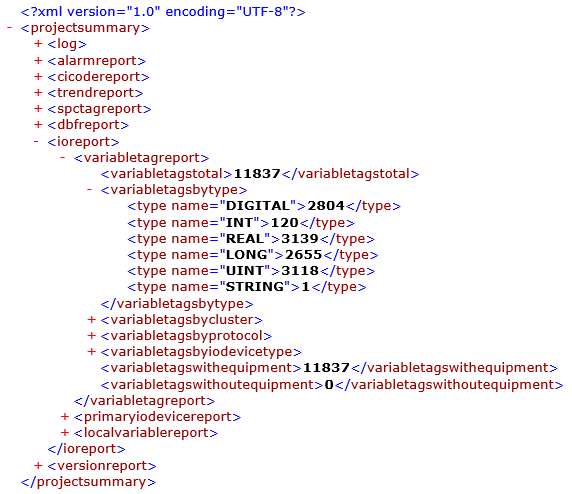
When you use the Project Analysis command, a file called ProjectSummary.xml is created and placed in the project folder. This file presents information about the selected project and any user-created include projects.
Resolution
To create a project summary file:
1. In the Project activity, select Home tab.
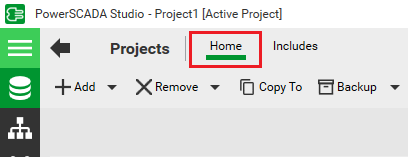
2. Click to select the project you would like to analyze.
3. On the Command Bar, select Project Analysis.
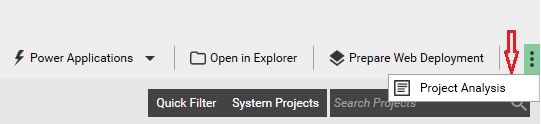
After the XML file has been created, Windows Explorer will appear with the summary file selected in the project folder. Below is an example of what is included in the file:
Generating a project summary report in PSO 8.2 and above.
Product Line
PowerSCADA Operation 8.2 (PSO 8.2)
PowerSCADA Operation 9.0
Environment
PowerSCADA Studio
Cause
When you use the Project Analysis command, a file called ProjectSummary.xml is created and placed in the project folder. This file presents information about the selected project and any user-created include projects.
Resolution
To create a project summary file:
1. In the Project activity, select Home tab.
2. Click to select the project you would like to analyze.
3. On the Command Bar, select Project Analysis.
After the XML file has been created, Windows Explorer will appear with the summary file selected in the project folder. Below is an example of what is included in the file: