


M340 CPU frozen at start-up after PLC crash
1. Introduction
An issue has been identified with the BMXP34xxxx CPU references whereby the processor remains in error mode (with the “ERR” LED illuminated) at start-up after the processor reboot following a PLC crash.
These symptoms are extremely rare and only impact CPUs that have a certain combination of product and firmware versions, when used with specific SD cards.
See the below table for the specific product and firmware versions which are impacted.
Any CPUs which are outside of these specific combinations will not be experience the symptoms described above.
Products impacted:
2. Description of symptoms:
After a PLC crash, at the CPU power up, it goes into the regular self-test mode.
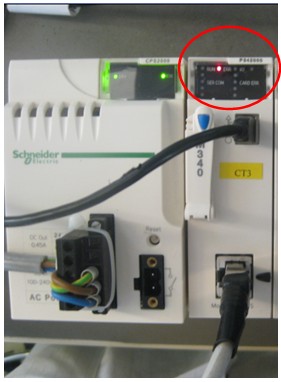
During the self-testing the CPU becomes frozen with the LED indicator «ERR» illuminated, as shown below:
LED indicator «ERR» illuminated
The CPU is now locked up with no ability to communicate.
3. The Root cause
Following a PLC crash the processor BMXP34xxxx, user has to restart the CPU : power cycle or Init (via Power supply Reset button).
At this start-up, the “failure information” or “crashlog file” about the initial failure is stored on the SDCARD and internal memory flash.
A second failure of processor appears (CPU Frozen), due to an incompatibility between new generations of internal flash memory that were recently implemented (see PV of impacted products list) and the flash memory access algorithm.
4. Solution
A new firmware version will allow start-up of BMXP34xxxx after a failure (SV2.60), that allow the CPU to generate a crash log file according to the original crash.
This version is available in Schneider-Electric.com.
5. Description of work-around: to unlock and restart a frozen CPU.
If the version of BMXP34xxxx firmware cannot be changed at the customer’s site, this workaround will allow the CPU to re-start.
Operating principle of the workaround:
Transferring an application will remove the crashlog file backup at next startup.
Step 1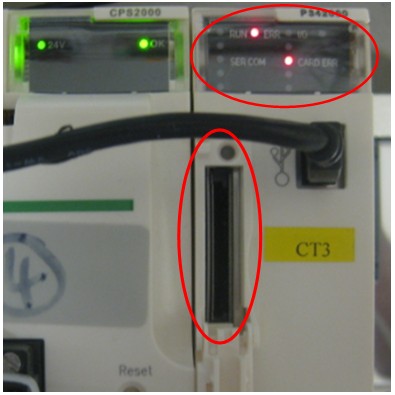
Step 3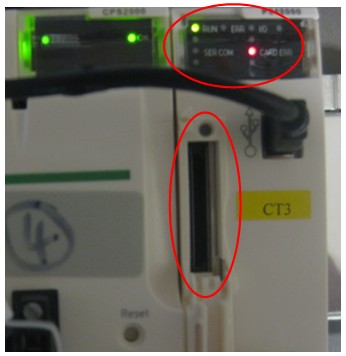
Step 4 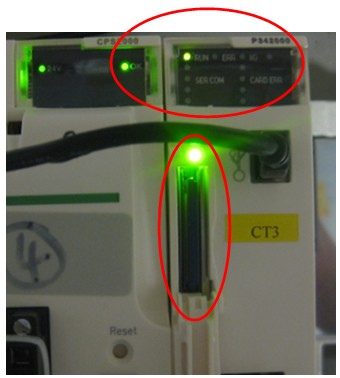
The M340 processor module is now unlocked and available to run.
An issue has been identified with the BMXP34xxxx CPU references whereby the processor remains in error mode (with the “ERR” LED illuminated) at start-up after the processor reboot following a PLC crash.
These symptoms are extremely rare and only impact CPUs that have a certain combination of product and firmware versions, when used with specific SD cards.
See the below table for the specific product and firmware versions which are impacted.
Any CPUs which are outside of these specific combinations will not be experience the symptoms described above.
Products impacted:
| Product name | Designation | PV AND SV impacted | ||
| BMXP341000 | CPU340-10 MODBUS | PV:13 or higher and SV:2.50 or below | ||
| BMXP341000H | H CPU340-10 MODBUS | PV:7 or higher and SV:2.50 or below | ||
| BMXP342000 | CPU340-20 MODBUS | PV:9 or higher and SV:2.50 or below | ||
| BMXP3420102 | CPU340-20 MODBUS CANOPEN2 | PV:8 or higher and SV:2.50 or below | ||
| BMXP3420102CL | M340 20102 CPU - CardLess | PV:4 or higher and SV:2.50 or below | ||
| BMXP342020 | CPU340-20 MODBUS ETHERNET | PV:13 or higher and SV:2.50 or below | ||
| BMXP342020H | H CPU340-20 MODBUS ETHERNET | PV:9 or higher and SV:2.50 or below | ||
| BMXP3420302 | CPU340-20 ETHERNET CANOPEN2 | PV:8 or higher and SV:2.50 or below | ||
| BMXP3420302CL | M340 20302 CPU - CardLess | PV:4 or higher and SV:2.50 or below | ||
| BMXP3420302H | CPU340-20 ETHERNET CANOPEN2 | PV:8 or higher and SV:2.50 or below | ||
| BMXP3420ITRB | CPU340-20 Data Center Mgt | PV:7 or higher and SV:2.50 or below | ||
| BMXPRA0100 | Peripheral Remote IO | PV:7 or higher and SV:2.50 or below | ||
2. Description of symptoms:
After a PLC crash, at the CPU power up, it goes into the regular self-test mode.
During the self-testing the CPU becomes frozen with the LED indicator «ERR» illuminated, as shown below:
LED indicator «ERR» illuminated
The CPU is now locked up with no ability to communicate.
3. The Root cause
Following a PLC crash the processor BMXP34xxxx, user has to restart the CPU : power cycle or Init (via Power supply Reset button).
At this start-up, the “failure information” or “crashlog file” about the initial failure is stored on the SDCARD and internal memory flash.
A second failure of processor appears (CPU Frozen), due to an incompatibility between new generations of internal flash memory that were recently implemented (see PV of impacted products list) and the flash memory access algorithm.
4. Solution
A new firmware version will allow start-up of BMXP34xxxx after a failure (SV2.60), that allow the CPU to generate a crash log file according to the original crash.
This version is available in Schneider-Electric.com.
5. Description of work-around: to unlock and restart a frozen CPU.
If the version of BMXP34xxxx firmware cannot be changed at the customer’s site, this workaround will allow the CPU to re-start.
- This workaround will allow the CPU to be unfrozen.
- Take care, if the CPU fails again, the same “workaround” should be done.
- The resolution is to download new FW version (end of September) and send the crashlog file to Technical support.
Operating principle of the workaround:
Transferring an application will remove the crashlog file backup at next startup.
Step 1
- Switch OFF the frozen CPU.
- Remove the SD card.
- Switch ON the frozen CPU.
- Wait for LED indicator «CARD ERR» to be steady on and LED indicator «ERR» to be blinking.
Step 3
- With the SD Card removed, transfer the PLC application from a PC to the PLC using the USB connection port.
- Put the PLC into “RUN” mode.
- Wait for the LED indicator «RUN» to go green and LED indicator «CARD ERR» to go red (both steady on).
Step 4
- Switch OFF the CPU.
- Insert the SD Card.
- Switch ON the CPU.
- Repeat the application transfer from a PC to the PLC using the USB connection port.
- Wait for the LED indicator «RUN» to go green and the LED indicator «CARD ERR» to extinguish.
The M340 processor module is now unlocked and available to run.