


Data Center Expert | How do I configure internal/external web browser settings?
Issue:
How do I configure Internal / External web browser settings and the web browser that Data Center Expert uses?
Product Line:
Struxureware Data Center Expert (DCE)
Environment:
Struxureware Data Center Expert (all versions)
Cause:
By default, Data Center Expert uses the default OS web browser in an internal pane within the desktop client.
Resolution:
Changing the Web Browser that is used when launching to devices
Launching to Internal or External web browser
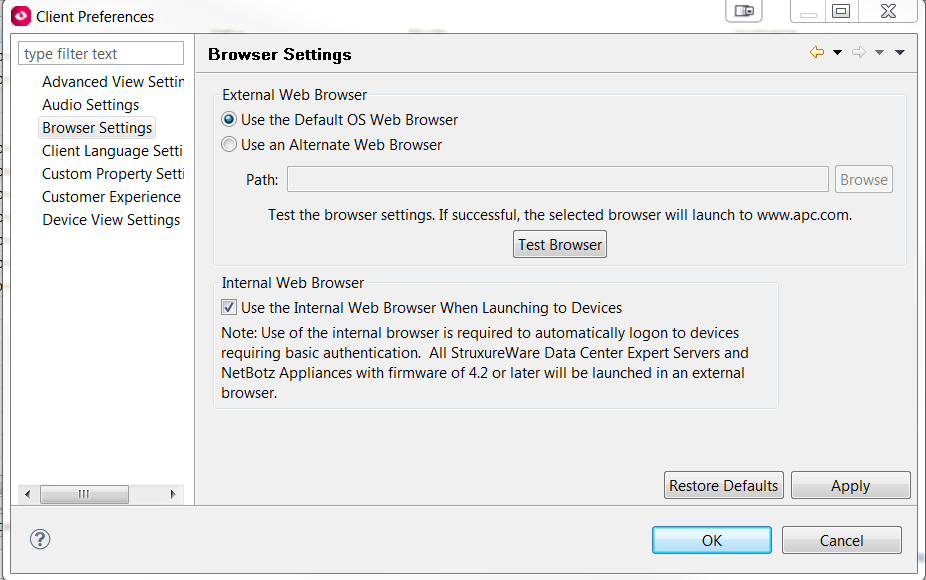
How do I configure Internal / External web browser settings and the web browser that Data Center Expert uses?
Product Line:
Struxureware Data Center Expert (DCE)
Environment:
Struxureware Data Center Expert (all versions)
Cause:
By default, Data Center Expert uses the default OS web browser in an internal pane within the desktop client.
Resolution:
Changing the Web Browser that is used when launching to devices
- Log into the Data Center Expert desktop client.
- File menu > Client Preferences.
- Select Browser Settings.
- Select the option for Use the Default OS Web Browser or select Use an Alternative Web Browser and navigate to the executable within the browsers installation directory.
- Select Apply and OK.
Launching to Internal or External web browser
- Log into the Data Center Expert desktop client.
- File menu > Client Preferences.
- Select Browser Settings.
- Check or Uncheck the option for Use Internal Web Browser When launching to Devices.
- Select Apply and OK.