


How to decrypt a Com'X diagnostic file
Issue
When troubleshooting an issue on a Com'X device, there may be a need to download and decrypt the diagnostics file to extract more information.
Product Line
Com'X 200
Com'X 210
Com'X 510
Environment
System diagnostics
Resolution
1. Refer to How to get the diagnostic file from a Com'X device for instructions on how to download the diagnostic file from the Com'X web interface
2. Download and extract the attached Decrypt.zip
3. Transfer the diagnostic file downloaded from the Com'X into the extracted folder
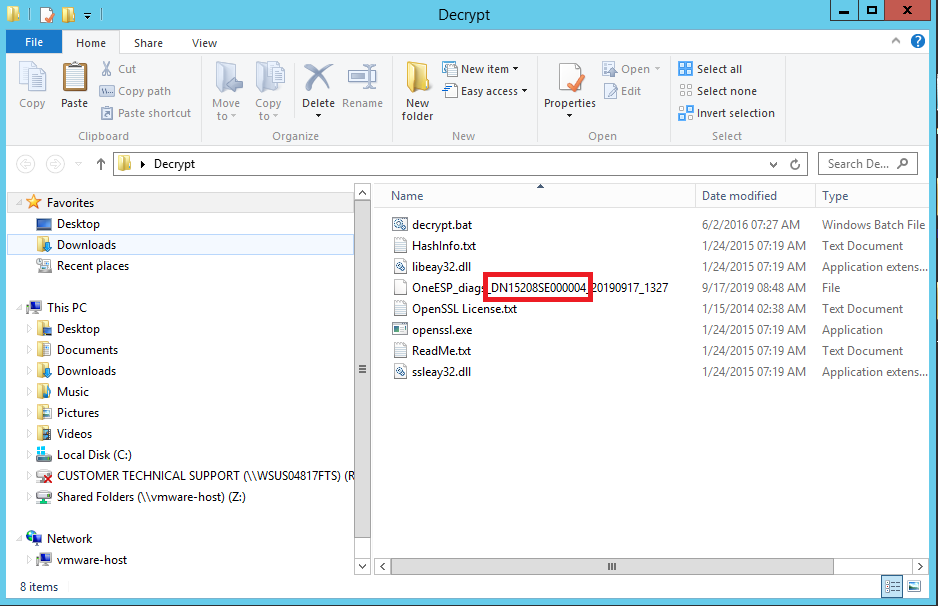
4. Note the serial number of the Com'X device in the name of the diagnostic file:
5. Open Command Prompt in the extracted folder directory, then run the following command:

6. A .zip file will be generated; extract this file to open its contents
7. The extracted folder will contain diagnostics.txt which includes general diagnostic information about the Com'X
8. Navigate to \mnt\rwfs\oneesp-app\storage\logs\technical to view oneesp.log, which contains a detailed event log with error messages
Note: Notepad++ is recommended to view the log files, since the formatting makes it difficult to read using built-in Windows programs such as Notepad.
When troubleshooting an issue on a Com'X device, there may be a need to download and decrypt the diagnostics file to extract more information.
Product Line
Com'X 200
Com'X 210
Com'X 510
Environment
System diagnostics
Resolution
1. Refer to How to get the diagnostic file from a Com'X device for instructions on how to download the diagnostic file from the Com'X web interface
2. Download and extract the attached Decrypt.zip
3. Transfer the diagnostic file downloaded from the Com'X into the extracted folder
4. Note the serial number of the Com'X device in the name of the diagnostic file:
5. Open Command Prompt in the extracted folder directory, then run the following command:
decrypt.bat <filename> <serial number of Com'X>6. A .zip file will be generated; extract this file to open its contents
7. The extracted folder will contain diagnostics.txt which includes general diagnostic information about the Com'X
8. Navigate to \mnt\rwfs\oneesp-app\storage\logs\technical to view oneesp.log, which contains a detailed event log with error messages
Note: Notepad++ is recommended to view the log files, since the formatting makes it difficult to read using built-in Windows programs such as Notepad.