.svg)
Issue
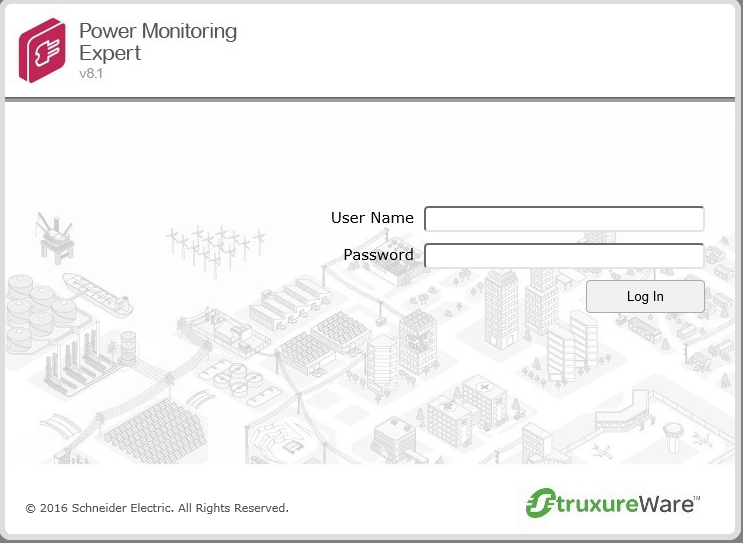
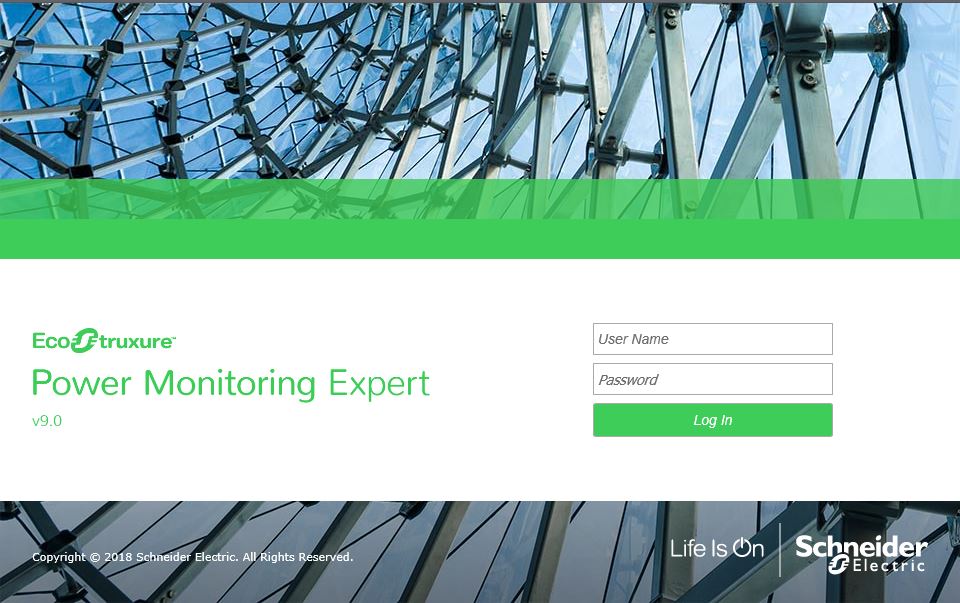
The customer would like to customize the login screen page to show a different logo/Screen.
Product line
Power Monitoring Expert 7.2.2
Power Monitoring Expert 8.x
Power Monitoring Expert 9.0
Power Monitoring Expert 2020
Power Monitoring Expert 2021
Power Monitoring Expert 2022
Power Monitoring Expert 2023
Environment
Web Application
Resolution
The login screen page's background is a jpg format image that can be found in the following locations:
For PME 7.2.2 and PME 8.x
PME installation directory\Power Monitoring Expert\Applications\SystemDataService\Content\Images\LoginScreen_Background.
For PME 9.0
PME installation directory\Power Monitoring Expert\Applications\SystemDataService\Content\Images\Background
For PME 2020 and up
PME installation directory\Power Monitoring Expert\Applications\ApplicationFramework\Authentication
To modify the image:
1-Take a backup of the existing LoginScreen_Background.jpg or Background.jpg based on the PME version.
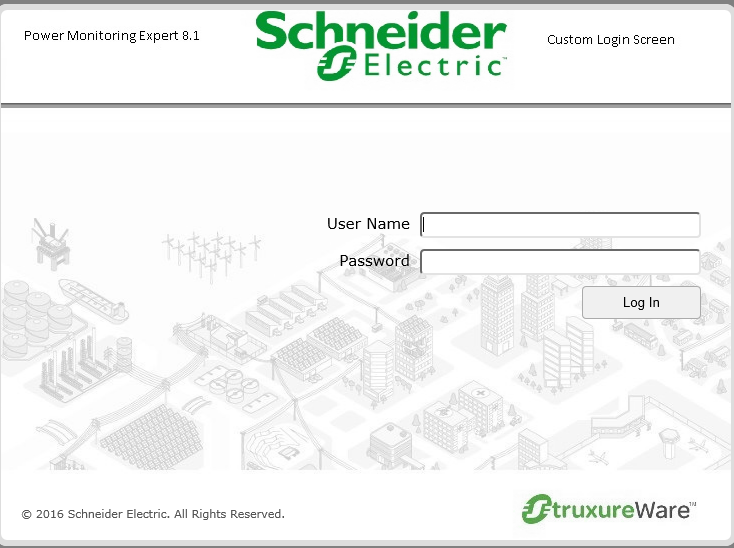
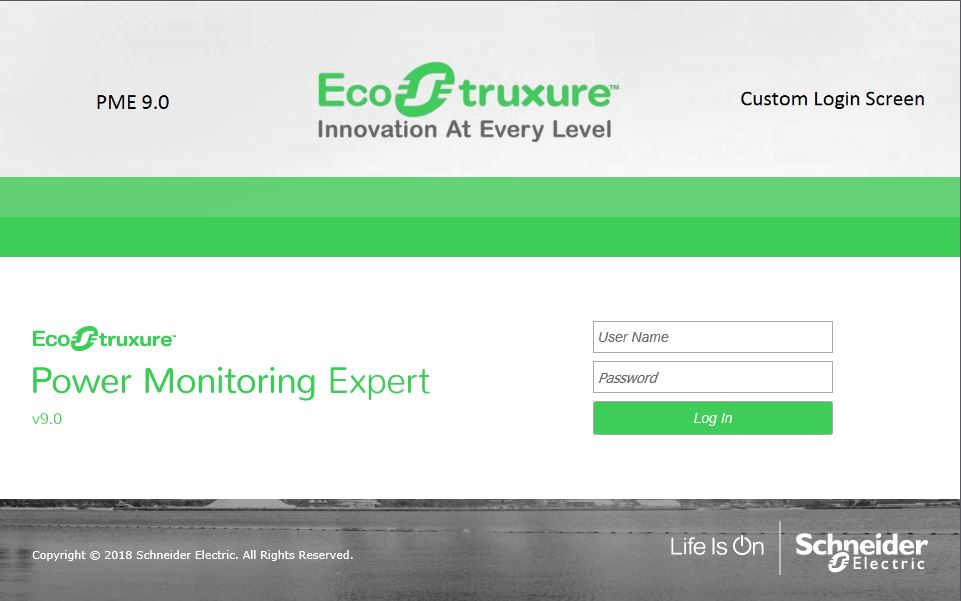
2-Edit the existing image using image editing tools such as Paint as shown in the examples below:
3-You can also replace an image with the same name(LoginScreen_Background or Background).
The customer would like to customize the login screen page to show a different logo/Screen.
Product line
Power Monitoring Expert 7.2.2
Power Monitoring Expert 8.x
Power Monitoring Expert 9.0
Power Monitoring Expert 2020
Power Monitoring Expert 2021
Power Monitoring Expert 2022
Power Monitoring Expert 2023
Environment
Web Application
Resolution
The login screen page's background is a jpg format image that can be found in the following locations:
For PME 7.2.2 and PME 8.x
PME installation directory\Power Monitoring Expert\Applications\SystemDataService\Content\Images\LoginScreen_Background.
For PME 9.0
PME installation directory\Power Monitoring Expert\Applications\SystemDataService\Content\Images\Background
For PME 2020 and up
PME installation directory\Power Monitoring Expert\Applications\ApplicationFramework\Authentication
To modify the image:
1-Take a backup of the existing LoginScreen_Background.jpg or Background.jpg based on the PME version.
2-Edit the existing image using image editing tools such as Paint as shown in the examples below:
3-You can also replace an image with the same name(LoginScreen_Background or Background).
發佈於: 施耐德電機Taiwan

