


How to recover diagnostic information with the Diagnostic DDT on a redundant power supply?
Please, refer to this procedure to recover logs available in the redundant power supplies BMXCPS4002(S), BMXCPS3522(S), or BMXCPS4022(S). Other references have no such diagnostics available.
1 – You should have a redundant power supply connected in a redundant configuration with a power supply in master mode and the other power supply in slave mode.

2 – Install the DDT “PWS_CMD_DDT” and “PWS_DIAG_DDT” (if not installed) downloadable here:
https://www.se.com/us/en/download/document/CPS_RED_PREDICT_MAINT_LIB_1.06/

3 – Connect to the processor with Control-Expert
4 – Create variables to use the DDT for the “Diagnostic” and the DDT for the “Command”.
7 – Attach in the case the screenshot of the animation table previously set
1 – You should have a redundant power supply connected in a redundant configuration with a power supply in master mode and the other power supply in slave mode.
2 – Install the DDT “PWS_CMD_DDT” and “PWS_DIAG_DDT” (if not installed) downloadable here:
https://www.se.com/us/en/download/document/CPS_RED_PREDICT_MAINT_LIB_1.06/
3 – Connect to the processor with Control-Expert
4 – Create variables to use the DDT for the “Diagnostic” and the DDT for the “Command”.
- One variable for the command which is “PWS_CMD_DDT” type
- Two variables for the two power supplies one for the master power supply and one for the slave
power supply. Both variables are typed “PWS_DIAG_DDT”.

- Two variables for the two power supplies one for the master power supply and one for the slave
power supply. Both variables are typed “PWS_DIAG_DDT”.
5 – Create an animation table and add the three variables within
How to create an animation table:
How to create an animation table:
Right click on the first variable that you want put in the animation table
Initialize a new animation table (if the animation table doesn’t exist)
Initialize an animation table (if the animation table exists yet)
Initialize a new animation table (if the animation table doesn’t exist)
Initialize an animation table (if the animation table exists yet)
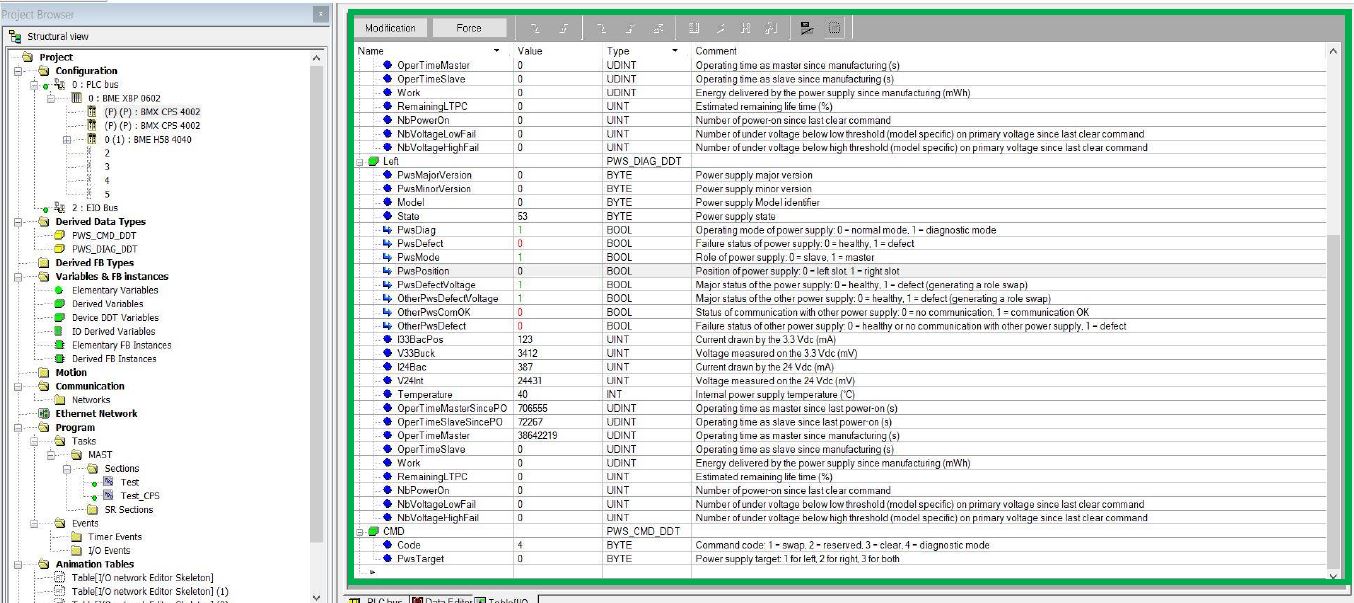
6 – Open your animation table and parameter the two power supplies :
Choose the position of the Power supply: Left / Right
Choose the state of the Power Supply: Master / Slave
Check values variations
Choose the state of the Power Supply: Master / Slave
Check values variations
7 – Attach in the case the screenshot of the animation table previously set