


How to setup a password for Easergy Studio (MiCOM S1 Studio)?
Issue
Need to change MiCOM password
Product Line
Easergy Studio (MiCOM S1 Studio)
Resolution
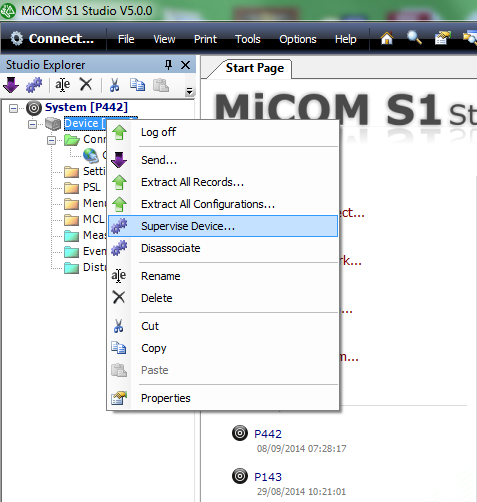
In S1 Studio right click on the device and select "Supervise Device".
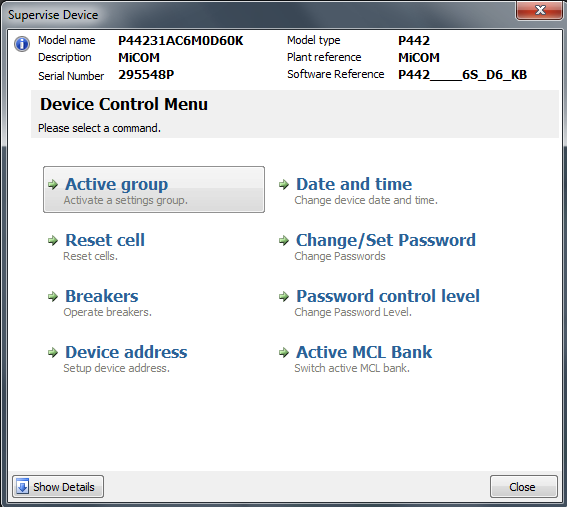
Once the "Supervise Device" box popup select "Change/Set Password"
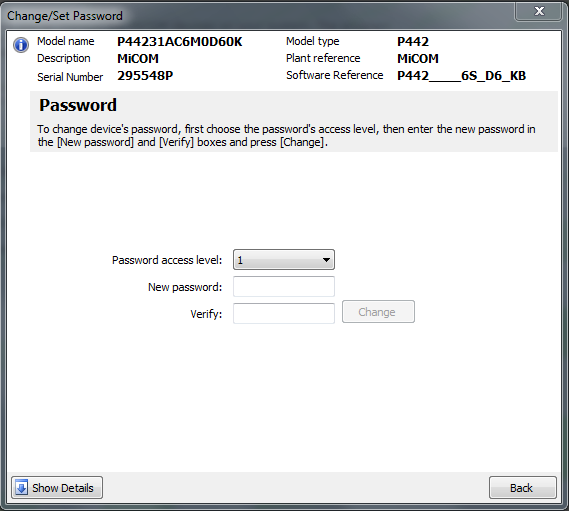
The "Change/Set Password" box will popup. To change device's password, first choose the password's access level, then enter the new password in the "New password" and "Verify" boxes and click "Change"
Need to change MiCOM password
Product Line
Easergy Studio (MiCOM S1 Studio)
Resolution
In S1 Studio right click on the device and select "Supervise Device".
Once the "Supervise Device" box popup select "Change/Set Password"
The "Change/Set Password" box will popup. To change device's password, first choose the password's access level, then enter the new password in the "New password" and "Verify" boxes and click "Change"
Released for: Schneider Electric Canada
