


Controlling a point in ClearSCADA Mobile
This article describes the steps to take in order to control a point (analog or digital) in the ClearSCADA database using ClearSCADA mobile.
Follow these steps to control a point from ClearSCADA mobile:
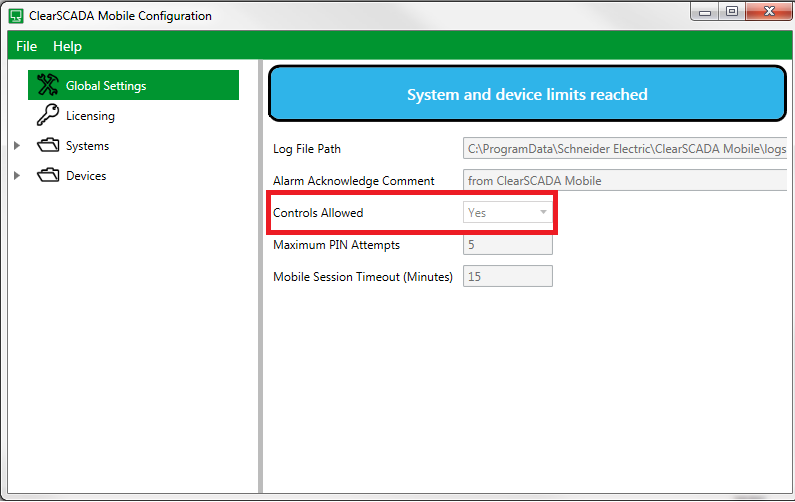
1) In the ClearSCADA configurator go to Global Settings. Right-click and select 'Update Settings'. Set the 'Controls Allowed' field to 'Yes'
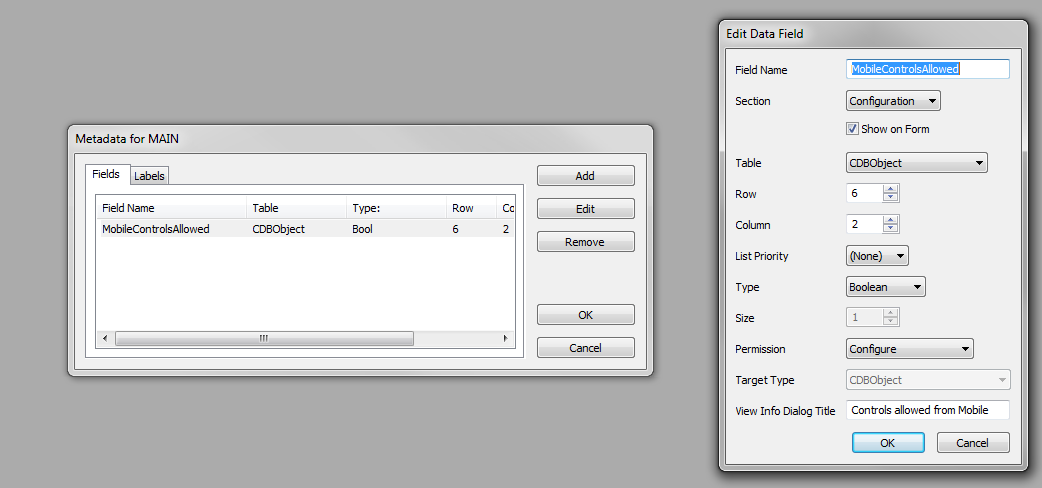
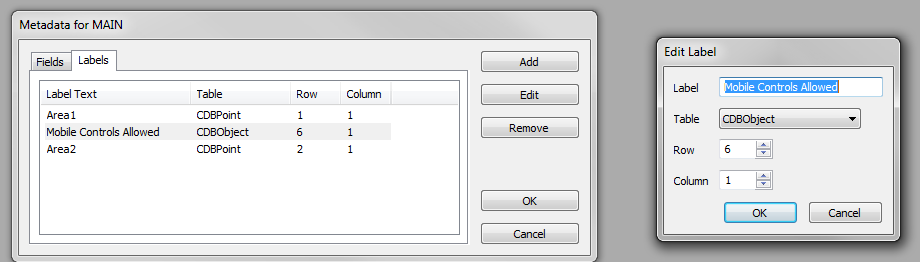
2) As per the ClearSCADA mobile help manual (search 'control' in the ClearSCADA Mobile - Administration Guide), add the MobileControlsAllowed metadata field and label
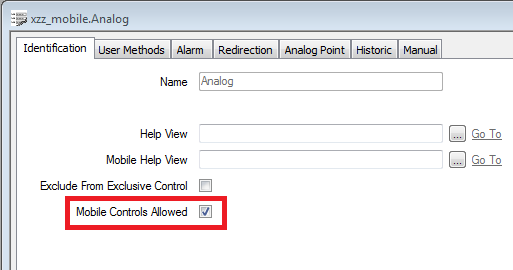
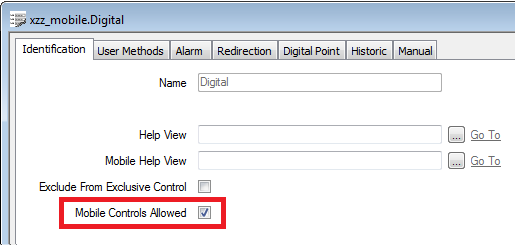
3) On the 'Identification' tab of the point (analog or digital), check the 'Mobile Controls Allowed' checkbox.
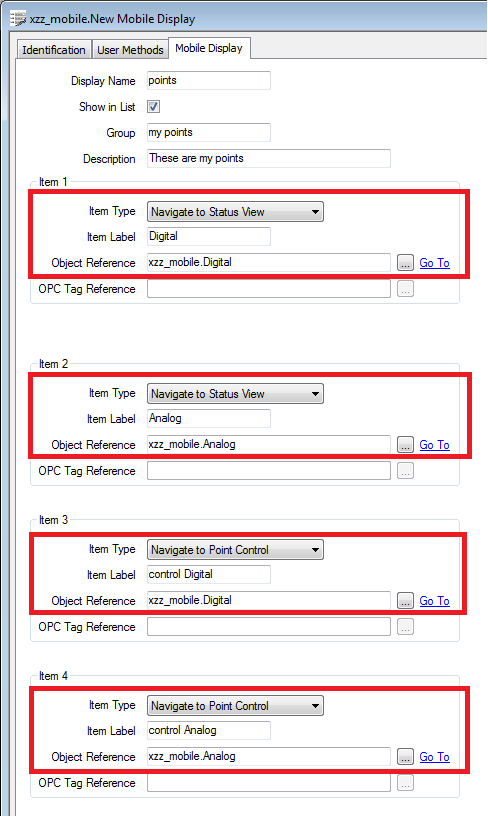
4) Create a 'Mobile Display' object in ViewX
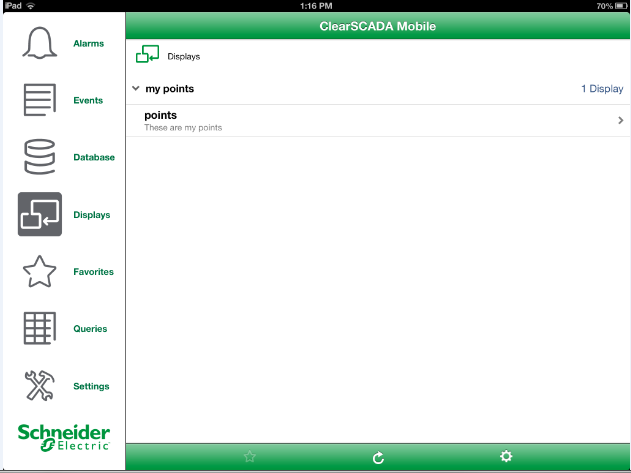
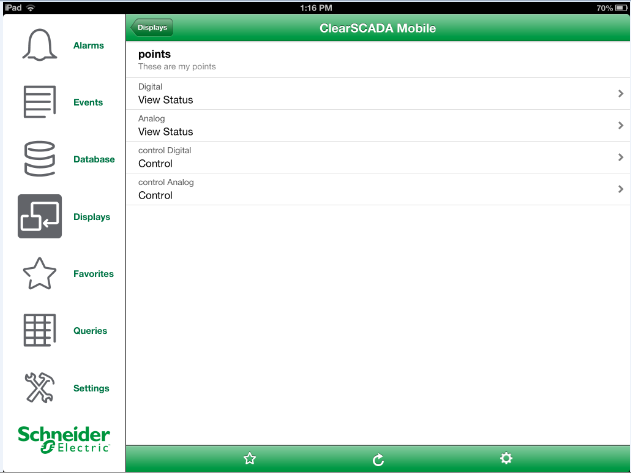
5) On the mobile device, go to the 'Displays' area to control each point
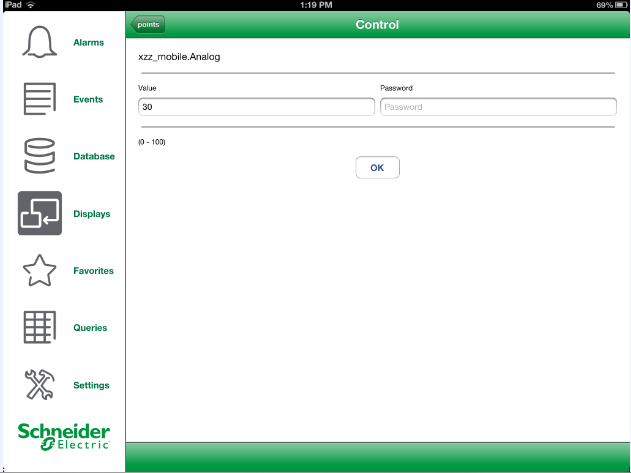
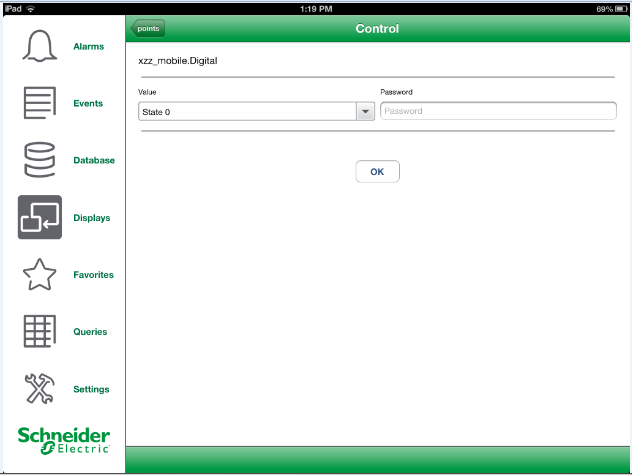
6) Verify the changes on the mimic in ViewX or WebX
Follow these steps to control a point from ClearSCADA mobile:
1) In the ClearSCADA configurator go to Global Settings. Right-click and select 'Update Settings'. Set the 'Controls Allowed' field to 'Yes'
2) As per the ClearSCADA mobile help manual (search 'control' in the ClearSCADA Mobile - Administration Guide), add the MobileControlsAllowed metadata field and label
3) On the 'Identification' tab of the point (analog or digital), check the 'Mobile Controls Allowed' checkbox.
4) Create a 'Mobile Display' object in ViewX
5) On the mobile device, go to the 'Displays' area to control each point
6) Verify the changes on the mimic in ViewX or WebX
Released for: Schneider Electric Canada
