


How to change the icon for a Connexium Network Manager Map device.
Issue
How to change the icon ifora Connexium Network Manager Map device.
Product Line
Connexium Network Manager
Environment
Windows 10
Resolution
If Connexium Network Manager does not have a defined icon for the device, the device will be shown as a yellow container box.
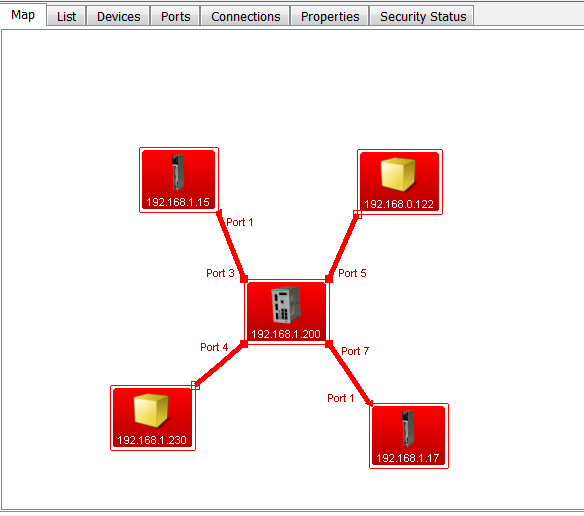
The following steps can be used to change the icon.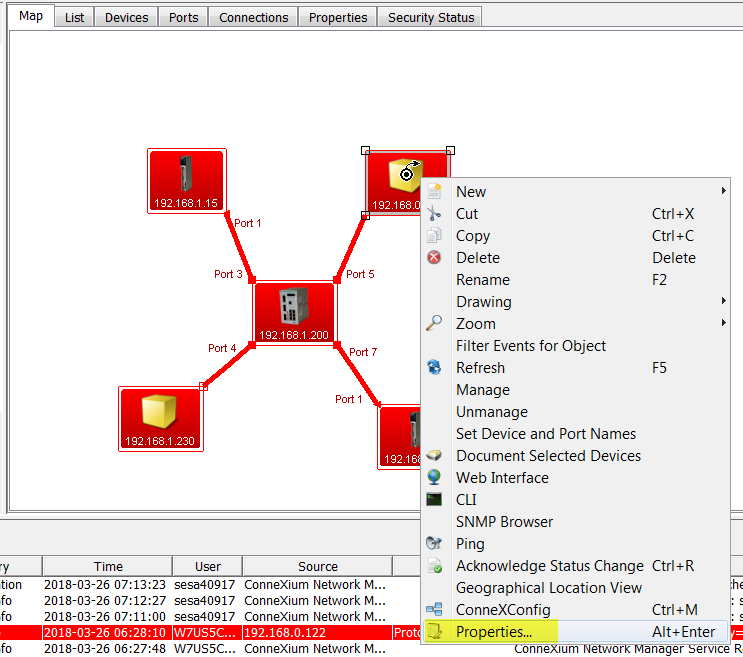
How to change the icon ifora Connexium Network Manager Map device.
Product Line
Connexium Network Manager
Environment
Windows 10
Resolution
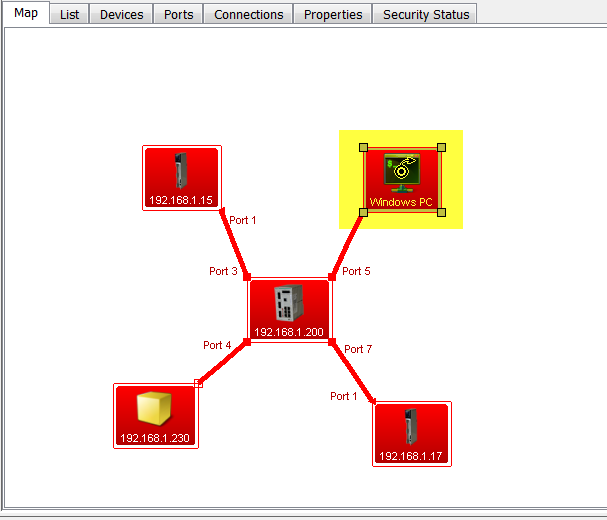
If Connexium Network Manager does not have a defined icon for the device, the device will be shown as a yellow container box.
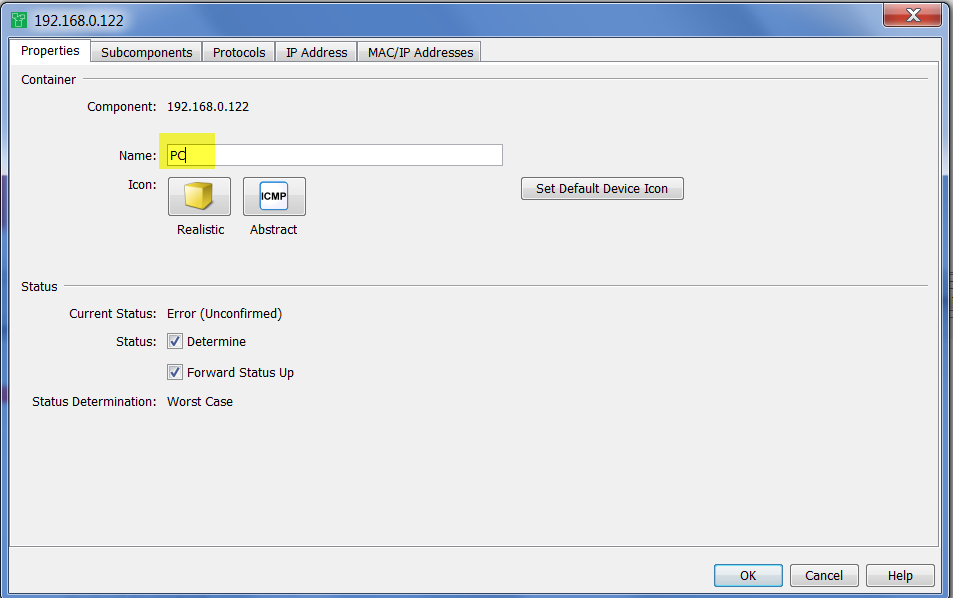
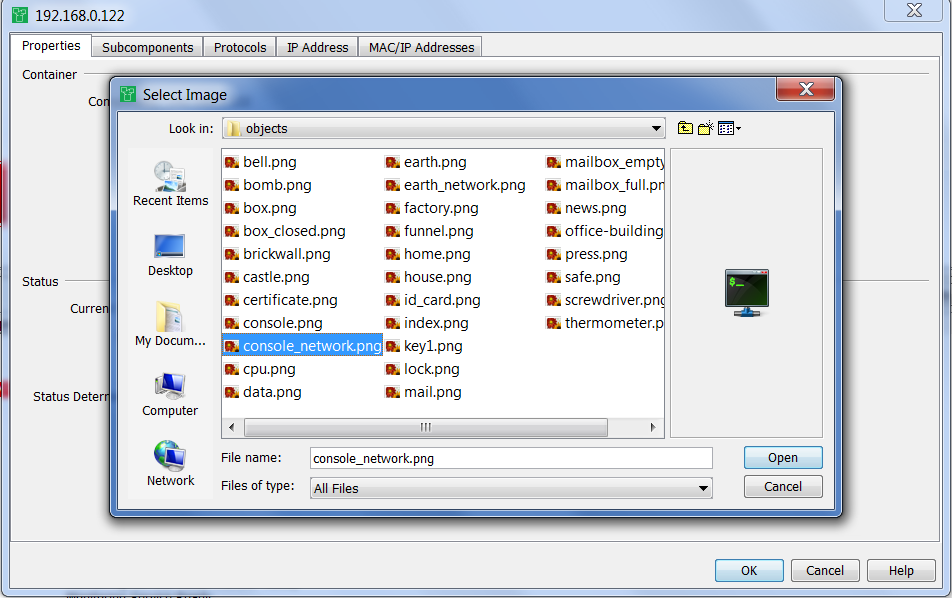
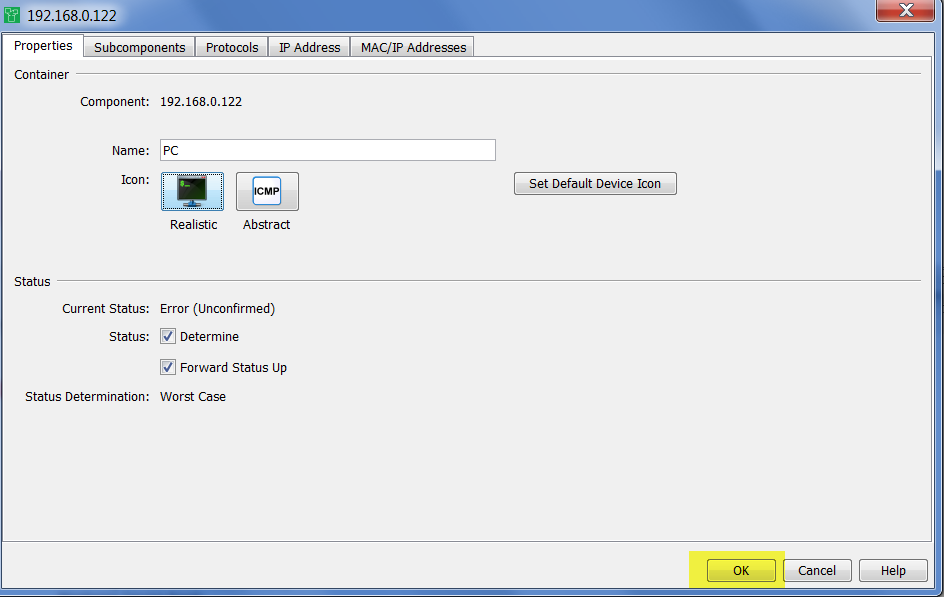
The following steps can be used to change the icon.
- Right click on the device icon.
- Select 'Properties'.
- Type in a name for the container
- Click on the appropriate button for the icon type (either Realistic or Abstract)
- Browse for and select the icon.
- Click on Open.
- Click on OK.
- The device will be shown in the network map with the new icon and container name.
Released for: Schneider Electric Canada
