


How can I increase the mimic size in WeX to fill my monitor
On some monitors a mimic in WebX will not cover the entire screen leaving unused white space at either the bottom or sides of the mimic as seen below.
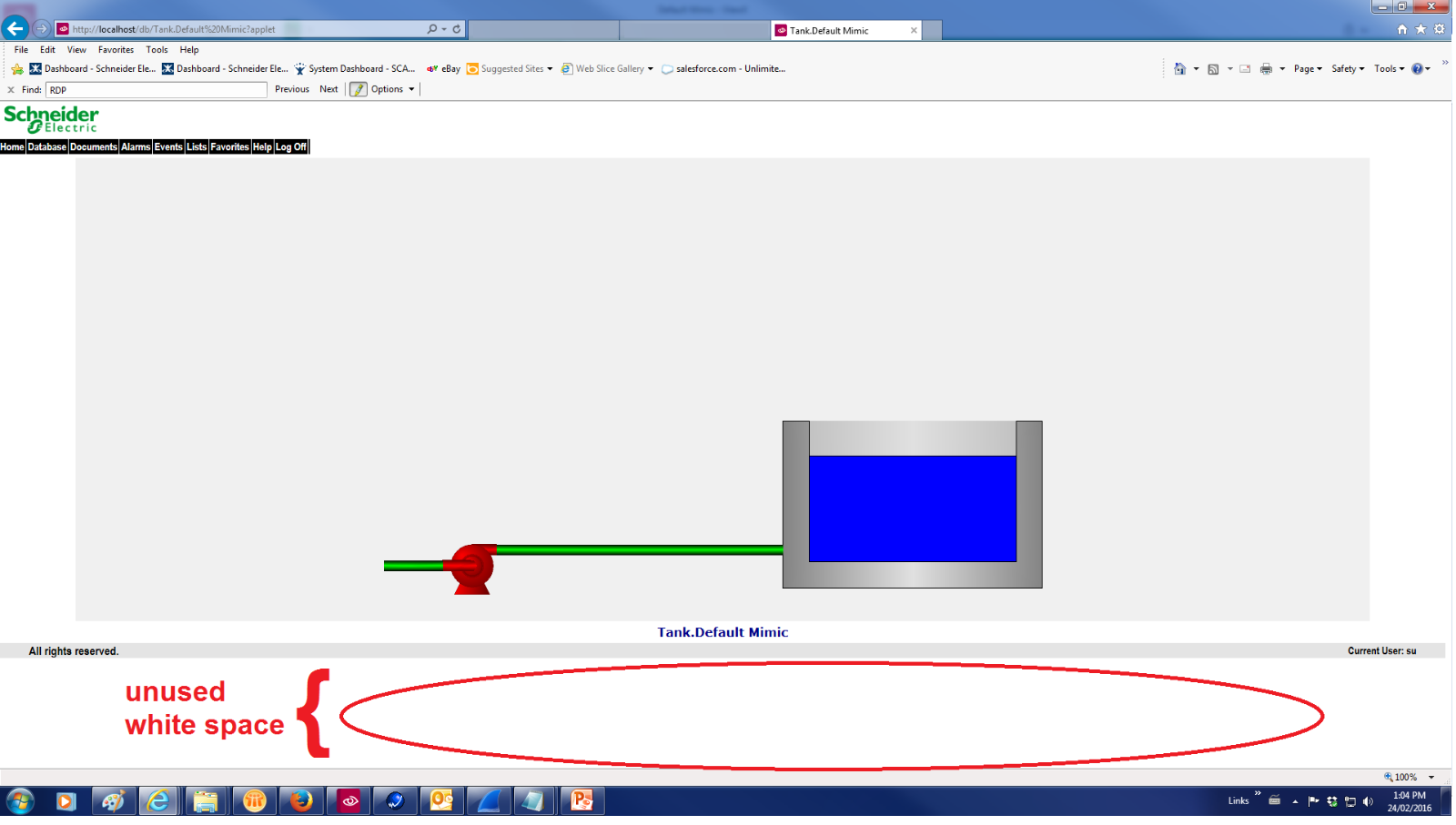
The default WebX mimic size can be adjusted by following the steps below.
- Open Windows Explorer and navigate to C:\Program Files\Schneider Electric\ClearSCADA\WWW\Scripts
- open javascript
- the default settings are width="90%" and height="70%"

- Adjusting the 'width' and 'height' in the code above (and saving the document) will allow mimics to fill the screen better in WebX
- In the screen shot below the height was changed from 70% to 75% compared to the screen shot above

The default WebX mimic size can be adjusted by following the steps below.
- Open Windows Explorer and navigate to C:\Program Files\Schneider Electric\ClearSCADA\WWW\Scripts
- open javascript
- the default settings are width="90%" and height="70%"
- Adjusting the 'width' and 'height' in the code above (and saving the document) will allow mimics to fill the screen better in WebX
- In the screen shot below the height was changed from 70% to 75% compared to the screen shot above