


ClearSCADA: Adding a Time Constraint to a Crystal Report
This article descries the steps for creating a basic Crystal Report - historic report, and modifying the time constraint to only show historic values within a specific time period.
1) Create a Crystal Report object from ViewX.

2) Inside the Crystal Report editor create a new connection | ODBC (RDO) | ClearSCADA

3) Add both the Core.CDBPoint and the Historic.CDHistoric tables.
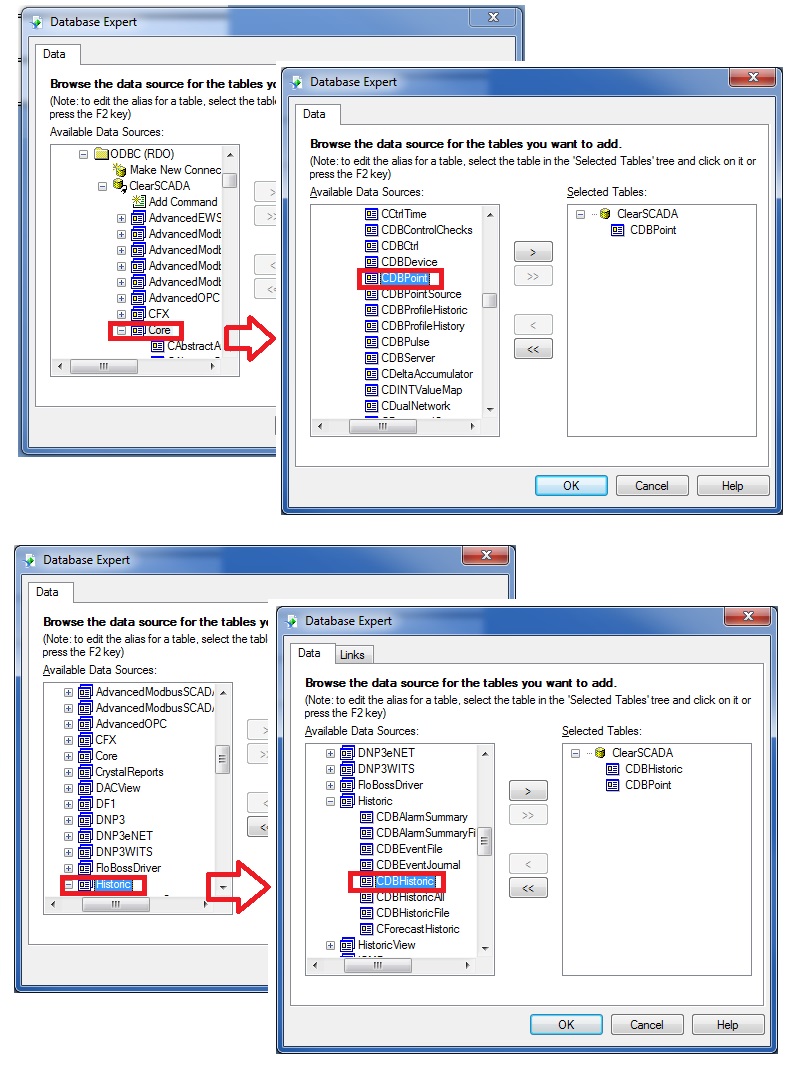
4) The tables should link on the 'ID' field

5) Add your items to the 'Details' view. It is recommended that you add both 'Name' and 'Id' from the CDBPoint table as well as 'Value' and 'Time' from the CDBHistoric table.
6) Go into Report | Select Expert | Record

7) Select CDBPoint.Id 'is equal to' and enter the object ID number of the point you'd like to show historic data for. In this example, the ID is 44903
8) Select CDBHistoric.Time, set it to 'is between' and fill in the fields. The syntax should be as follows:
18/04/2018 2:37:00PM This represents April 18, 2018 at 2:37:00pm UTC time.

9) The screen shot below shows the historic list for the point in ViewX. Notice that the local time (Eastern Daylight Time) is 4 hours behind UTC time. Historic values in the time period of 10:37:00am to 10:38:00am local time will be included in the crystal report (as this corresponds to 2:37:00pm to 2:38:00pm UTC time).

10) When the report is generated and displayed in ViewX you can see the historic values with their UTC timestamps.

1) Create a Crystal Report object from ViewX.
2) Inside the Crystal Report editor create a new connection | ODBC (RDO) | ClearSCADA
3) Add both the Core.CDBPoint and the Historic.CDHistoric tables.
4) The tables should link on the 'ID' field
5) Add your items to the 'Details' view. It is recommended that you add both 'Name' and 'Id' from the CDBPoint table as well as 'Value' and 'Time' from the CDBHistoric table.
6) Go into Report | Select Expert | Record
7) Select CDBPoint.Id 'is equal to' and enter the object ID number of the point you'd like to show historic data for. In this example, the ID is 44903
8) Select CDBHistoric.Time, set it to 'is between' and fill in the fields. The syntax should be as follows:
18/04/2018 2:37:00PM This represents April 18, 2018 at 2:37:00pm UTC time.
9) The screen shot below shows the historic list for the point in ViewX. Notice that the local time (Eastern Daylight Time) is 4 hours behind UTC time. Historic values in the time period of 10:37:00am to 10:38:00am local time will be included in the crystal report (as this corresponds to 2:37:00pm to 2:38:00pm UTC time).
10) When the report is generated and displayed in ViewX you can see the historic values with their UTC timestamps.