


How to use Text Display in Vijeo Designer
How to use Text Display in Vijeo Designer?
Vijeo Designer 6.2 [SPx].
Here is an example to use Text Display in Vijeo Designer.
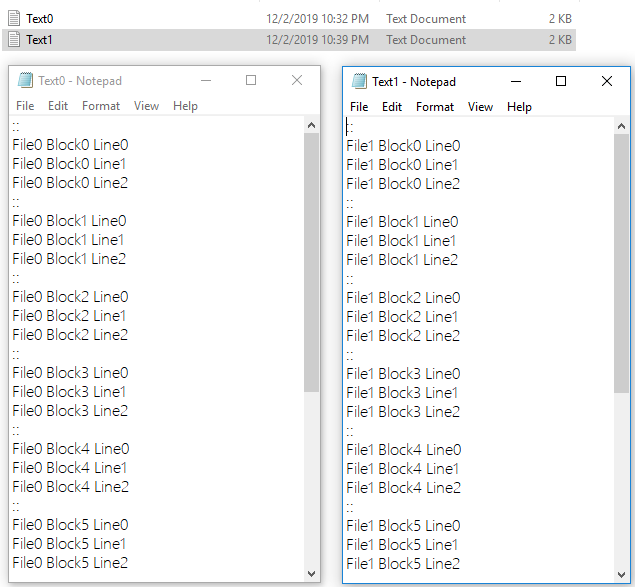
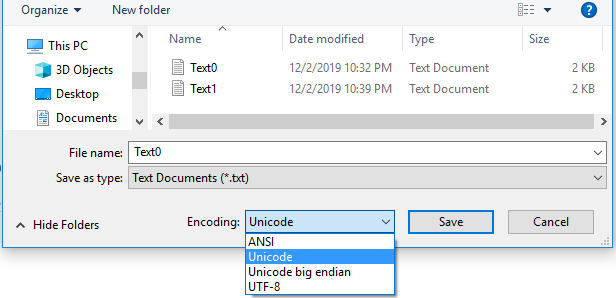
Step 1. Create two text files as below. Insert two colons to identify the start of a text block.The two colons will not appear in the text display. Select Unicode encoding when saving the file.
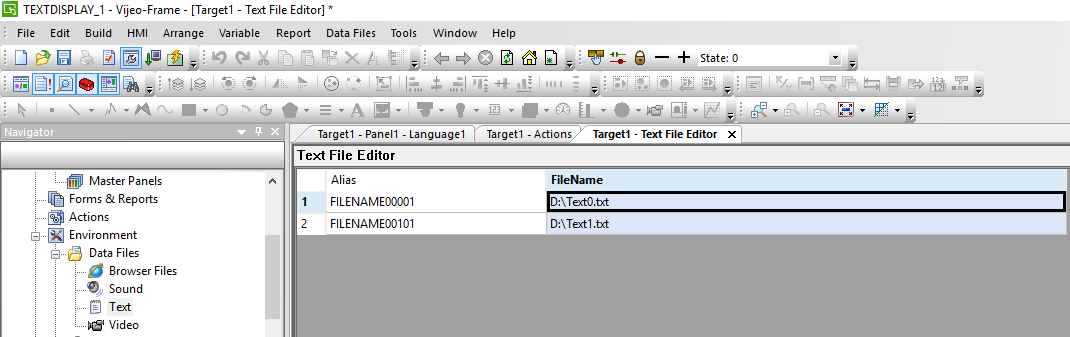
Step 2.Add the text files into Text File Editor in Vijeo Designer project .
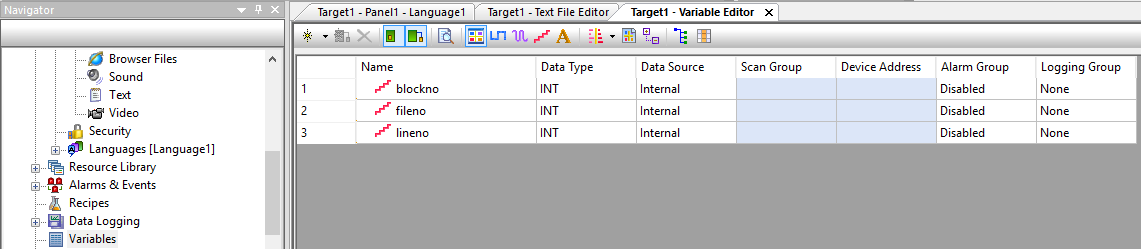
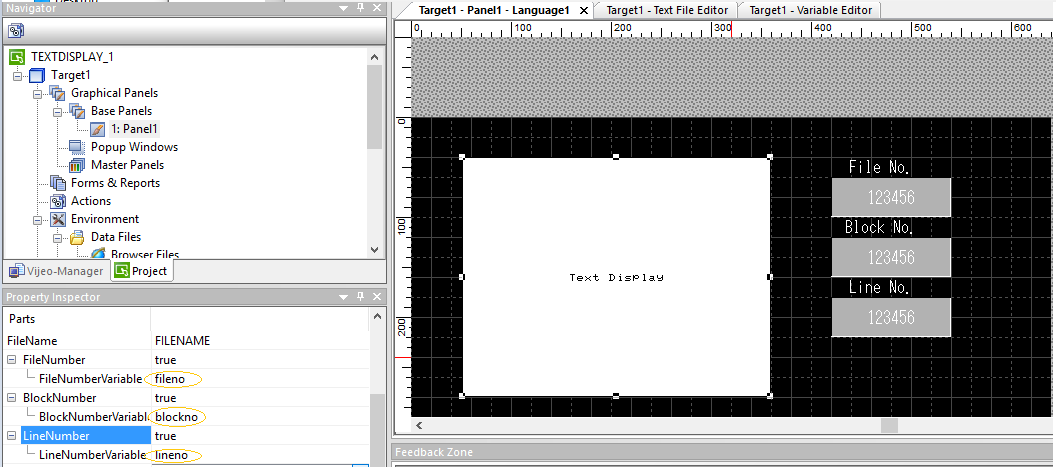
Step 3.Create 3 variables for Text Display and fill them into Property Inspector window.
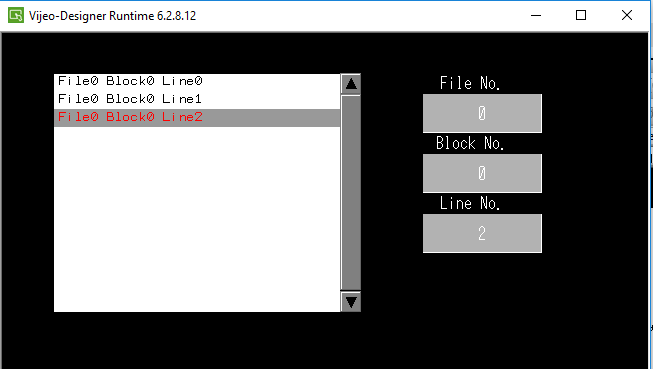
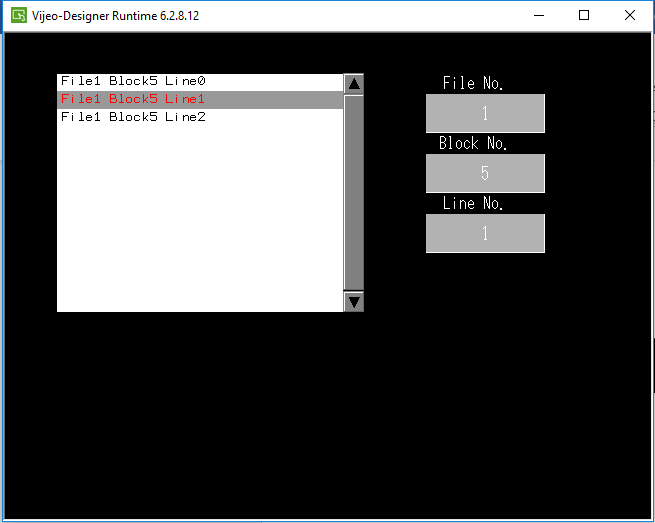
Step 4.Simulate to run the project, User will get the result as below.
FAQ applies to all Vijeo Designer 6.2 SPx.
Vijeo Designer 6.2 [SPx].
Here is an example to use Text Display in Vijeo Designer.
Step 1. Create two text files as below. Insert two colons to identify the start of a text block.The two colons will not appear in the text display. Select Unicode encoding when saving the file.
Step 2.Add the text files into Text File Editor in Vijeo Designer project .
Step 3.Create 3 variables for Text Display and fill them into Property Inspector window.
Step 4.Simulate to run the project, User will get the result as below.
FAQ applies to all Vijeo Designer 6.2 SPx.