


Data Center Expert | Can I add a custom column in a graph report?
Issue:
Custom column not shown in a graph report in StruxureWare Data Center Expert
Product Line:
StruxureWare Data Center Expert
Environment:
StruxureWare Data Center Expert 7.2.2 and earlier
Cause:
This was by design as columns do not show up in a graph, only in the legend. They can be added to both the summary report as well as the table report.
Resolution:
A feature added in StruxureWare Data Center Expert 7.2 which should give the information on the graph, just in a slightly different way than using the 'Configure Column' option.
1. Create a new Custom Property key.
2. Use the Custom Property Editor to edit the custom fields for the Sensors of each Device.
3. Go to Client Preferences -->Custom Property Settings --> and select the Custom Property field to be appended to the sensor label.
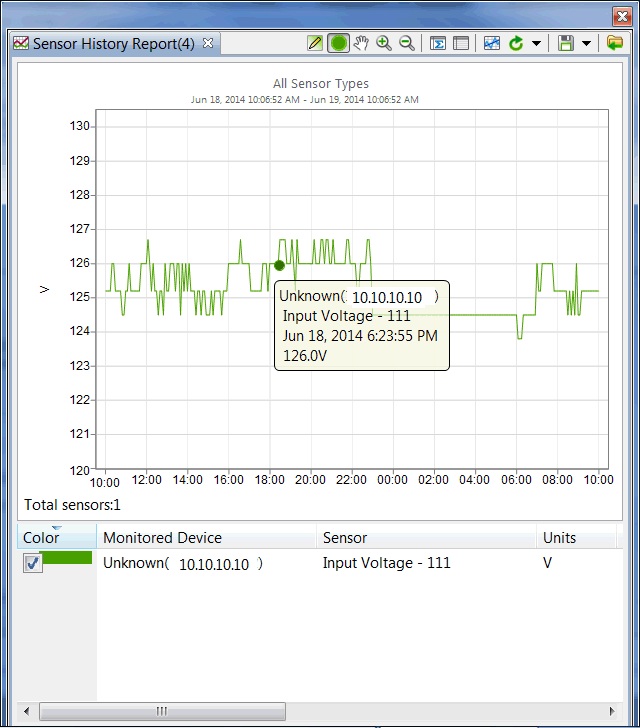
Formatted similar to "sensor - custom property". the hover-over on the graph itself will also show the name of the sensor with the custom property. In the example below, the room number of 111 was appended to the input voltage sensor on a UPS.
Custom column not shown in a graph report in StruxureWare Data Center Expert
Product Line:
StruxureWare Data Center Expert
Environment:
StruxureWare Data Center Expert 7.2.2 and earlier
Cause:
This was by design as columns do not show up in a graph, only in the legend. They can be added to both the summary report as well as the table report.
Resolution:
A feature added in StruxureWare Data Center Expert 7.2 which should give the information on the graph, just in a slightly different way than using the 'Configure Column' option.
1. Create a new Custom Property key.
2. Use the Custom Property Editor to edit the custom fields for the Sensors of each Device.
3. Go to Client Preferences -->Custom Property Settings --> and select the Custom Property field to be appended to the sensor label.
Formatted similar to "sensor - custom property". the hover-over on the graph itself will also show the name of the sensor with the custom property. In the example below, the room number of 111 was appended to the input voltage sensor on a UPS.