


PME Web Applications "HTTP Error 500.19 - Internal Server Error"
Issue
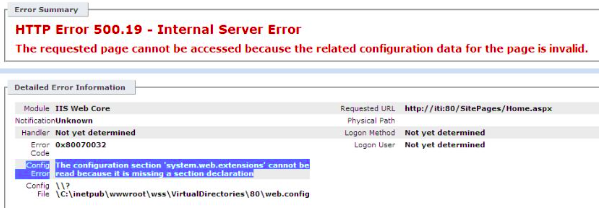
When attempting to access web applications, the following error is display in the browser window:
Situation 1:
The requested page cannot be accessed because the related configuration data for the page is invalid.
The configuration section 'system.web.extensions' cannot be read because it is missing a section.
Situation 2:
The virtual root does not reference the correct physical path on the system.
Product Line
ION Enterprise 6.0.x
StruxureWare Power Monitoring 7.0.1
Power Monitoring Expert 7.2
Power Monitoring Expert 8.x
Power Monitoring Expert 9.x
Power Monitoring Expert 2021
Power Monitoring Expert 2022
Power Monitoring Expert 2023
Environment
IIS Manager
Cause
Situation 1:
The application is running under an application pool configured with a non-compatible .NET version.
Situation 2:
The system has been restored from database and config folder backups, so the virtual root physical path needs to be updated.
Resolution
Situation 1:
Perform the following steps:
Situation 2:
1. Launch the IIS Manager (exec 'inetmgr')
2. Select the 'ION' virtual root and the 'Basic Settings' option on the right-hand pane.
3. Browse to the physical path location and ensure there is a 'Web.config' file present. The default installation path for ION-E systems will be 'ION Enterprise' while PME will be 'Power Monitoring Expert'.
4. Modify the physical path setting for the virtual root if no web.config file is present.
5. Repeat the same process for all other virtual roots.
6. Perform an 'iisreset' command through a command prompt window and check WebReach once again to ensure it loads as expected.
When attempting to access web applications, the following error is display in the browser window:
Situation 1:
The requested page cannot be accessed because the related configuration data for the page is invalid.
The configuration section 'system.web.extensions' cannot be read because it is missing a section.
Situation 2:
The virtual root does not reference the correct physical path on the system.
Product Line
ION Enterprise 6.0.x
StruxureWare Power Monitoring 7.0.1
Power Monitoring Expert 7.2
Power Monitoring Expert 8.x
Power Monitoring Expert 9.x
Power Monitoring Expert 2021
Power Monitoring Expert 2022
Power Monitoring Expert 2023
Environment
IIS Manager
Cause
Situation 1:
The application is running under an application pool configured with a non-compatible .NET version.
Situation 2:
The system has been restored from database and config folder backups, so the virtual root physical path needs to be updated.
Resolution
Situation 1:
Perform the following steps:
- Launch the IIS Manager (exec 'inetmgr')
- Select the desired application (probably 'Server\Sites\Default web site\Your application name' from the tree on the left panel)
- Open the application settings (click 'Basic Settings' from 'Actions' in the right panel) and determine the Application Pool.
- Now choose the appropriate action:
- Change the application pool for the application (button select in the 'Application Edit' form, then choose 'ASP.NET v4-0 Classic'). This change will affect just this application
OR - Edit the application pool (probably Server\Application pools\DefaultAppPool from the tree on the left) and set it to run under .NET Framework v4.0. Be careful: this change will affect every application under this Application Pool
- Change the application pool for the application (button select in the 'Application Edit' form, then choose 'ASP.NET v4-0 Classic'). This change will affect just this application
| Application | .Net Version |
|---|---|
| PME 2022 and 2023 | V4.8 |
| PME 9.0, 2020 and 2021 | V4.6 |
| PME 7.2 and 8.x | V4.0 |
Situation 2:
1. Launch the IIS Manager (exec 'inetmgr')
2. Select the 'ION' virtual root and the 'Basic Settings' option on the right-hand pane.
3. Browse to the physical path location and ensure there is a 'Web.config' file present. The default installation path for ION-E systems will be 'ION Enterprise' while PME will be 'Power Monitoring Expert'.
4. Modify the physical path setting for the virtual root if no web.config file is present.
5. Repeat the same process for all other virtual roots.
6. Perform an 'iisreset' command through a command prompt window and check WebReach once again to ensure it loads as expected.