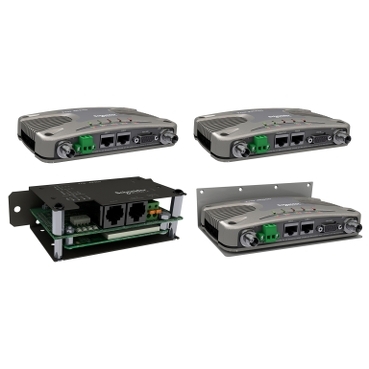
Trio J Series Spectrum Analyzer
The Spectrum Analyzer is found in the Text interface (either via Telnet or a serial port configured for Text Interface capability), which provides live updating. It is found in the Configuration menu, rather than the Diagnostics menu as might be assumed, because it provides the ability to change the radio’s configuration by locking out channels.
CAUTION: It is strongly recommended that the system's Access Point radio be powered off during Spectrum Analyzer testing. If the AP is still running, the Spectrum Analyzer will not be able to differentiate between desired signals from the AP and unwanted signals from interference sources.
Level:
The vertical axis of the graph represents the strength of the signal or noise heard by the radio while running as a spectrum analyzer. It is measured in dBm. (decibels relative to a milliwatt) A level of -120 can only be attained by attaching a dummy load to the radio. -105 or -110 may be heard in a very quiet location. A -40dBm signal is very strong, eg from a radio very near. Any signals not heard from your own radio system should, on average, be lower in strength than signals from your own system.
Channel:
The horizontal axis represents the channel number. In the FCC/IC version of the 900 MHz radio there are 67 channels, numbered from 0 through 66. Other radio types may have a different number of channels.Locked Out:
Shows the number of locked out channels. If any channels are constantly interfered with (eg cellular or paging systems, or government systems) the user may lock out channels so they are never used by the Trio J radio. This is NOT recommended for normal interference types, as such interference moves constantly. In the 900 MHz FCC type radio, up to 14 channels may be locked out. Other radio types may allow locking out of a different number of channels.Last Sweep:
The vertical bars seen on any channel (eg "|" represent the signal level heard on the last sweep. Go to the top of the bar, then across to the signal level on the left to see how strong the signal was.
Peak hold:
Upwards-pointing arrows, called carets (shift 6 on the keyboard), may appear above the vertical bars on some channels. These represent the strongest signal heard on a specific channel since a continuous sweep began.
Locking Out Channels:
If after extensive testing, it is found necessary to lock out channels due to persistent interference on specific channels, please use the following procedure:
- Log on to the radio locally with a text interface (either Telnet or serially)
- Go to the Configuration menu, then select the Spectrum Analyzer
- Using the arrow keys, move left or right to select the desired channel to lock out.
- The selected channel number is displayed at the top of the screen, and a caret (^) along the horizontal axis below shows the selected channel
- Press E to set a lockout channel once you have moved to it, or G to begin selecting a range of channels
- See the note at the top stating "Lock out x more channels for valid configuration. The frequency hopping algorithm requires a prime number of channels. In the 900 MHz FCC version, you must always lock out 6,8 or 14 channels.
- If you want to remove the lock-out of a channel, move to it and press F
- Once you have locked out the required channels, press Esc to go back to the Configuration menu
- Activate the changes to the radio by pressing I
- If you want to save the radio's configuration (including the locked out channels) open a web browser session with the radio, go to Setup, then Save/Load and save the file. This can not be done until after the configuration activation from the previous step is completed.
發佈於: 施耐德電機Taiwan