


How to use Cart Transfer option in Ecostruxure Power Build Rapsody FR V2.1.19
Cart Transfer has introduced in the Rapsody tool to add configured products to the cart. The added product in the cart will available on SE.com and can order from vendors.
Below Steps that will help to use the Cart Transfer feature: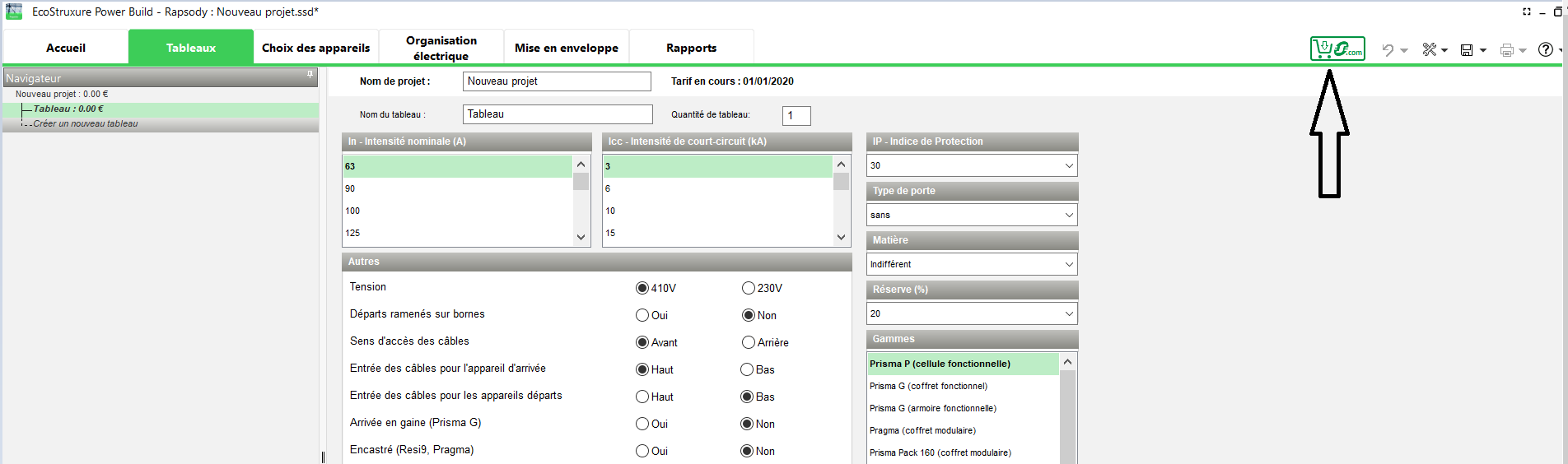
2. Click on Cart Transfer Icon a new window will open in which Complete Project or a specific panel of the project can be selected.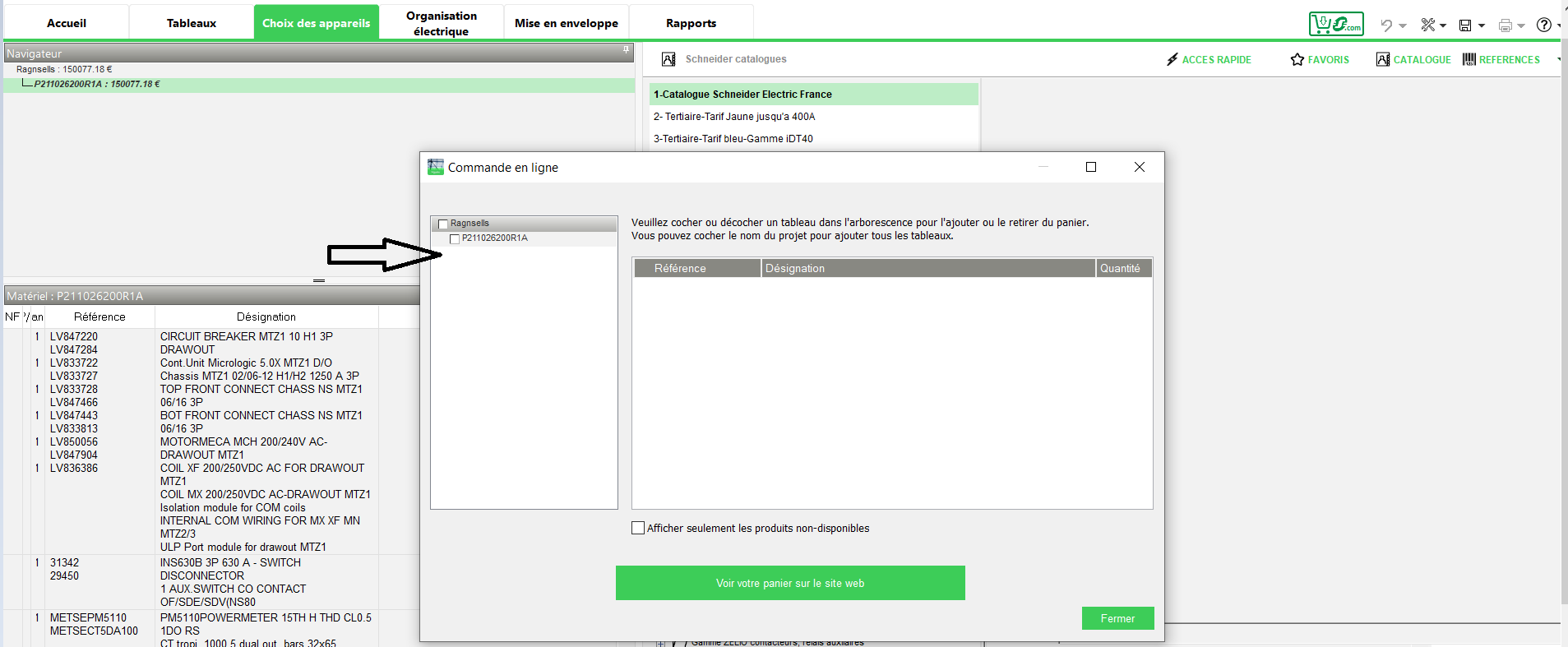
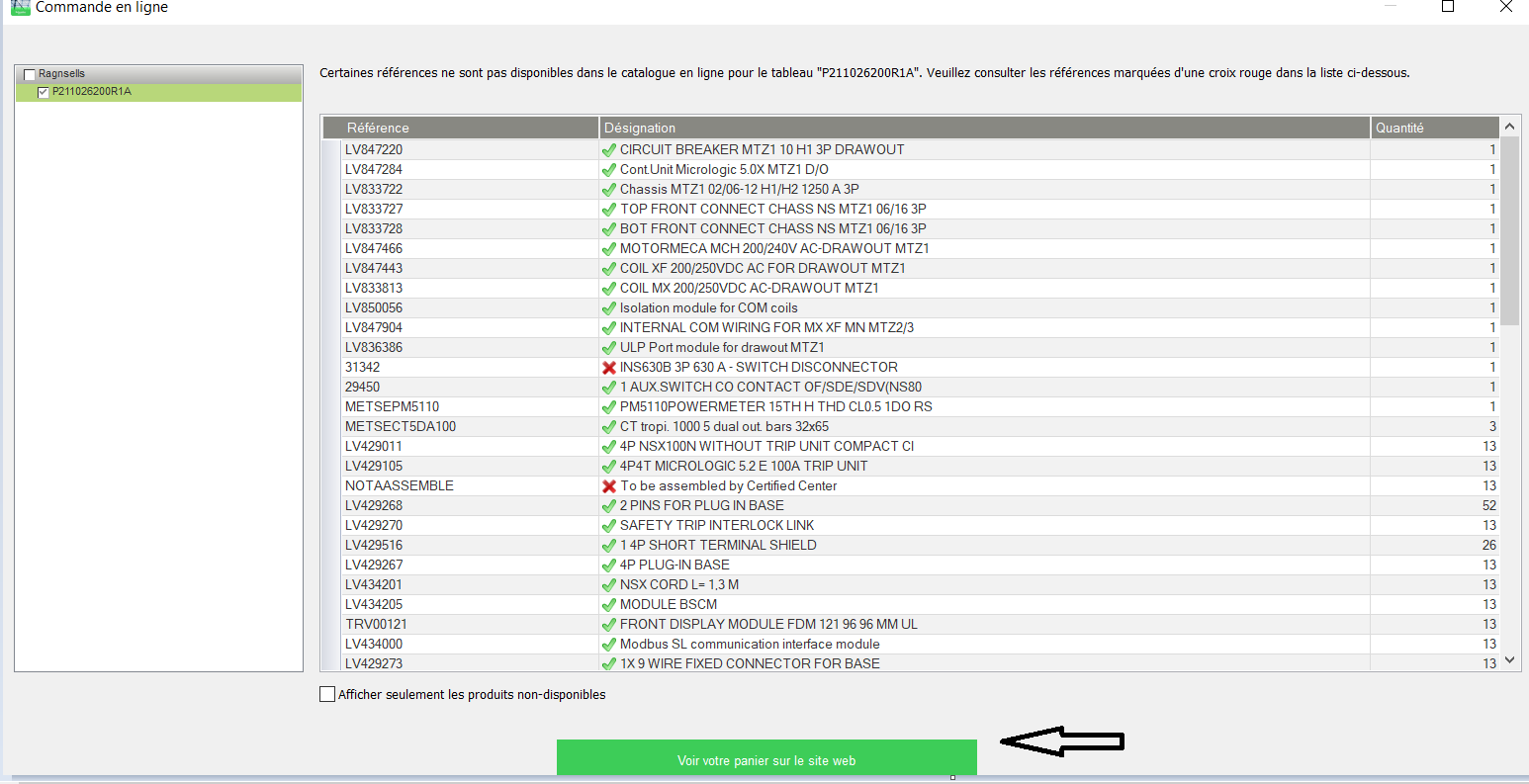
3. After Panel selection product will list with Reference ids, descriptions & quantities.
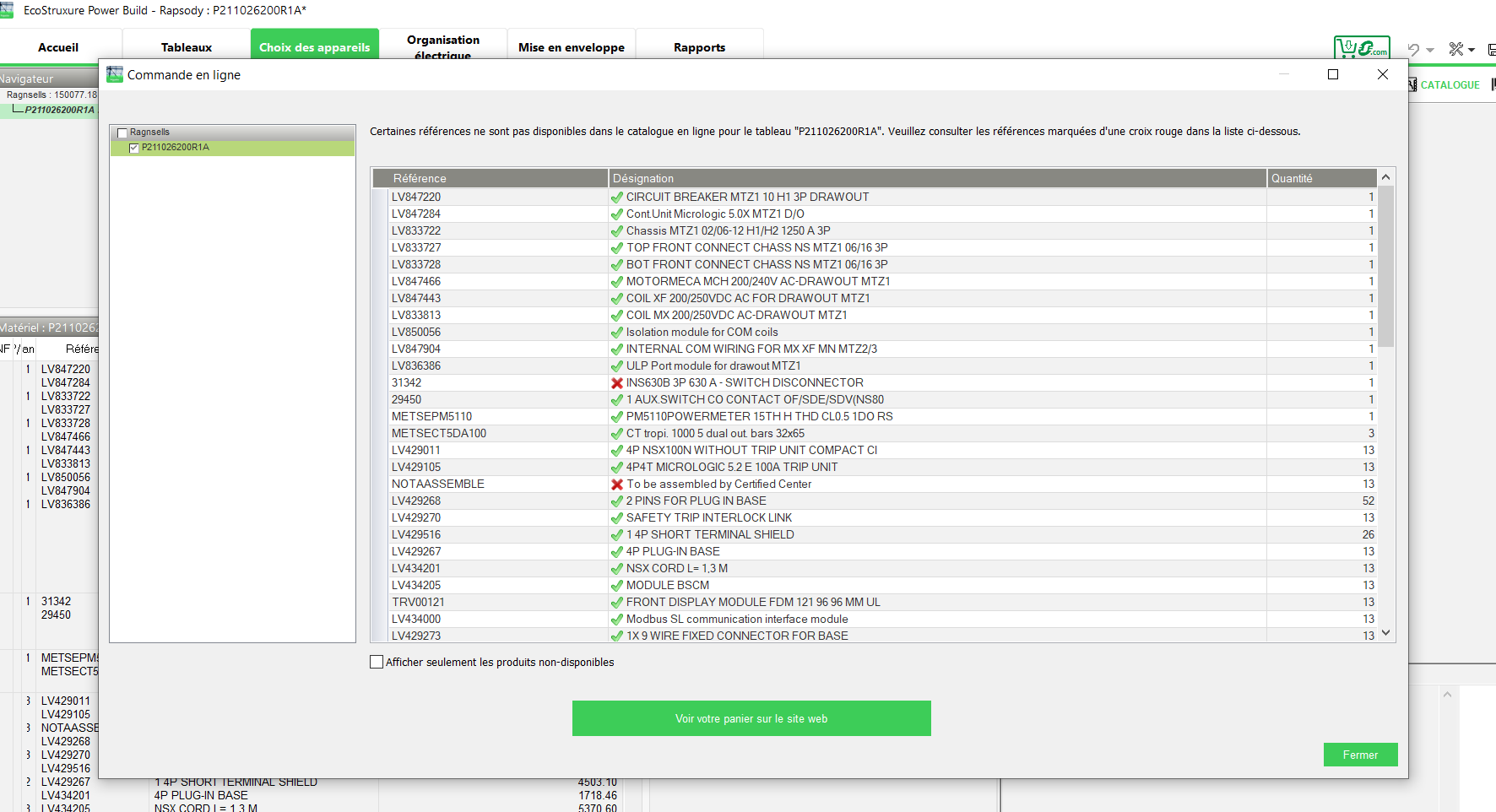
4.The software will check the selected products in EPB Rapsody at SE.com level if products unavailable those will not be considered into export and not added in CART.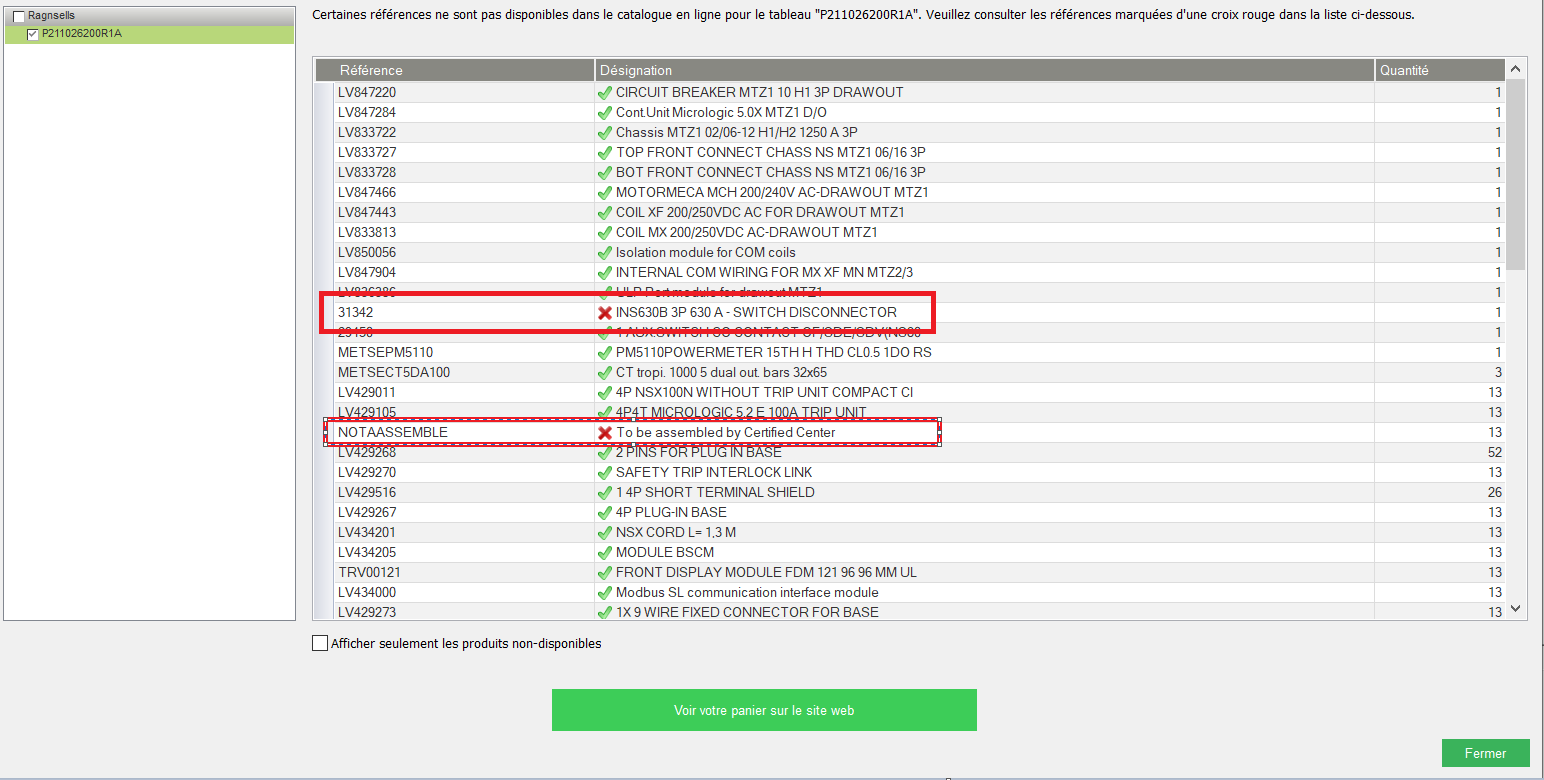
5. Click on 'View Your Basket on Website' button as shown below to see the added products in Cart Transfer.
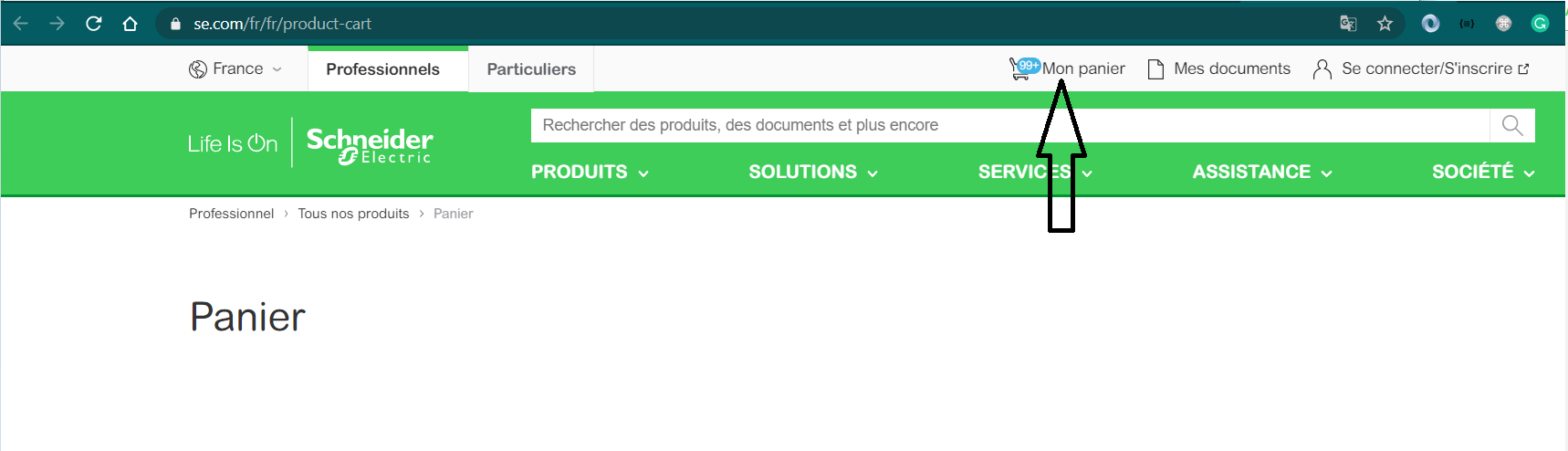
6. Once click on the button it will redirect to SE.com website with added products in CART.
7.The added products in CART will available on SE.com and ready to purchase from vendors.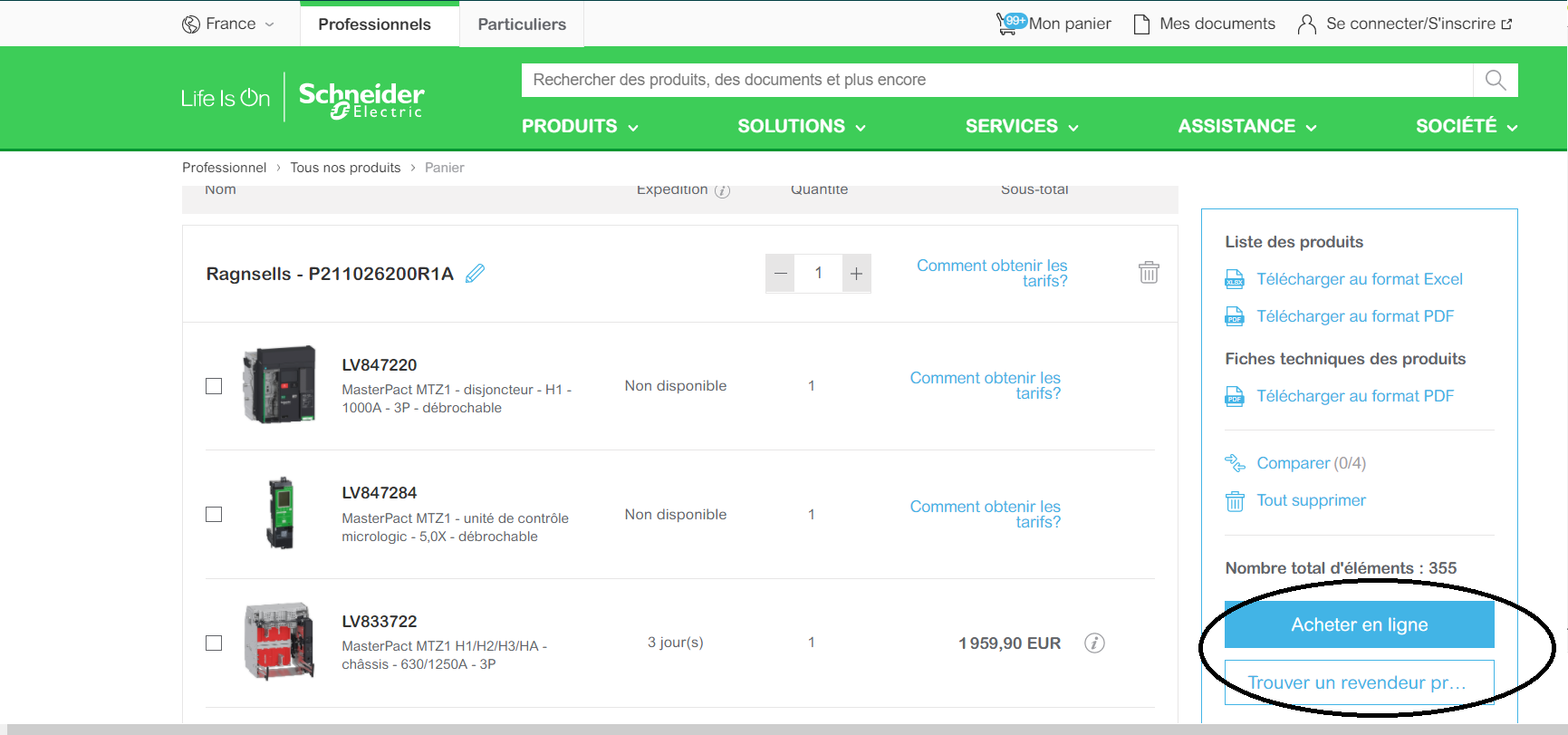
Below Steps that will help to use the Cart Transfer feature:
- The Cart Transfer will available on all tabs in the Rapsody application.
2. Click on Cart Transfer Icon a new window will open in which Complete Project or a specific panel of the project can be selected.
3. After Panel selection product will list with Reference ids, descriptions & quantities.
4.The software will check the selected products in EPB Rapsody at SE.com level if products unavailable those will not be considered into export and not added in CART.
5. Click on 'View Your Basket on Website' button as shown below to see the added products in Cart Transfer.
6. Once click on the button it will redirect to SE.com website with added products in CART.
7.The added products in CART will available on SE.com and ready to purchase from vendors.