


How to get the firmware version of a M580 CPU (BMEx58x0x0 or BMEx58x0x0S) ?
If the firmware has never been updated since it has been manufactured, the SV marked on the product shows the firmware release set inside the module.
Otherwise, there are several methods for getting the firmware release of a M580 CPU :
1 : By connecting Control-Expert to the CPU :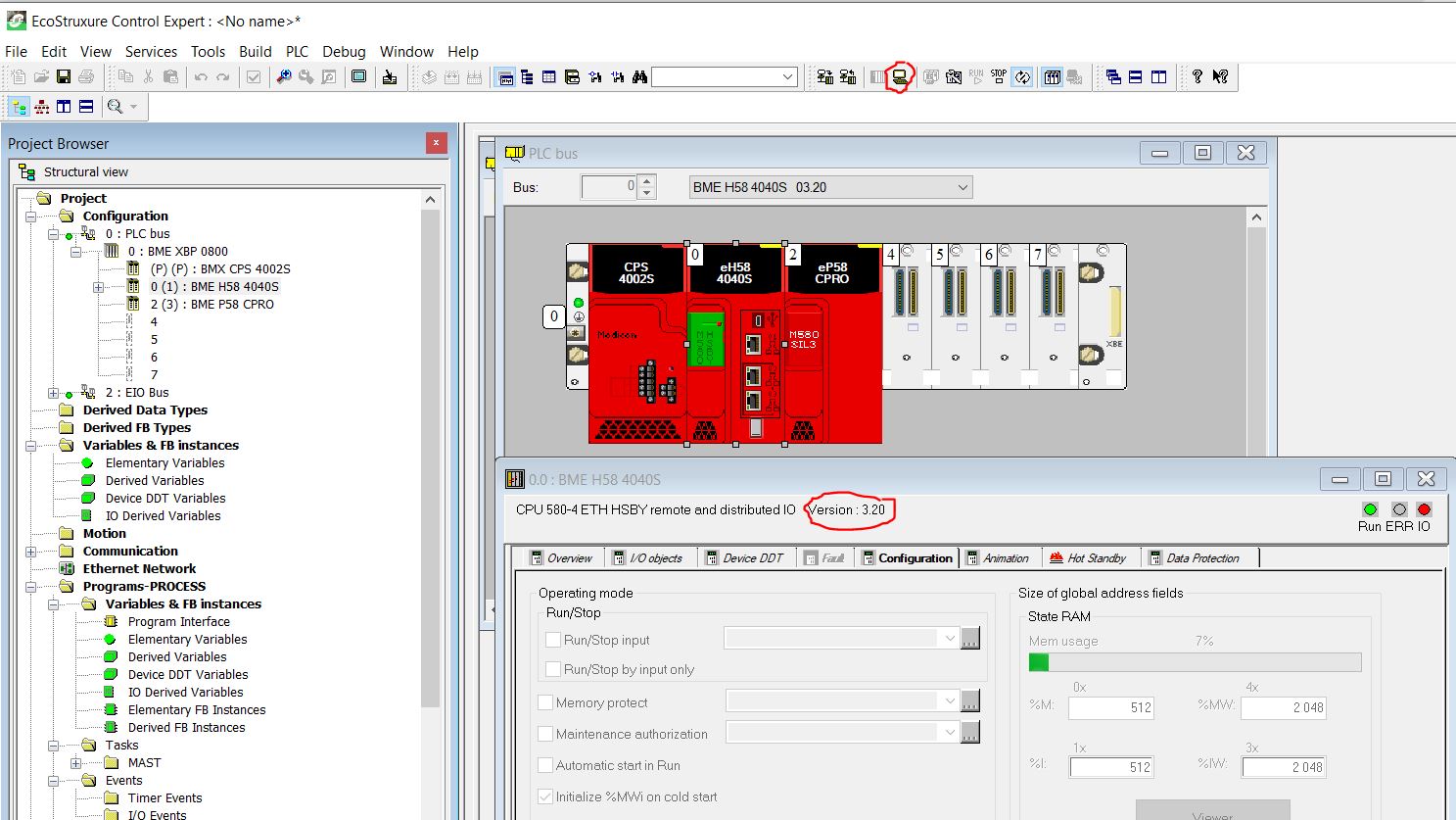
Or

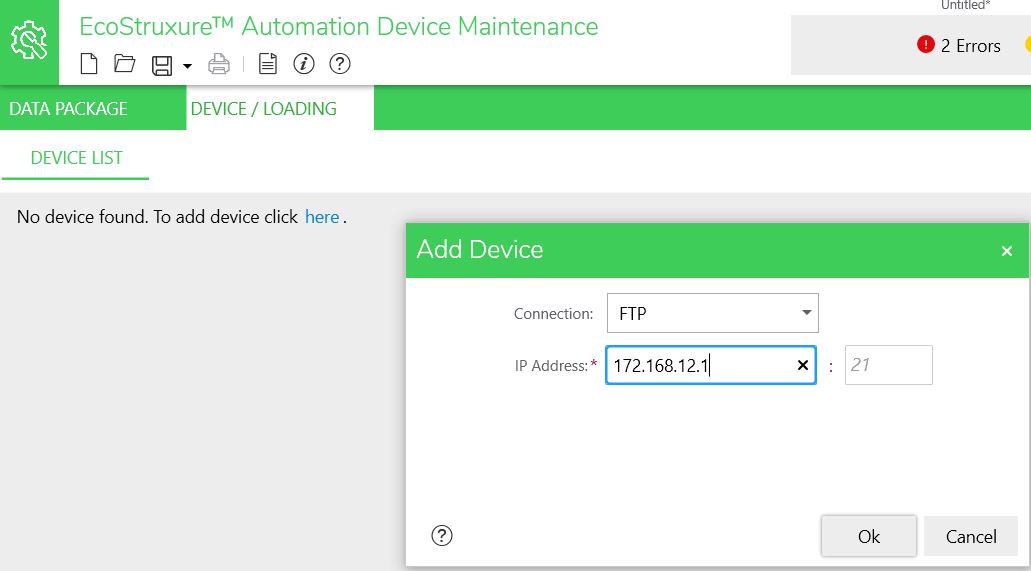
b : Select the package (*.ldx file or *.eadp) available in the "Data Package" folder :
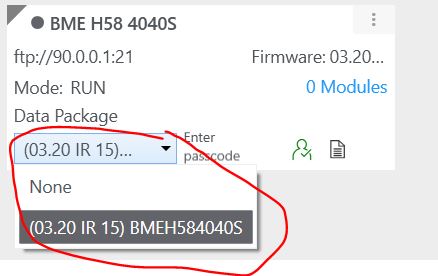
c : Click on the icon to enter the Firmware password and click on Connect => the firmware version of the device appears in the box (in this example, 3.20)

Note : For firmware version higher than 4.01, cybersecure mode will add some additional constraint which could differs from the steps described above (but still unknown at the creation of this FAQ)
Otherwise, there are several methods for getting the firmware release of a M580 CPU :
1 : By connecting Control-Expert to the CPU :
a.1 : Connect Control-Expert to the M580 CPU
b.1 : double click on the CPU in the configuration screen or open the
c.1 : the version is displayed on top of the window as show below :
b.1 : double click on the CPU in the configuration screen or open the
c.1 : the version is displayed on top of the window as show below :
Or
a.2 : Connect Control-Expert to the M580 CPU
b.2 : Open the PLC screen (Alt+7)
c.2 : Open the sheet "Information" in the PLC Screen window
d.2 : Select the PLC->IDENTIFICATION menu
e.2 : The firmware release appears under the parameter "PROCESSOR VERSION" :
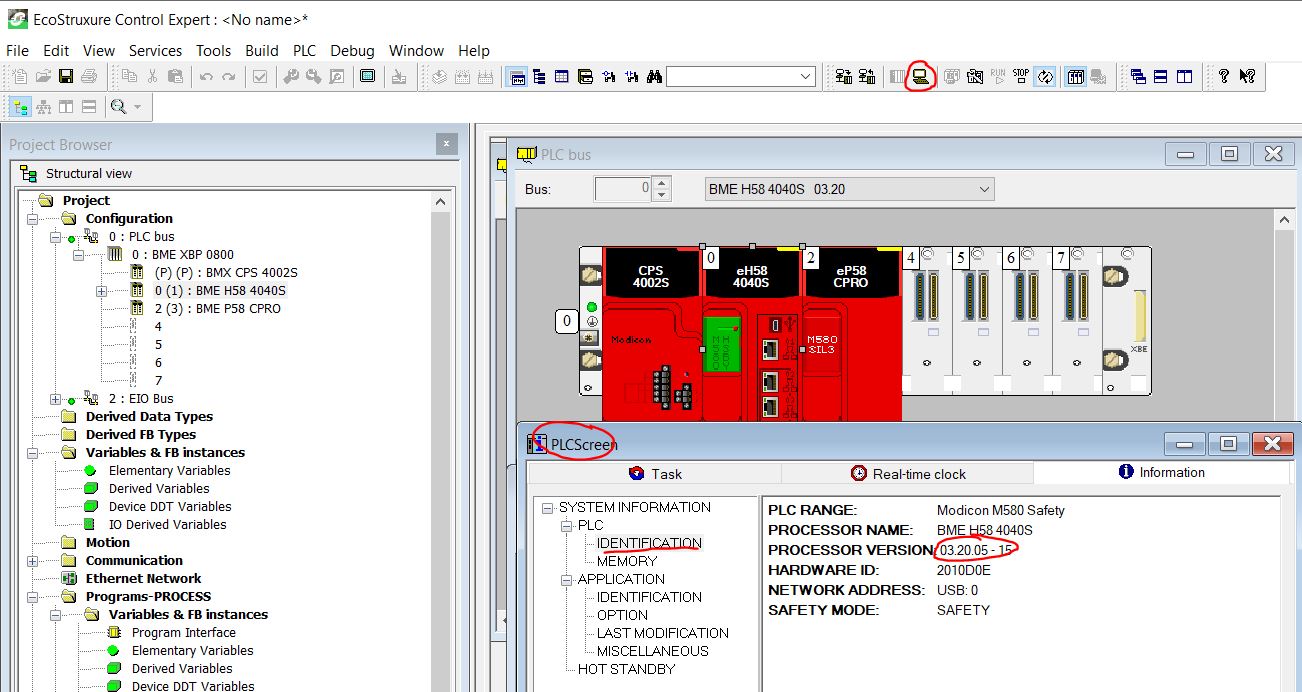
Note : first digit displays the major version (3 in the example), second digit displays the minor version (20 in the example), and for M580 Safety only, third digit displays the major version of the Coprocessor (5 in the example). The last digit is the Internal Release (for internal use only).
b.2 : Open the PLC screen (Alt+7)
c.2 : Open the sheet "Information" in the PLC Screen window
d.2 : Select the PLC->IDENTIFICATION menu
e.2 : The firmware release appears under the parameter "PROCESSOR VERSION" :
Note : first digit displays the major version (3 in the example), second digit displays the minor version (20 in the example), and for M580 Safety only, third digit displays the major version of the Coprocessor (5 in the example). The last digit is the Internal Release (for internal use only).
2 : By using Unity-Loader software tool (SV<4.01 only):
a : Connect Unity-Loader with the CPU (either through USB or Ethernet) and click on "Connect" button
b : the firmware release is displayed on the right window as shown below (version 3.20 in our example for the CPU and, for M580 safety only, version 5.01 for Coprocessor) :
b : the firmware release is displayed on the right window as shown below (version 3.20 in our example for the CPU and, for M580 safety only, version 5.01 for Coprocessor) :
3 : By using EADM (EcoStruxure Automation Device Maintenance) tool :
a : Connect the tool with the device selecting :
- "FTP" or "USB" connection (for firmware <=3.20) (FTP service should be enabled inside the embedded application)
- "HTTPS" (for firmware >=4.01) (HTTP service should be enabled inside the embedded application)
b : Select the package (*.ldx file or *.eadp) available in the "Data Package" folder :
c : Click on the icon to enter the Firmware password and click on Connect => the firmware version of the device appears in the box (in this example, 3.20)
Note : For firmware version higher than 4.01, cybersecure mode will add some additional constraint which could differs from the steps described above (but still unknown at the creation of this FAQ)
發佈於: 施耐德電機Taiwan

需要協助?
產品選型工具
快速輕鬆地為您的應用找到合適的產品和附件。
取得報價
立即線上提交您的銷售需求,專業團隊將主動聯繫您。
購買地點
輕鬆在您所在地區找到最近的施耐德電機經銷商。
支援中心
在同一位置找到滿足您所有需求的支援資源。