


UPS Firmware Update does not automatically install after the firmware file transfer using the Firmware Upgrade Wizard
Issue: In very rare situations, the UPS firmware update may not install automatically after the firmware file was transferred to the UPS.
Product Line: Smart-UPS On-Line models starting with SRT, SRTL,
except UPS models SRTL2K2RM1UC, SRTL2K2RM1UIC, SRTL2K2RM1UNC, SRTL2K2RM1UINC, SRTL3KRM1UC, SRTL3KRM1UIC, SRTL3KRM1UNC, SRTL3KRM1UINC, SRTL5KRM2UT, SRTL5KRM2UI, SRTL8KRM4UT, SRTL8KRM4UI
Resolution:
After the firmware file is transferred to the UPS using the Firmware Upgrade Wizard, the UPS LCD will display the following prompt:
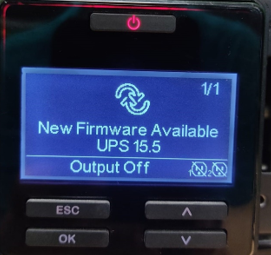
In most situations, this prompt will automatically disappear in less than 1 minute, and the UPS will start installing the firmware automatically:
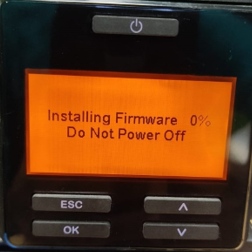
If the prompt is displayed for more than one minute, the installation of the firmware file will need to be started manually. Follow the below instructions to initiate the installation of the firmware file.
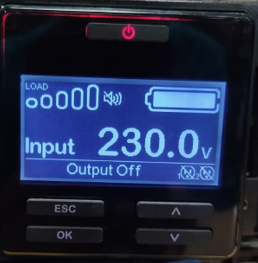
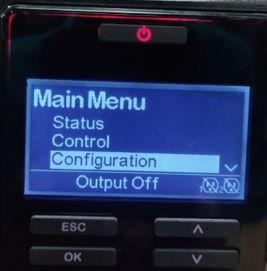
1. From the home screen, press the ‘Esc’ button to view the Main Menu.
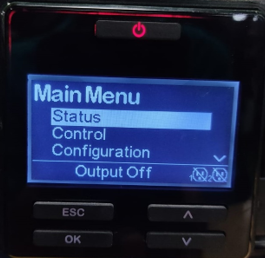
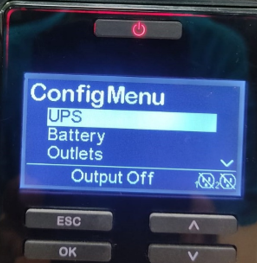
2. Use the Up/Down keys to scroll down to the Configuration menu, press 'OK', the scroll down and press 'OK' again to select UPS.
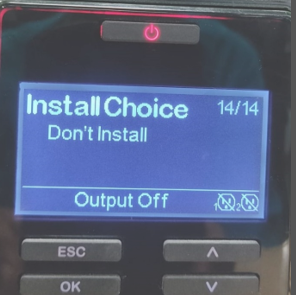
3. Use the Up/Down keys to navigate to the Install Choice screen where the newly received firmware file will be available:
4. Press the 'OK' button and use the Up/Down keys to navigate to Now, and press "OK" to select it:
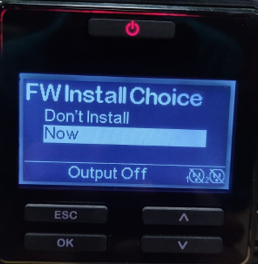
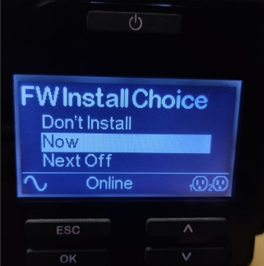
5. After pressing 'OK', three options will be displayed. To install the firmware immediately, use the Up/Down keys to navigate to Now and press 'OK' to select it:
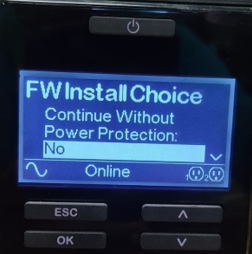
6. During the UPS firmware update, battery back-up is unavailable. If the UPS output is on, the below prompt will appear:
Note: Not all UPS models support firmware update with the UPS output on. Refer to FA279197 for the list of UPS units that support this feature.
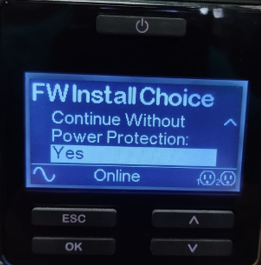
7. To continue with the UPS firmware update, use the Up/Down keys to navigate to Yes, and press 'OK' to select it, and start the installation:
8. After initiating the firmware installation, the below installation screen will be displayed. Wait for the installation to complete:
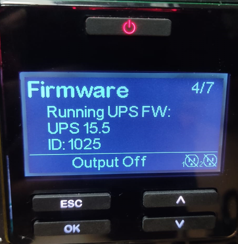
9. After the firmware installation is completed, press 'ESC' to view the Main Menu, and use the Up/Down and 'OK' keys to navigate to Main Menu > About > UPS > Firmware to confirm that the UPS firmware has been updated.
Product Line: Smart-UPS On-Line models starting with SRT, SRTL,
except UPS models SRTL2K2RM1UC, SRTL2K2RM1UIC, SRTL2K2RM1UNC, SRTL2K2RM1UINC, SRTL3KRM1UC, SRTL3KRM1UIC, SRTL3KRM1UNC, SRTL3KRM1UINC, SRTL5KRM2UT, SRTL5KRM2UI, SRTL8KRM4UT, SRTL8KRM4UI
Resolution:
After the firmware file is transferred to the UPS using the Firmware Upgrade Wizard, the UPS LCD will display the following prompt:
In most situations, this prompt will automatically disappear in less than 1 minute, and the UPS will start installing the firmware automatically:
If the prompt is displayed for more than one minute, the installation of the firmware file will need to be started manually. Follow the below instructions to initiate the installation of the firmware file.
1. From the home screen, press the ‘Esc’ button to view the Main Menu.
2. Use the Up/Down keys to scroll down to the Configuration menu, press 'OK', the scroll down and press 'OK' again to select UPS.
3. Use the Up/Down keys to navigate to the Install Choice screen where the newly received firmware file will be available:
4. Press the 'OK' button and use the Up/Down keys to navigate to Now, and press "OK" to select it:
5. After pressing 'OK', three options will be displayed. To install the firmware immediately, use the Up/Down keys to navigate to Now and press 'OK' to select it:
6. During the UPS firmware update, battery back-up is unavailable. If the UPS output is on, the below prompt will appear:
Note: Not all UPS models support firmware update with the UPS output on. Refer to FA279197 for the list of UPS units that support this feature.
7. To continue with the UPS firmware update, use the Up/Down keys to navigate to Yes, and press 'OK' to select it, and start the installation:
8. After initiating the firmware installation, the below installation screen will be displayed. Wait for the installation to complete:
9. After the firmware installation is completed, press 'ESC' to view the Main Menu, and use the Up/Down and 'OK' keys to navigate to Main Menu > About > UPS > Firmware to confirm that the UPS firmware has been updated.