


Geo SCADA: Copying historic data from one point to another point manually
There may be a circumstance that requires a user to copy historic data from one point in a Geo SCADA database to another point in a Geo SCADA databaseThis article describes the steps needed to copy this historic data using basic Windows copy and paste commands.
1) It is recommended that you shut down the Geo SCADA Server prior to copying the files as there is a small possibility of files becoming corrupted if they are copied while the server is running. As the server is constantly writing to files, the act of copying a file that is currently being written to could end up corrupting that file. It is better to copy the file while the Geo SCADA server is shut down.
2) Locate the object ID number of the originating point (whose data you wish to copy). This can be achieved by selecting 'View Status' on the point from the Database tree from within ViewX.
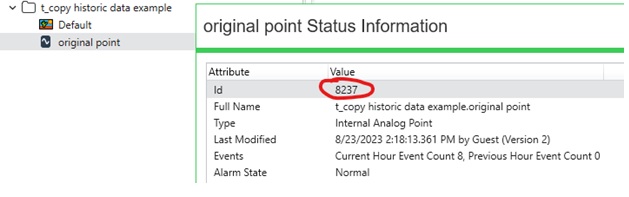
3) Note the historic list for this point
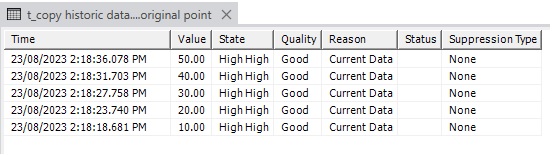
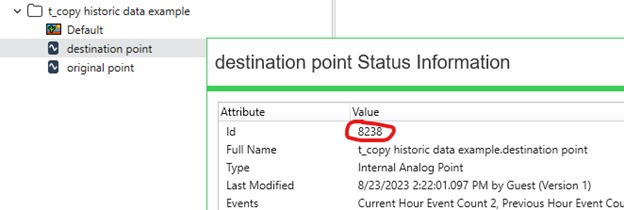
4) Locate the object ID for the destination point
5) Open Windows File Explorer and navigate to the following folder:
C:\ProgramData\Schneider Electric\ClearSCADA\Database\History\Historic
6) To find the folders (which contain the historic files) for the two points, take the object ID number for each and divide it by 256
(Note: the value of 256 is used if the default setting for 'Group Size' (server configuration | Historic Configuration | Historic Data dialog) is at it's default value of '8 - 256 objects')
(I.E. for this example the Object ID's are 8237 and 8238 respectively. 8237 / 256 = 32.17 - look in folder 32)
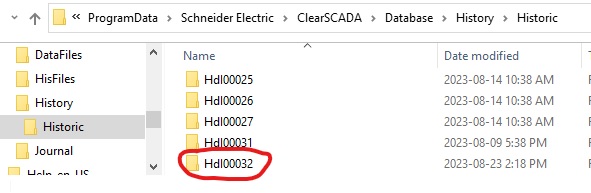
7) In this example, the folders containing the historic files for both points are located in the same HdI folder
(the folder name is the ObjectID number of the point)
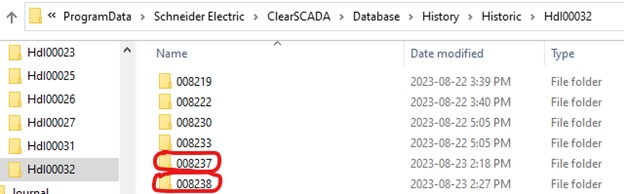
8) Go into the 'originating' folder (I.E. 008237 in this example) and copy the .hrd file(s) (Again, it is highly recommended that you do this with the Geo SCADA server shut down.)

9) Now go to the 'destination' folder (I.E. 008238 in this example) and paste the file(s).
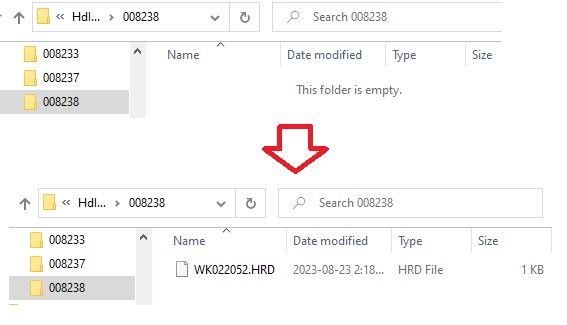
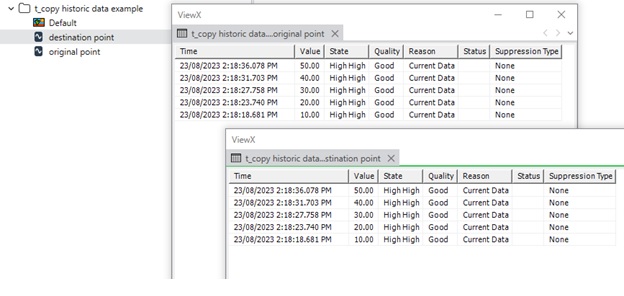
10) Once all the files are copied, start the Geo SCADA server and you should see that the history should now match between the original point and the destination point.
1) It is recommended that you shut down the Geo SCADA Server prior to copying the files as there is a small possibility of files becoming corrupted if they are copied while the server is running. As the server is constantly writing to files, the act of copying a file that is currently being written to could end up corrupting that file. It is better to copy the file while the Geo SCADA server is shut down.
2) Locate the object ID number of the originating point (whose data you wish to copy). This can be achieved by selecting 'View Status' on the point from the Database tree from within ViewX.
3) Note the historic list for this point
4) Locate the object ID for the destination point
5) Open Windows File Explorer and navigate to the following folder:
C:\ProgramData\Schneider Electric\ClearSCADA\Database\History\Historic
6) To find the folders (which contain the historic files) for the two points, take the object ID number for each and divide it by 256
(Note: the value of 256 is used if the default setting for 'Group Size' (server configuration | Historic Configuration | Historic Data dialog) is at it's default value of '8 - 256 objects')
(I.E. for this example the Object ID's are 8237 and 8238 respectively. 8237 / 256 = 32.17 - look in folder 32)
7) In this example, the folders containing the historic files for both points are located in the same HdI folder
(the folder name is the ObjectID number of the point)
8) Go into the 'originating' folder (I.E. 008237 in this example) and copy the .hrd file(s) (Again, it is highly recommended that you do this with the Geo SCADA server shut down.)
9) Now go to the 'destination' folder (I.E. 008238 in this example) and paste the file(s).
10) Once all the files are copied, start the Geo SCADA server and you should see that the history should now match between the original point and the destination point.