


Why does my VVX ThinfinityVirtualUI service fail to start automatically after a reboot?
*Warning: This article contains information about Windows registry. Improper changes to the registry can permanently damage the operating system.
Always backup the registry before making any changes.*
After rebooting the machine, VVX doesn’t launch, and the ThinfinityVirtualUI service do not start automatically. What might be the cause, and how can it be resolved?
Please note that in older Geo SCADA releases, there maybe more than one service.
Services configured as "Automatic" have a default timeout period to start. If Windows is unable to attend the service during this time, the service doesn't start.
The key below will allow you to configure a higher timeout.
Go to Start > Run > and type regedit.
Navigate to: HKEY_LOCAL_MACHINE\SYSTEM\CurrentControlSet\Control.
With the control folder selected, right click in the pane on the right and select new DWORD Value.
Name the new DWORD: ServicesPipeTimeout.
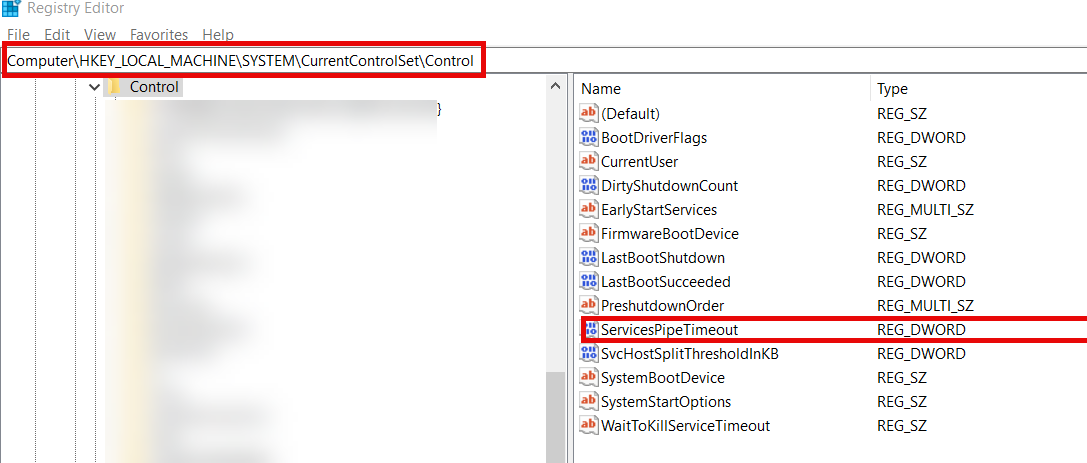
Right-click ServicesPipeTimeout, and then click Modify.
Click Decimal, enter the desired value in milliseconds. For example type '180000' for 3 minutes, and then click OK.
This setting will take effect on the next restart of the computer.
Always backup the registry before making any changes.*
After rebooting the machine, VVX doesn’t launch, and the ThinfinityVirtualUI service do not start automatically. What might be the cause, and how can it be resolved?
Please note that in older Geo SCADA releases, there maybe more than one service.
Services configured as "Automatic" have a default timeout period to start. If Windows is unable to attend the service during this time, the service doesn't start.
The key below will allow you to configure a higher timeout.
Go to Start > Run > and type regedit.
Navigate to: HKEY_LOCAL_MACHINE\SYSTEM\CurrentControlSet\Control.
With the control folder selected, right click in the pane on the right and select new DWORD Value.
Name the new DWORD: ServicesPipeTimeout.
Right-click ServicesPipeTimeout, and then click Modify.
Click Decimal, enter the desired value in milliseconds. For example type '180000' for 3 minutes, and then click OK.
This setting will take effect on the next restart of the computer.