


How to capture log files for the Geo SCADA OPC UA server using Archestra Logger (OC Logger).
This article provides steps of where to obtain necessary information for troubleshooting Geo SCADA OPC UA server-related issues: 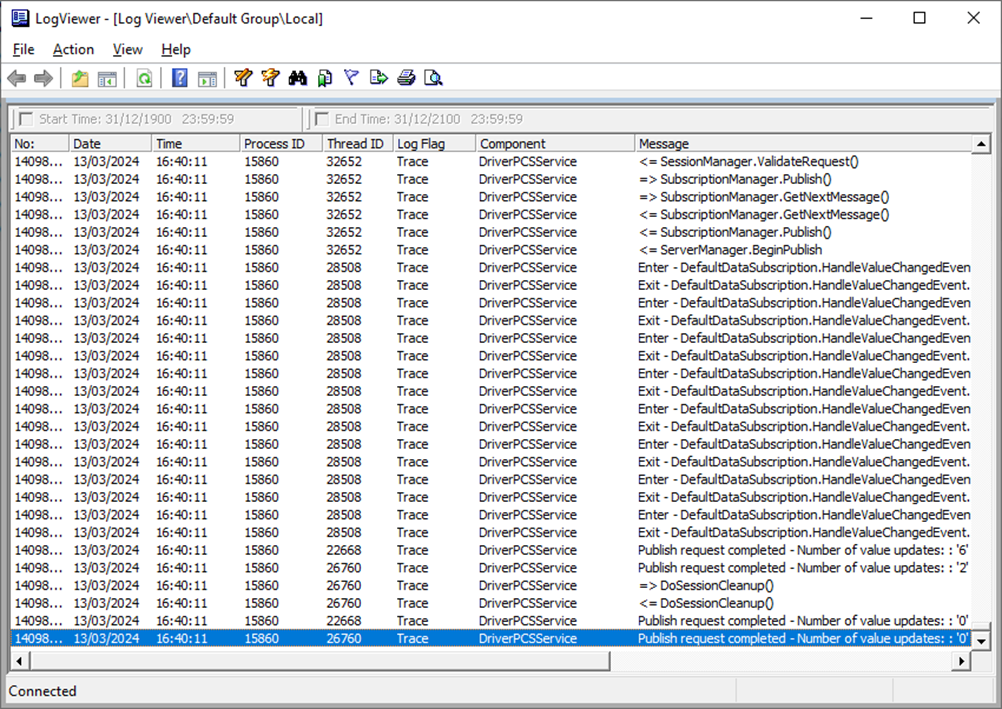
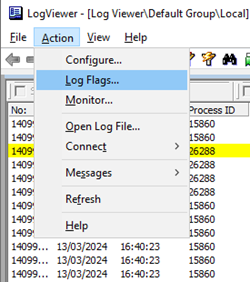
3. Click on the “Action” tab and go to Log Flags:
4. A list of components on the server that use this logger will appear. Locate the “DriverPCSService” component.
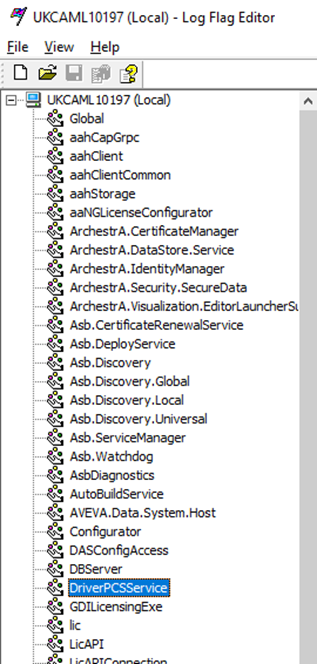
5. Click on the “DriverPCSService” and enable all the flags:
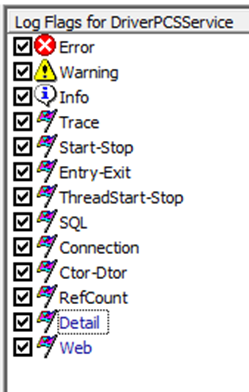
6. After enabling the flags, go to the “file” tab and hit apply. 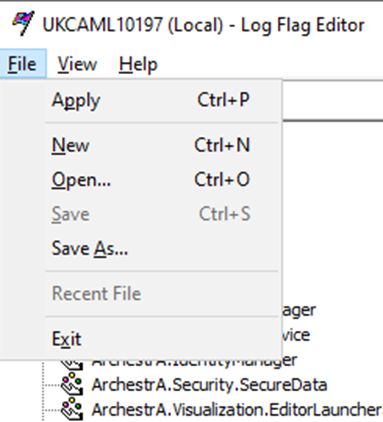
1. Locate the aaLogViewer.exe in in "C:\Program Files (x86)\Common Files\ArchestrA\aaLogViewer.exe"
2. After running it, the following window will appear:
3. Click on the “Action” tab and go to Log Flags:
4. A list of components on the server that use this logger will appear. Locate the “DriverPCSService” component.
5. Click on the “DriverPCSService” and enable all the flags:
6. After enabling the flags, go to the “file” tab and hit apply.
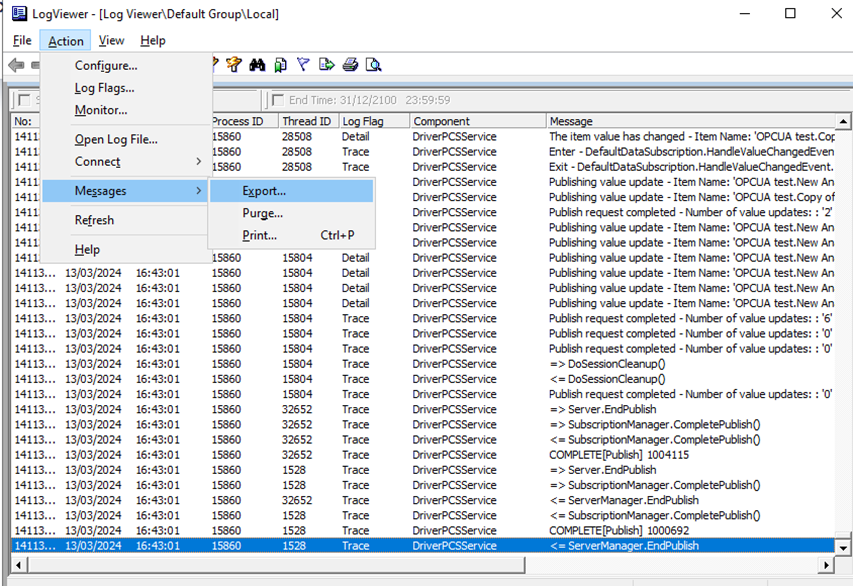
7. Allow it to run long enough to capture the error, and then proceed to export the log entries as follows:
9. Grab the generated logs and send them to the Geo Scada support team for further analysis.
To delete the existing messages from the Logger and capture a new set of logs, follow these steps: From the action menu, click on messages and then purge. Select "Purge all log messages" to clear all massages from the Logger. If you need to clear messages before a specified date and time, select the" purge log message created before" option.
To delete the existing messages from the Logger and capture a new set of logs, follow these steps: From the action menu, click on messages and then purge. Select "Purge all log messages" to clear all massages from the Logger. If you need to clear messages before a specified date and time, select the" purge log message created before" option.