


Jak vám dnes můžeme pomoci?
Why my LinkManager login fails with message "Cannot connect to GateManager" ?
- Potential reason n°1: web proxy setup
Web proxy setup may be mandatory in your network environment. If Internet is reached through the network of your company, contact your network administrator for information about your network environment. The following steps should be followed to define connection from the LinkManager software to the remote GateManager server via a web proxy.
Step 1: In LinkManager web UI, click on button "Add proxy".

Step 2: Set Web proxy address, username and password if any, then set a name for identifying these web proxy setup parameters, then click on button "Login".

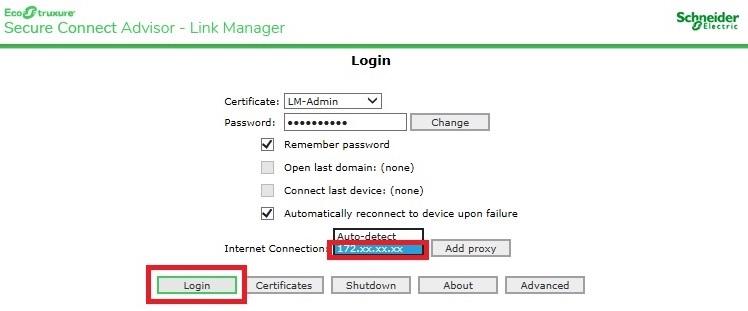
Step 3: For each further LinkManager login attempt from the main page of the LinkManager, the drop-down list “Internet Connection” should be set to the proxy that should be used: in the "Internet Connection" Combobox, select the web proxy setup parameters to use, then click on button "Login".

NOTE: The value “Auto-detect” will not perform automatic proxy selection (it would discover and use a proxy only if one had to be on the default IP route to the Internet)
- Potential reason n°2: web proxy connection type
Try forcing usage of web proxy for connecting to the GateManager, by applying the following procedure.
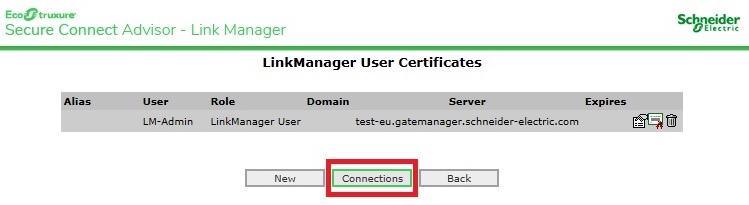
Step 1: In LM web UI, click on button "Certificates".

Step 2: Click on button "Connections".
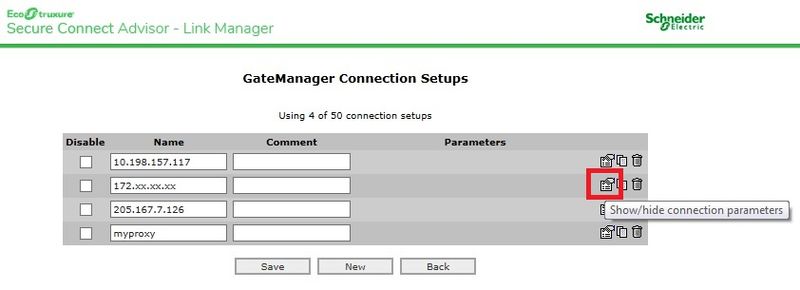
Step 3: For the web proxy to be used, click on icon "Show/hide connection parameters".
Step 4: Set "Preferred Procol" to "HTTP via web proxy".
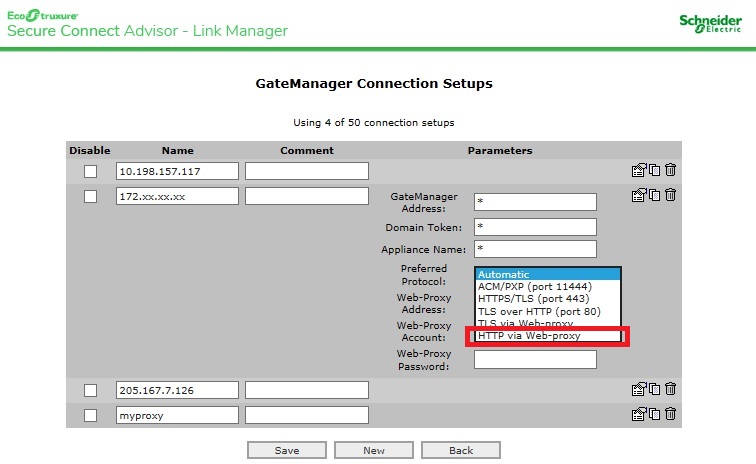
By default, setting of Preferred protocol should be "Automatic". When setting preferred protocol to "HTTP via web proxy", the LinkManager will try all the options but starts SEQUENTIALLY each option after the other, 1 by 1, until 1 option creates a successful connection:
1) by "HTTP via web proxy" : connection to GM port 80 via web proxy
2) then by "ACM/PXP (port 11444)" : connection to GM port 11444
3) then by "HTTPS/TLS (port 443)" : connection to GM port 443
4) then by "TLS over HTTP (port 80)" : connection to GM port 80
5) then by "TLS via web proxy" : connection to GM port 80 via web proxy
Step 5: Click on button "Save", then click on button "Back", then click on button "Back".
Step 6: Set the "Internet Connection:" to the one that specifies the web proxy to be used, then click on button "Login".
- Potential reason n°3: network issue for accessing the Internet
The following reasons might explain why the LinkManager could not connect to the remote GateManager:
1) “bad” local IP route setup on the LinkManager laptop that does not allow reaching the Internet
2) usage of a corporate web proxy that blocks some website like “test-eu.gatemanager.schneider-electric.com”
3) any other reason to be found by applying some debugging methodology.
Web proxy setup may be mandatory in your network environment. If Internet is reached through the network of your company, contact your network administrator for information about your network environment. The following steps should be followed to define connection from the LinkManager software to the remote GateManager server via a web proxy.
Step 1: In LinkManager web UI, click on button "Add proxy".
Step 2: Set Web proxy address, username and password if any, then set a name for identifying these web proxy setup parameters, then click on button "Login".
Step 3: For each further LinkManager login attempt from the main page of the LinkManager, the drop-down list “Internet Connection” should be set to the proxy that should be used: in the "Internet Connection" Combobox, select the web proxy setup parameters to use, then click on button "Login".
NOTE: The value “Auto-detect” will not perform automatic proxy selection (it would discover and use a proxy only if one had to be on the default IP route to the Internet)
- Potential reason n°2: web proxy connection type
Try forcing usage of web proxy for connecting to the GateManager, by applying the following procedure.
Step 1: In LM web UI, click on button "Certificates".
Step 2: Click on button "Connections".
Step 3: For the web proxy to be used, click on icon "Show/hide connection parameters".
Step 4: Set "Preferred Procol" to "HTTP via web proxy".
By default, setting of Preferred protocol should be "Automatic". When setting preferred protocol to "HTTP via web proxy", the LinkManager will try all the options but starts SEQUENTIALLY each option after the other, 1 by 1, until 1 option creates a successful connection:
1) by "HTTP via web proxy" : connection to GM port 80 via web proxy
2) then by "ACM/PXP (port 11444)" : connection to GM port 11444
3) then by "HTTPS/TLS (port 443)" : connection to GM port 443
4) then by "TLS over HTTP (port 80)" : connection to GM port 80
5) then by "TLS via web proxy" : connection to GM port 80 via web proxy
Step 5: Click on button "Save", then click on button "Back", then click on button "Back".
Step 6: Set the "Internet Connection:" to the one that specifies the web proxy to be used, then click on button "Login".
- Potential reason n°3: network issue for accessing the Internet
The following reasons might explain why the LinkManager could not connect to the remote GateManager:
1) “bad” local IP route setup on the LinkManager laptop that does not allow reaching the Internet
2) usage of a corporate web proxy that blocks some website like “test-eu.gatemanager.schneider-electric.com”
3) any other reason to be found by applying some debugging methodology.
Publikováno pro: Schneider Electric Česká republika
Zjistěte více
Řada:
Zjistěte více
Řada:
Potřebujete pomoc?
Nástroj pro výběr produktů
Rychle a snadno vyhledávejte správné produkty a příslušenství pro vaše aplikace.
Získejte nabídku
Poptejte se nás online a náš lokální specialista se s vámi spojí!
Kde nakoupit?
Jednoduše najděte nejbližšího distributora výrobků Schneider Electric ve vašem okolí.
Centrum nápovědy
Zdroje podpory pro všechny své potřeby najdete na jednom místě.