


AP9547 installation guide and requirements
This following document provides basic information on how to do the installation and initial setup of the AP9547 network management card.
Further more, this document contains details on the required UPS firmware needed to ensure that the AP9547 is compatible with the individual UPS.
AP9547 is compatible with the following device series:
For the UPS to be compatible with the AP9547 NMC, the firmware on the UPS needs to be on the following versions or newer:
If the firmware on the UPS is older than the listed versions, the UPS will need to be updated by a certified field service engineer.
For more detailed information on how to verify the current UPS firmware, please see Appendix A at the end of this document.
Installation:
Please note, that you do not need to turn off power to install the NMC in a supported Easy UPS. For further information on the actual location of the UPS card slot, please refer to the UPS documentation.
You should now be able to access your card through the web interface and SSH.
Note that further configuration might be necessary as not all protocols are open and configured “out-of-the-box”. Connectivity options that will require further configuration includes SNMP, SMTP, Modbus TCP, BacNet etc.
Easy UPS 3S IEC
On the UPS display interface, select Computer Interface, then Click on the Right arrow (→) until you reach “System Info”.
 For the UPS to be compatible, the firmware versions needs to be at the following versions or higher:
Easy UPS 3S UL
On the UPS display interface, select Computer Interface, then Click on the Right arrow (→) until you reach “System Info”.

For the UPS to be compatible, the firmware versions need to be at the following versions or higher:
Easy UPS 3M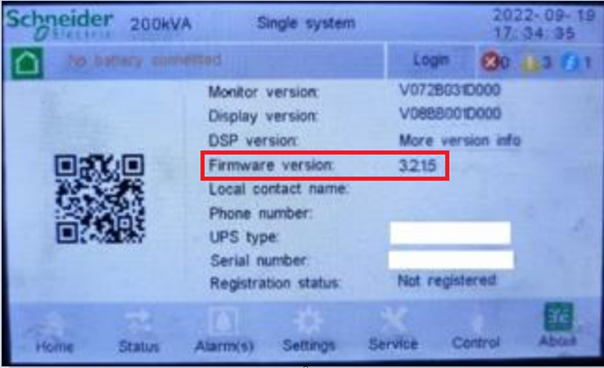
For the UPS to be compatible, the firmware version needs to be at the following versions or higher:
Easy UPS 3L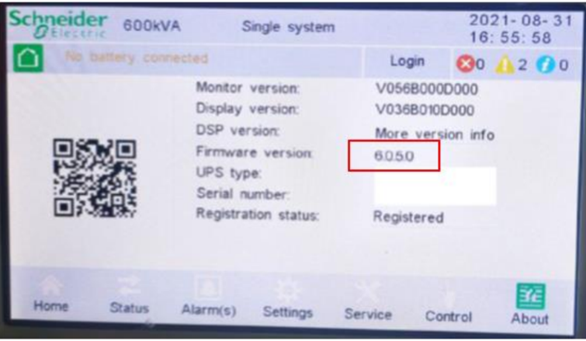
For the UPS to be compatible, the firmware version needs to be at the following versions or higher:
Galaxy 3L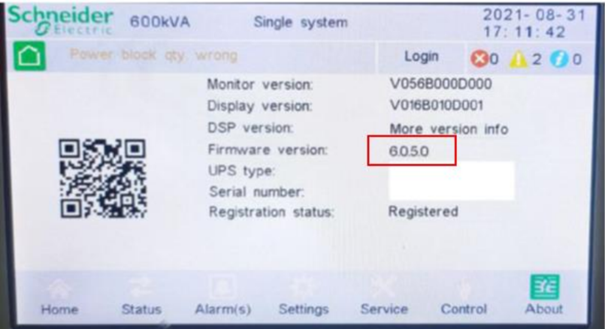
For the UPS to be compatible, the firmware version needs to be at the following versions or higher:
Further more, this document contains details on the required UPS firmware needed to ensure that the AP9547 is compatible with the individual UPS.
AP9547 is compatible with the following device series:
- Easy UPS 3S EIC
- Easy UPS 3S UL
- Easy UPS 3M
- Easy UPS 3L
- Galaxy 3L
For the UPS to be compatible with the AP9547 NMC, the firmware on the UPS needs to be on the following versions or newer:
- Easy UPS 3S IEC: EasyUPS3S_3x_6.40.6.44
- Easy UPS 3S UL: EasyUPS3S_UL_8.003.8.005
- Easy UPS 3M: Easy3M_3.2.1.5
- Easy UPS 3L: Easy3L_6.0.5.0
- Galaxy 3L: Galaxy3L_6.0.5.0
If the firmware on the UPS is older than the listed versions, the UPS will need to be updated by a certified field service engineer.
For more detailed information on how to verify the current UPS firmware, please see Appendix A at the end of this document.
Installation:
Please note, that you do not need to turn off power to install the NMC in a supported Easy UPS. For further information on the actual location of the UPS card slot, please refer to the UPS documentation.
- Locate the UPS card slot. Remove the slot cover or Network Management Card from the UPS card slot.
- Use the same screws that hold the slot cover in place to secure the NMC in the UPS card slot.
- Connect a network interface cable to the 10/100/1000Base-T network connector 1 on the NMC.
- Connect the provided micro-USB cable (part number 960-0603) from the console port on the NMC to a USB port on the computer.
- Note the COM port number that was added when you connected the micro-USB cable. For example, “USB Serial Device (COM7)”.
- Run a terminal emulator program (e.g. HyperTerminal, PuTTy, or Tera Term) and connect to the COM port number noted in step 3. It is not necessary to configure the port.
- Press ENTER, repeatedly if necessary, to display the User Name prompt.
- Use apc for the user name and password.
- NOTE: The user name and password will be “apc” at first log for the Super User account. You will be prompted to enter a new password after you log in.
- Use the “tcpip” command to configure network settings.
Example: (Text in italics indicates avariable.)
tcpip
-i yourIPaddress
-s yourSubnetMask
-g yourDefaultGateway
For each variable, type a numeric value that conforms with the standard IPv4 format.
The command can be entered on one line.
For example, to set a system IP address of 156.205.14.141, a Subnet Mask of 255.255.255.0 and a default gateway of 156.205.14.1, type the following command and press ENTER:
tcpip -i 156.205.14.141 -s 255.255.255.0 -g 156.205.14.1
tcpip
-i yourIPaddress
-s yourSubnetMask
-g yourDefaultGateway
For each variable, type a numeric value that conforms with the standard IPv4 format.
The command can be entered on one line.
For example, to set a system IP address of 156.205.14.141, a Subnet Mask of 255.255.255.0 and a default gateway of 156.205.14.1, type the following command and press ENTER:
tcpip -i 156.205.14.141 -s 255.255.255.0 -g 156.205.14.1
You should now be able to access your card through the web interface and SSH.
Note that further configuration might be necessary as not all protocols are open and configured “out-of-the-box”. Connectivity options that will require further configuration includes SNMP, SMTP, Modbus TCP, BacNet etc.
Appendix A- How to check UPS firmware version
Easy UPS 3S IECOn the UPS display interface, select Computer Interface, then Click on the Right arrow (→) until you reach “System Info”.
Rectifier ≥ V55.006.044
Inverter ≥ V55.006.040
Inverter ≥ V55.006.040
Easy UPS 3S UL
On the UPS display interface, select Computer Interface, then Click on the Right arrow (→) until you reach “System Info”.
For the UPS to be compatible, the firmware versions need to be at the following versions or higher:
Rectifier ≥ V55.008.005
Inverter ≥ V55.008.003
Inverter ≥ V55.008.003
Easy UPS 3M
- On the home screen of the UPS display interface, select Menu icon.
- On the bottom right corner of the screen, select About.
For the UPS to be compatible, the firmware version needs to be at the following versions or higher:
Firmware version ≥ 3.2.1.5
Easy UPS 3L
- On the home screen of the UPS display interface, select Menu icon.
- On the bottom right corner of the screen, select About.
For the UPS to be compatible, the firmware version needs to be at the following versions or higher:
Firmware version ≥ 6.0.5.0
Galaxy 3L
- On the home screen of the UPS display interface, select Menu icon.
- On the bottom right corner of the screen, select About.
For the UPS to be compatible, the firmware version needs to be at the following versions or higher:
Firmware version ≥ 6.0.5.0