


How to change the displayed colors for the FBD section window.
Issue
How to change the displayed colors for the FBD section window.
Product Line
Unity
Environment
Windows 10
Resolution
The following steps can be used to change the display colors for the FBD section window in Unity.
How to change the displayed colors for the FBD section window.
Product Line
Unity
Environment
Windows 10
Resolution
The following steps can be used to change the display colors for the FBD section window in Unity.
- Close Unity if it is running.
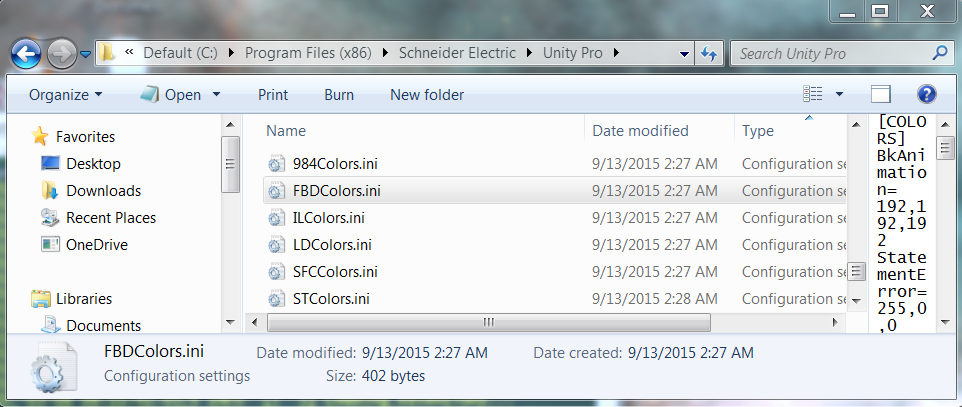
- Open the folder named 'C:\Program Files (x86)\Schneider Electric\Unity Pro'.
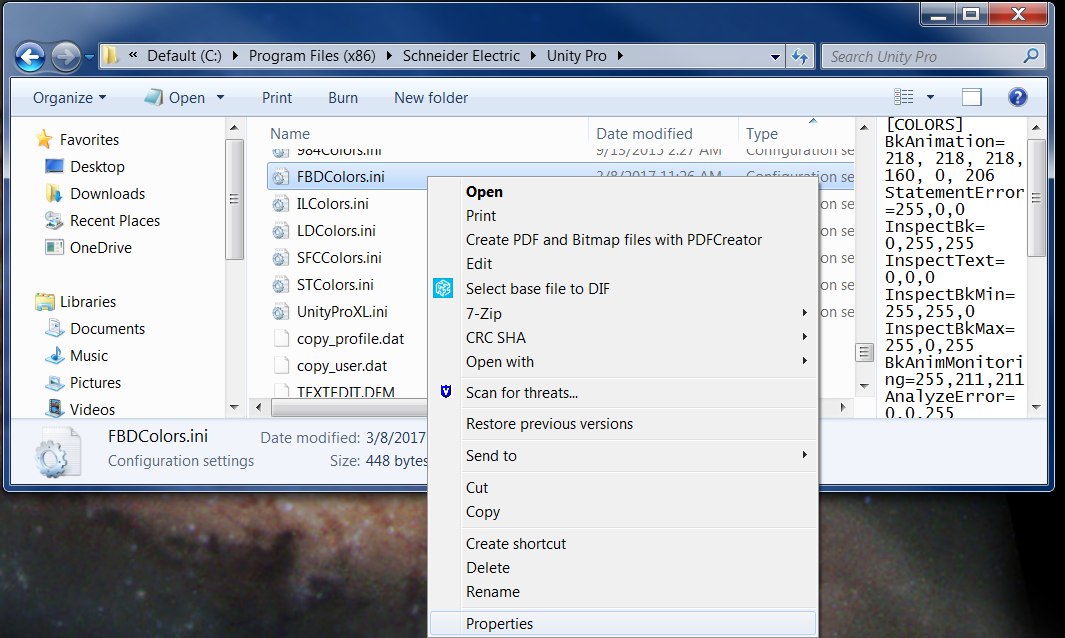
- Right click on the filename.
- Click on 'Properties'.
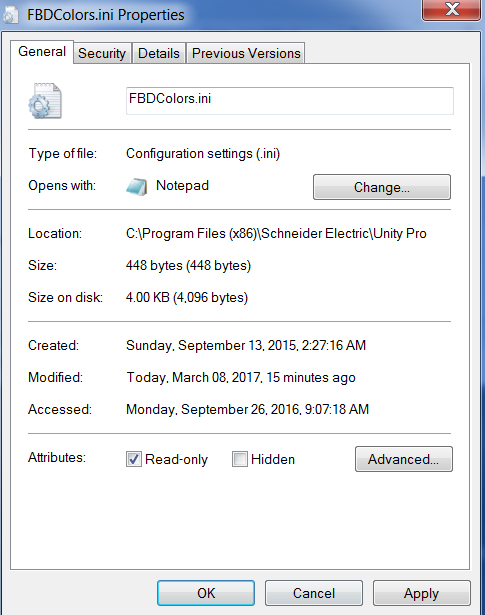
- Change the attribute from '.Read Only' by unchecking the box in the 'General' of the tab file 'Properties' window.
- Click on 'Apply'.
- Close the file properties window.
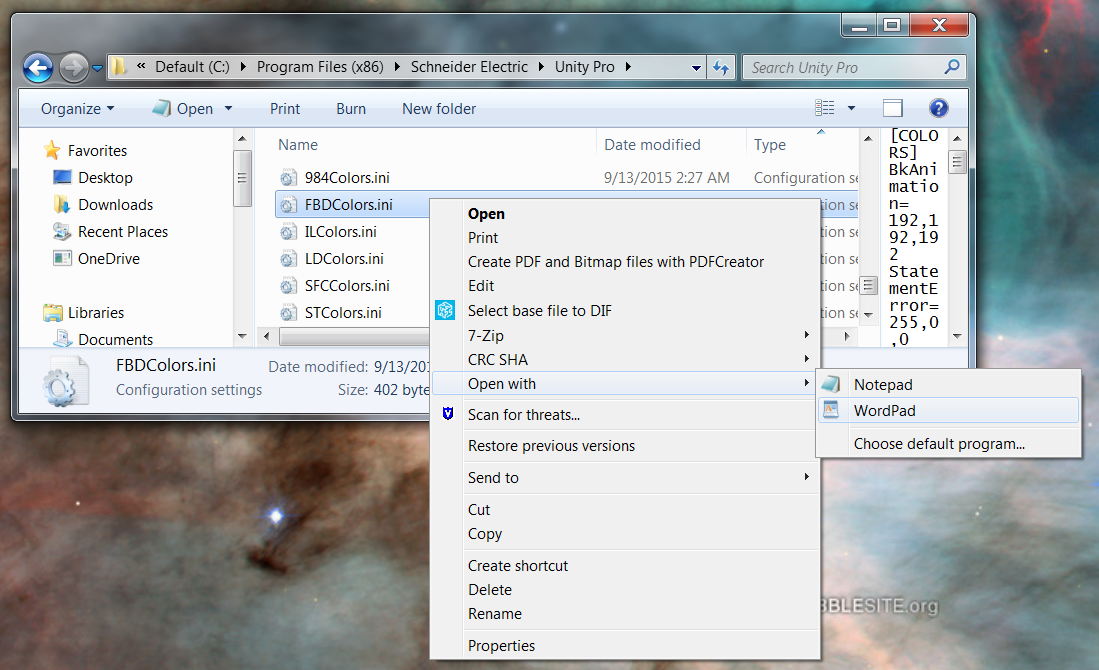
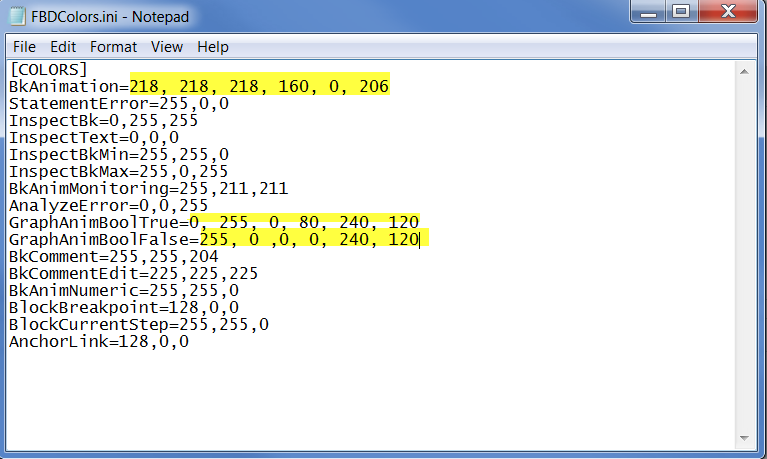
- Open the file named 'FBDColors.ini' using Wordpad.
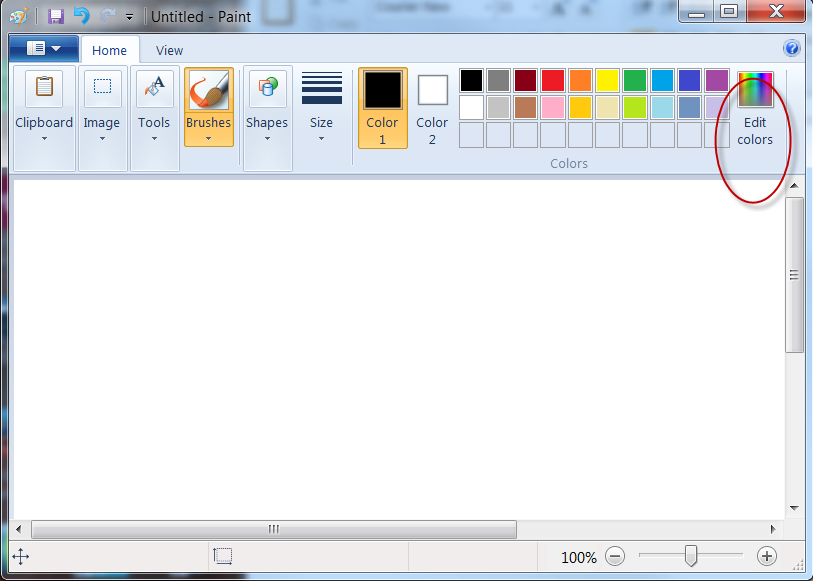
- Open Paint
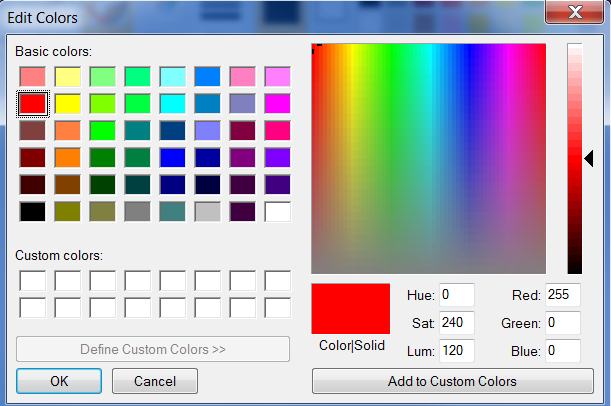
- Click on 'Edit colors'
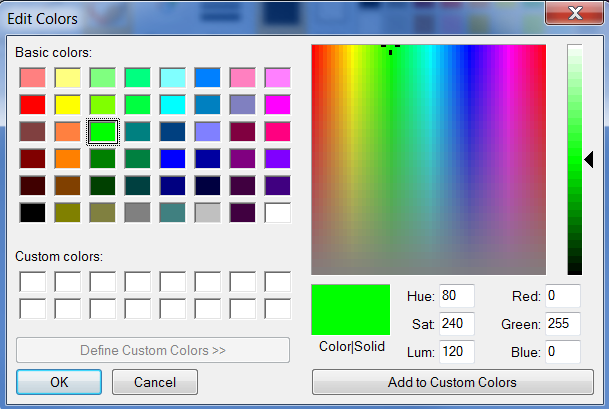
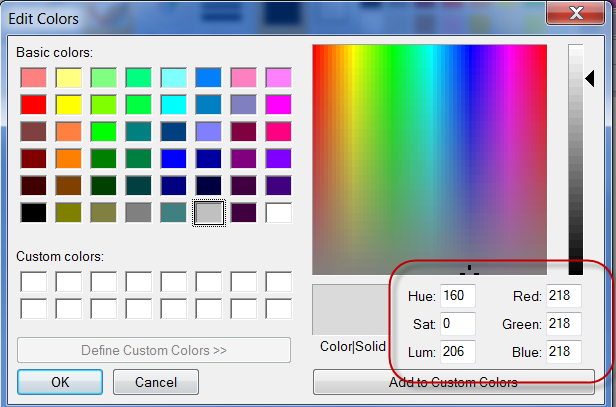
- Find the values of the color to be used:
- Change the color values for the appropriate display element name in the 'FBDColors.ini' file.
- Save the changes.
- Close Wordpad.
- Change the file attribute back to 'ReadOnly'.
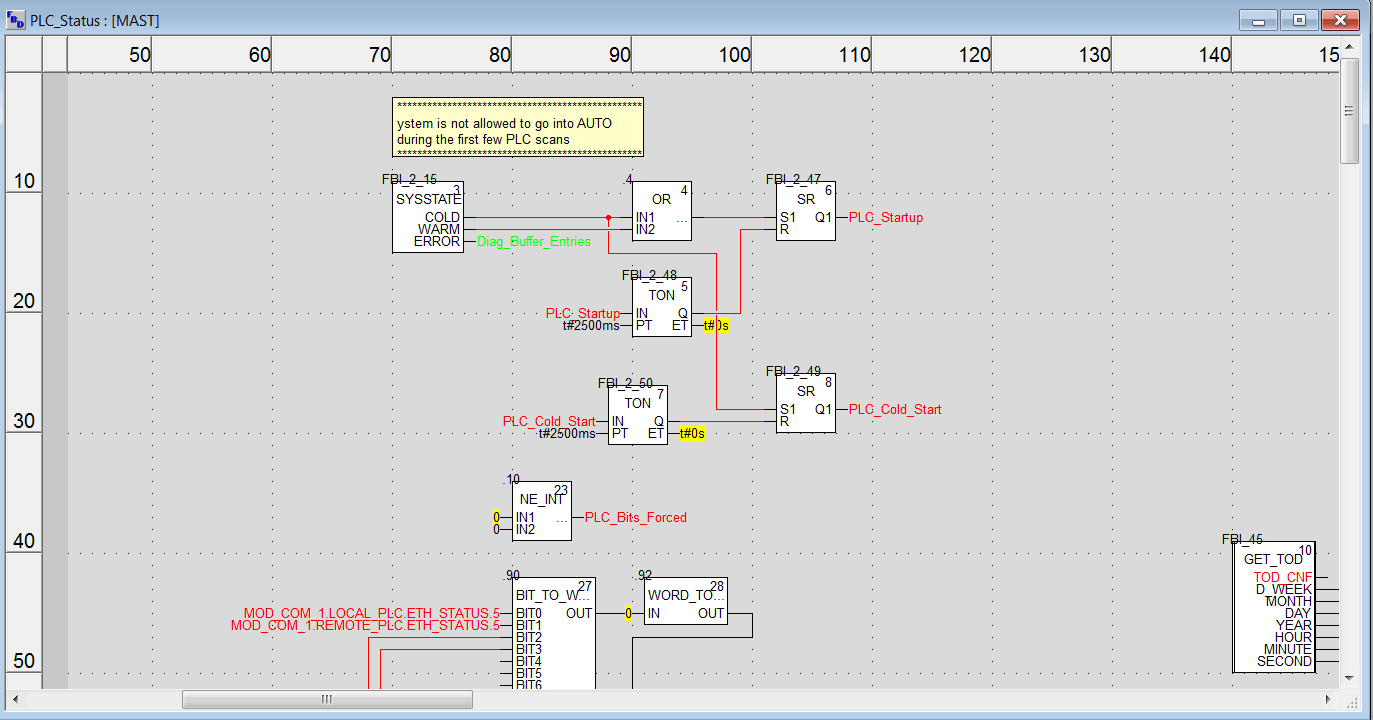
- Test the changes.