


Hur kan vi hjälpa dig idag?
How to change the displayed colors for the SFC section window.
Issue
How to change the displayed colors for the SFC section window.
Product Line
Unity
Environment
Windows 10
Resolution
The following steps can be used to change the display colors for the SFC section window in Unity.


How to change the displayed colors for the SFC section window.
Product Line
Unity
Environment
Windows 10
Resolution
The following steps can be used to change the display colors for the SFC section window in Unity.
- Close Unity if it is running.
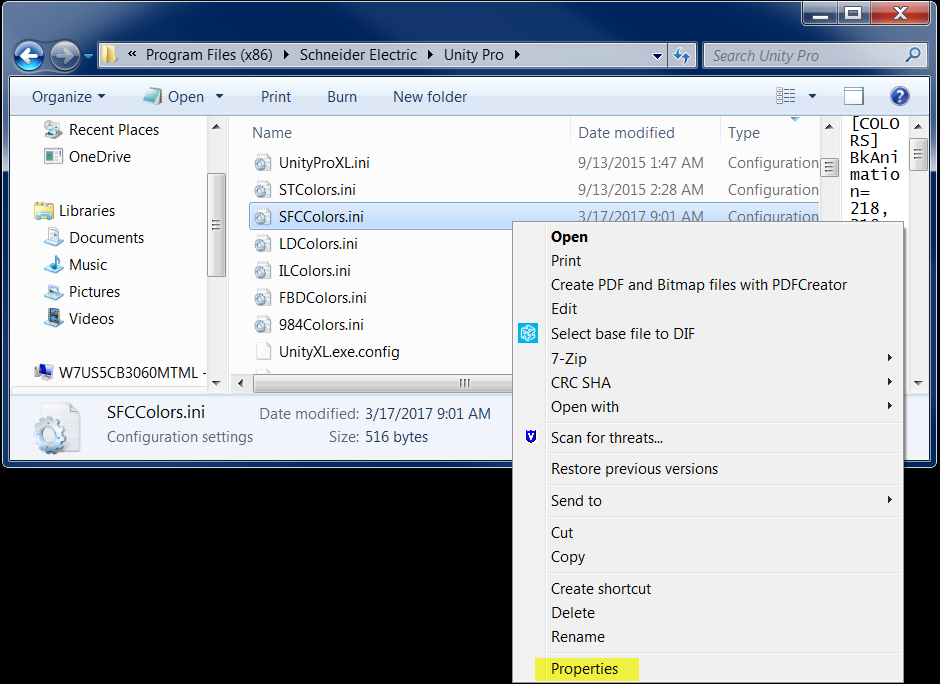
- Open the folder named 'C:\Program Files (x86)\Schneider Electric\Unity Pro'.
- Right click on the filename.
- Click on 'Properties'.
- Change the attribute from '.Read Only' by unchecking the box in the 'General' of the tab file 'Properties' window.
- Click on 'Apply'.
- Close the file properties window.
- Open the file named 'SFCColors.ini' using Wordpad.
- Open Paint
- Click on 'Edit colors'
- Find the values of the color to be used:
- Change the color values for the appropriate display element name in the 'SFCColors.ini' file.
- Save the changes.
- Close Wordpad.
- Change the file attribute back to 'ReadOnly'.
- Test the changes.
Publicerad för: Schneider Electric Sverige
Utforska mer
Produktfamilj
Utforska mer
Produktfamilj
Behöver du hjälp?
Produktväljare
Hitta snabbt och enkelt rätt produkter och tillbehör för dina ändamål.
Begär en offert
Ställ din fråga online så kontaktar vi dig.
Här köper du
Hitta enkelt närmaste Schneider Electric-distributör på din ort.
Hjälpcenter
Hitta alla supportresurser som du behöver på ett ställe.