


Hur kan vi hjälpa dig idag?
How to update the exec firmware on a BMENOR2200.
Issue
How to update the exec firmware on a BMENOR2200.
Product Line
BMENOR2200
Environment
Ecostruxture Automation Device Maintenance
Resolution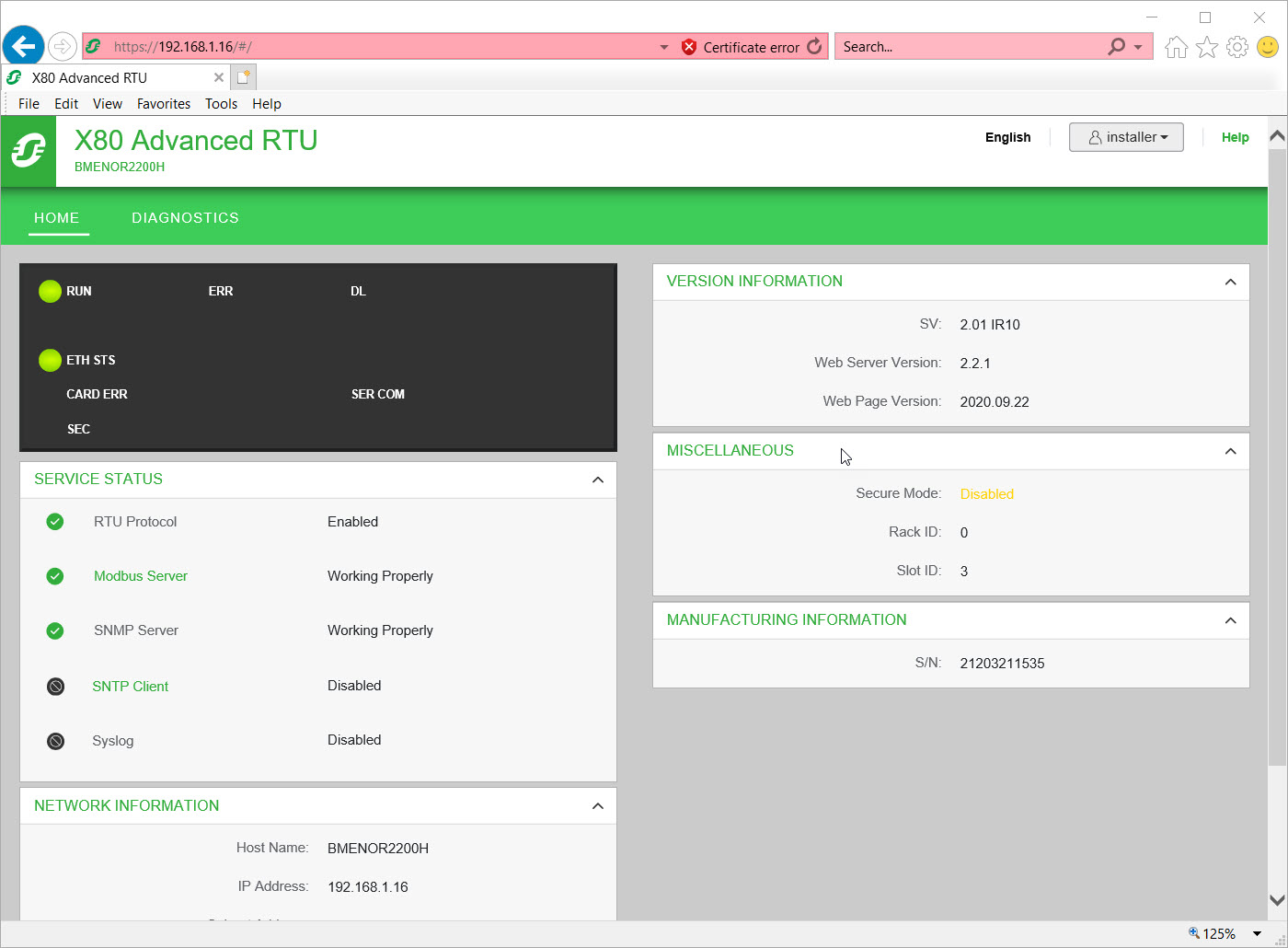
How to update the exec firmware on a BMENOR2200.
Product Line
BMENOR2200
Environment
Ecostruxture Automation Device Maintenance
Resolution
Use the following steps to update the exec firmware.
- Place the module into non secure mode.
- Open and log into BMENOR2200 web server homepage to ensure that it is reachable.
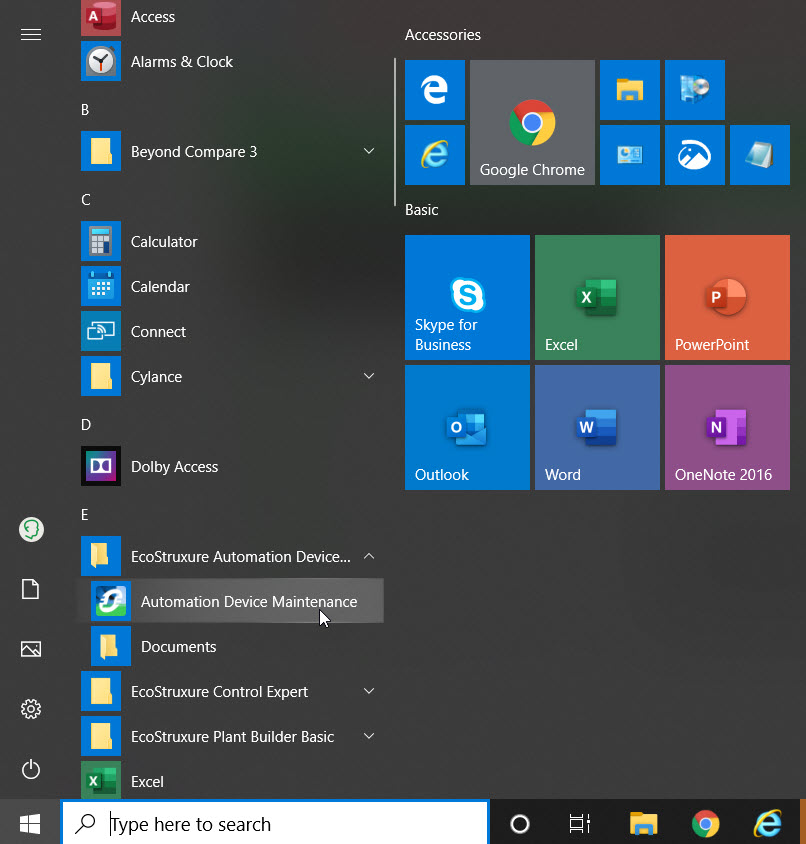
- Start the 'EcoStruxure Automation Device Maintenance' software.
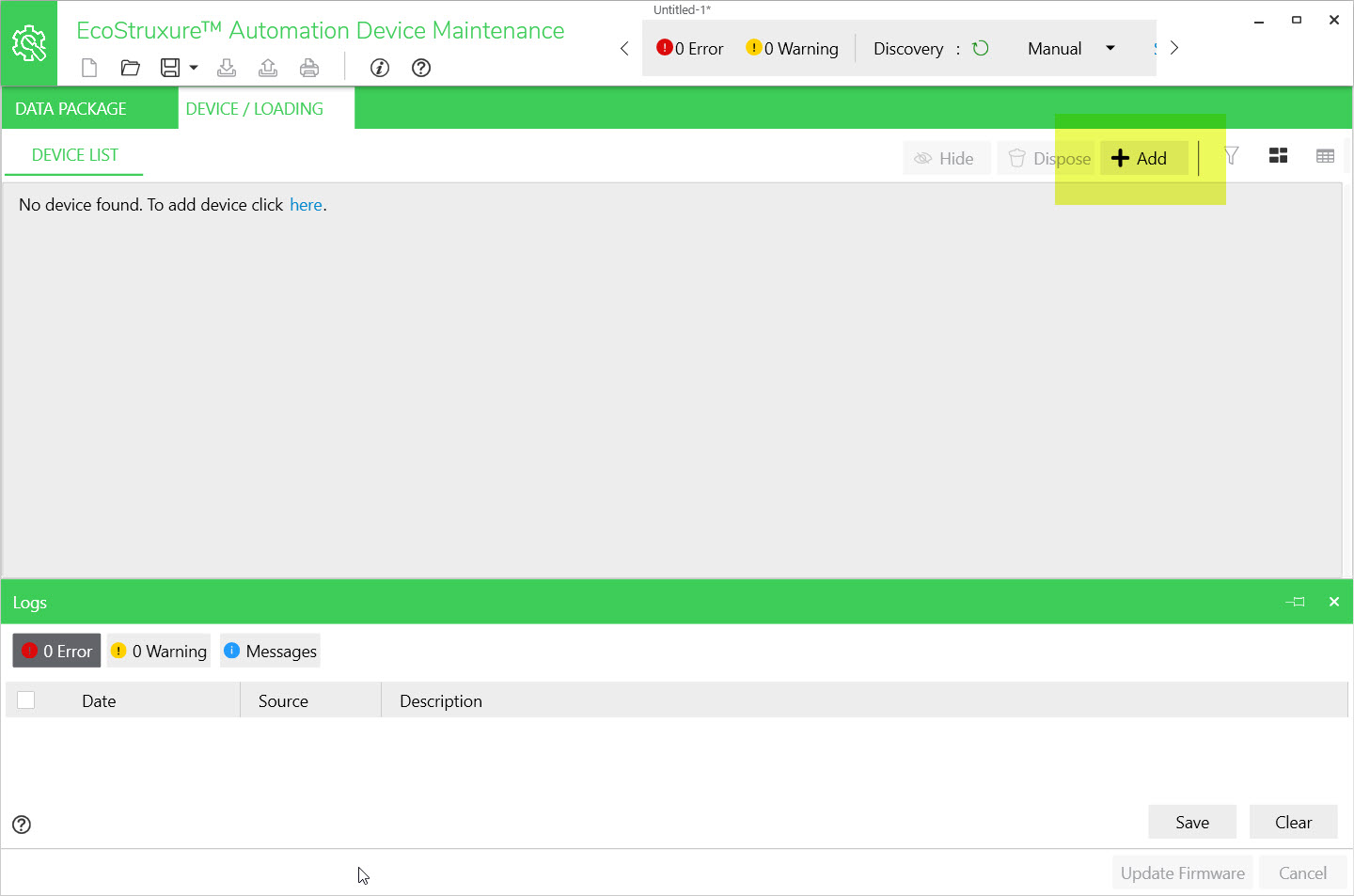
- Click on the Add button.
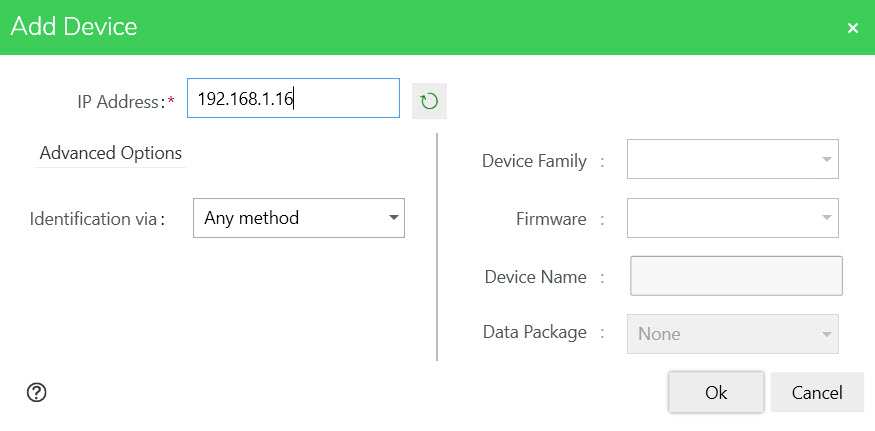
- Enter the NOR022 IP address.
- Select 'Identification via' as 'Any Method'.
- Click on OK.
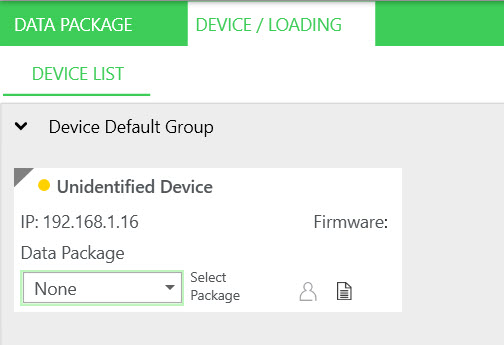
- Click on 'Yes' in the 'Unidentified Device' pop-up window.
- Verify that the NOR2200 is reachable (The dot next to 'Unidentified Device' should change will be shown as yellow.
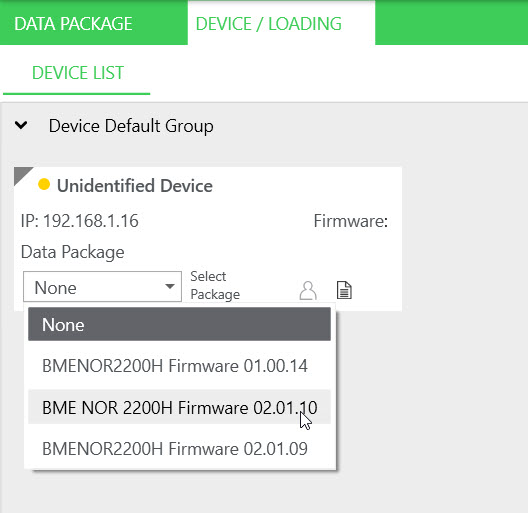
- Select the Data Package version for the NOR2200.
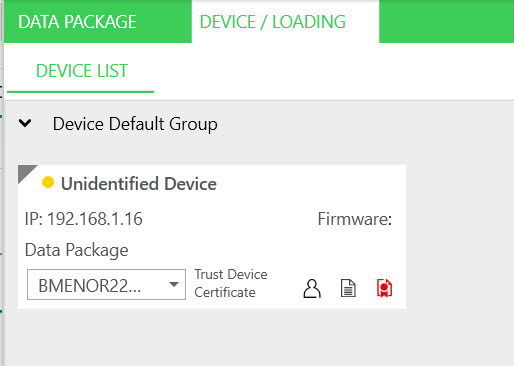
- Click on the red 'Trust' icon.
- Select the 'Trust the server certificate temporarily for the current session' checkbox. (Note: If this step is skipped, you will not be able to connect to the NOR2200.)
- Click on the 'Trust Device Certificate' button.
- Click on the 'Device Login' icon.
- Enter the username and password.
- Click on 'Save'.
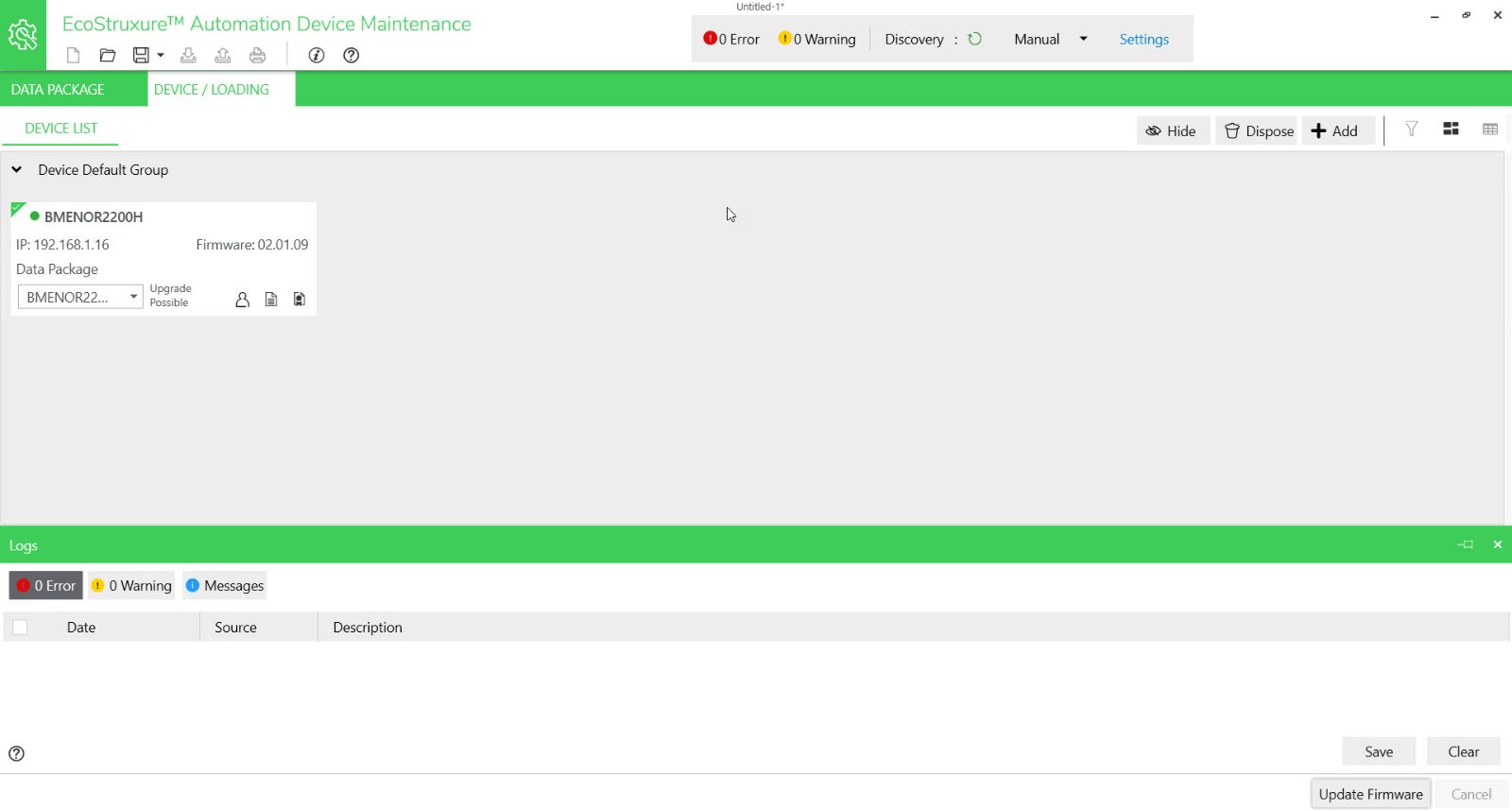
- The yellow dot will turn green.
- Click on the Green dot.
- Click on the 'Update Firmware' button.
- The exec firmware will start to load.
Publicerad för: Schneider Electric Sverige
Utforska mer
Produktfamilj
Utforska mer
Produktfamilj
Behöver du hjälp?
Produktväljare
Hitta snabbt och enkelt rätt produkter och tillbehör för dina ändamål.
Begär en offert
Ställ din fråga online så kontaktar vi dig.
Här köper du
Hitta enkelt närmaste Schneider Electric-distributör på din ort.
Hjälpcenter
Hitta alla supportresurser som du behöver på ett ställe.