


Ako vám dnes môžeme pomôcť?
How to change the displayed colors for the ST section window.
Issue
How to change the displayed colors for the ST section window.
Product Line
Unity
Environment
Windows 10
Resolution
The following steps can be used to change the display colors for the ST section window in Unity.
How to change the displayed colors for the ST section window.
Product Line
Unity
Environment
Windows 10
Resolution
The following steps can be used to change the display colors for the ST section window in Unity.
- Close Unity if it is running.
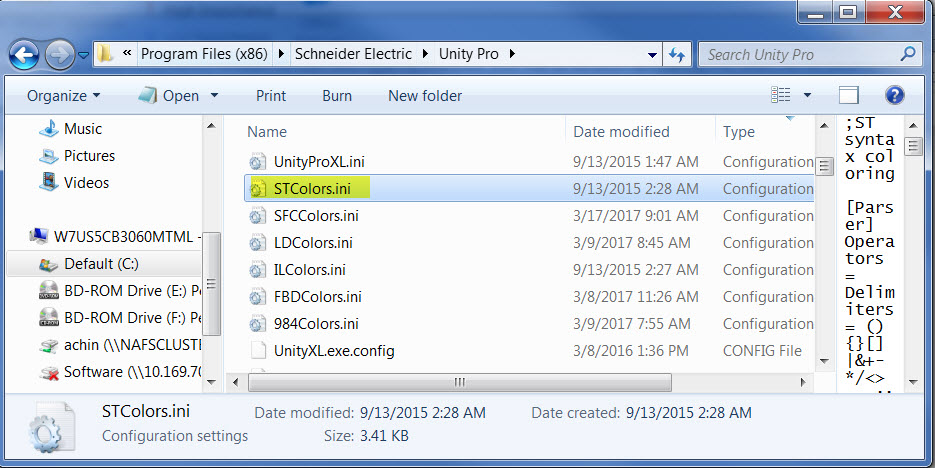
- Open the folder named 'C:\Program Files (x86)\Schneider Electric\Unity Pro'.
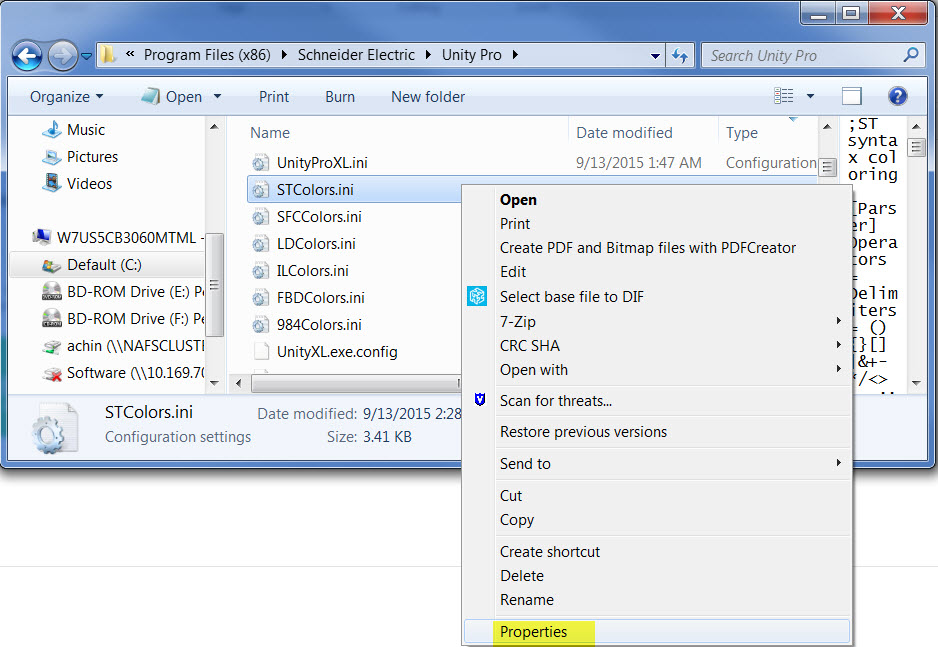
- Right click on the filename.
- Click on 'Properties'.
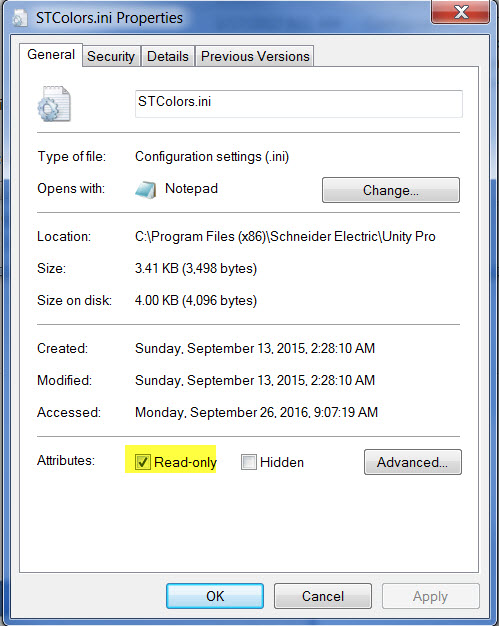
- Change the attribute from '.Read Only' by unchecking the box in the 'General' of the tab file 'Properties' window.
- Click on 'Apply'.
- Close the file properties window.
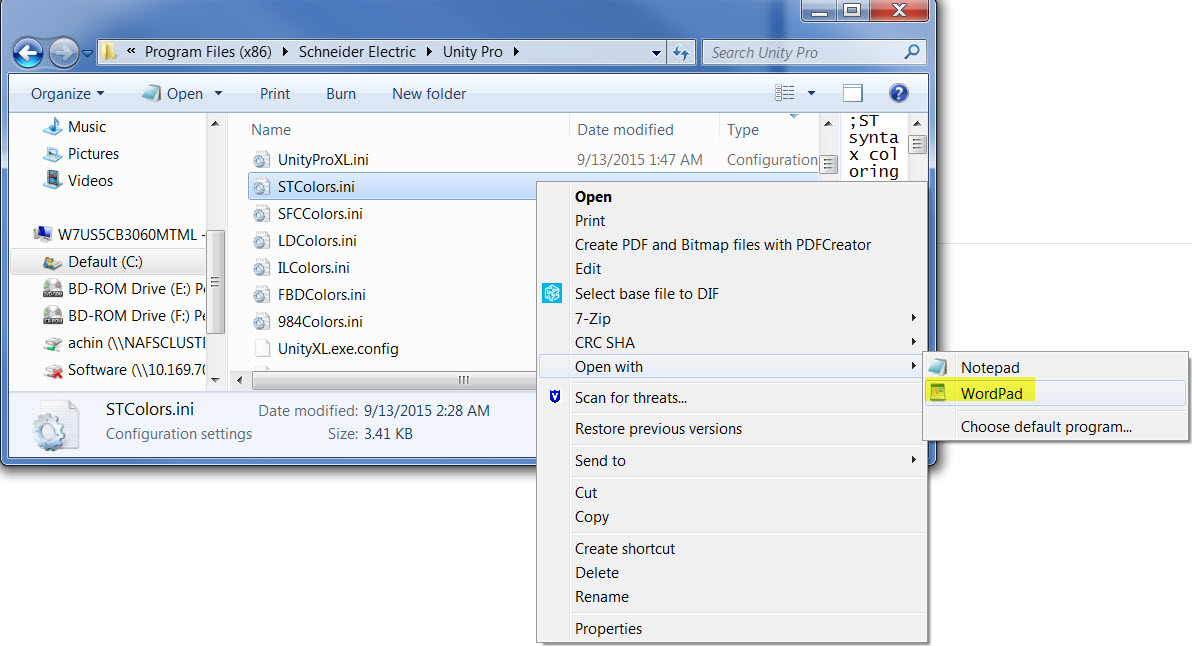
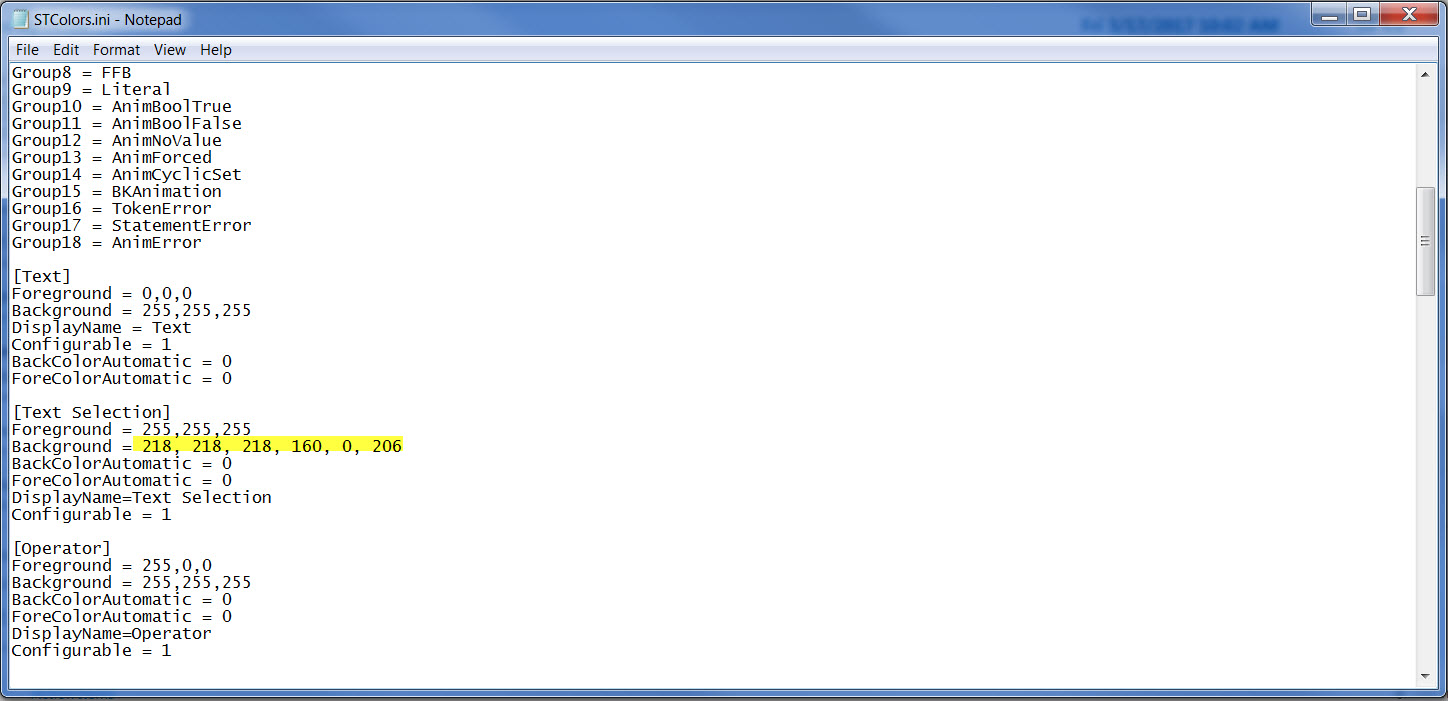
- Open the file named 'STColors.ini' using Wordpad.
- Open Paint
- Click on 'Edit colors'
- Find the values of the color to be used:
- Change the color values for the appropriate display element name in the 'STColors.ini' file.
- Save the changes.
- Close Wordpad.
- Change the file attribute back to 'ReadOnly'.
- Test the changes.
Publikované pre: Schneider Electric Slovakia
Objavte viac
Rad:
Objavte viac
Rad:
Potrebujete pomoc?
Výber produktov
Rýchlo a jednoducho nájdite tie správne produkty a príslušenstvo pre vaše aplikácie.
Získať ponuku
Kontaktujte nás online a náš odborník sa s vami spojí.
Kde nakúpiť?
Jednoducho nájdite najbližšieho distribútora produktov Schneider Electric vo vašom okolí.
Centrum podpory
Nájdite zdroje podpory pre všetky vaše potreby na jednom mieste.