


Configuring Firmware Update Interfaces for Smart-UPS
Issue: An extra layer of security has been added to certain Smart-UPS models that allows customers to use the LCD display on the UPS to configure which interfaces are allowed to install UPS firmware. Depending on the configuration settings, this may prohibit the installation of UPS firmware via the Firmware Upgrade Wizard, the Network Management Card, or SmartConnect.
Product Line: Certain Smart-UPS models with the prefixes SMC, SMT, and SMX
Resolution: Follow the steps below to enable or disable which methods are allowed to install UPS firmware.
SMC UPS Models:
The Firmware Update Interfaces setting can be changed by putting the UPS into Configuration Mode.
To enter Configuration Mode, press, and hold the MUTE and DISPLAY
 buttons for 2 seconds until the system emits a short beep and the display flashes.
While in Configuration Mode the DISPLAY button cycles through the available settings and the MUTE button cycles through the options for each setting.
Once in Configuration Mode, Press the DISPLAY button repeatedly until the Firmware Update (abbreviated FU) setting appears. Use the MUTE button to cycle between the available options shown below.

This option disables firmware installation from all interfaces.

This option enables firmware installation from all interfaces.

This option indicates that certain interfaces are disabled.
Note: This option is the default for some UPS units, and it is not possible to manually select it.
Once your desired option is shown on the LCD display, press and hold the MUTE and DISPLAY buttons for 2 seconds until the system emits a short beep, saves your selection, and exits Configuration Mode.
If you encounter difficulties while updating the firmware of your UPS, we recommend you set the Firmware Update Interfaces setting to FU.1 and retry the firmware update. Once the firmware update is completed, the Firmware Update Interfaces setting can be set to FU.0 if desired.
SMT and SMX UPS models:
To view and change the Firmware Update Interfaces setting, the UPS Menu Type must be set to Advanced Mode.
Use the UP/DOWN arrow buttons and scroll through the Main Menu options and select Configuration:

Press ENTER to view the Configuration menu and use the UP/DOWN arrow buttons to navigate to Menu Type:

If the Menu Type is Standard, press ENTER and use the UP/DOWN arrow buttons to select Advanced, and press ENTER.

If the Menu Type is already Advanced, no change is necessary.
Use the UP/DOWN arrow buttons to navigate to Firmware Update Interfaces setting and press ENTER:
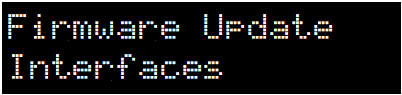
Use the UP/DOWN arrow buttons to scroll through the settings for each interface:


These options control the installation of UPS firmware updates using the serial port.


These options control the installation of UPS firmware updates using the SmartConnect cloud portal.


These options control the installation of UPS firmware updates using the NMC.


These options control the installation of UPS firmware updates using the USB port.
To select an option, press ENTER, then use the UP/DOWN arrow buttons to cycle between Enabled or Disabled, and press ENTER to apply the desired option.
If you encounter difficulties while updating the firmware of your UPS, we recommend you enable the corresponding firmware update interface:
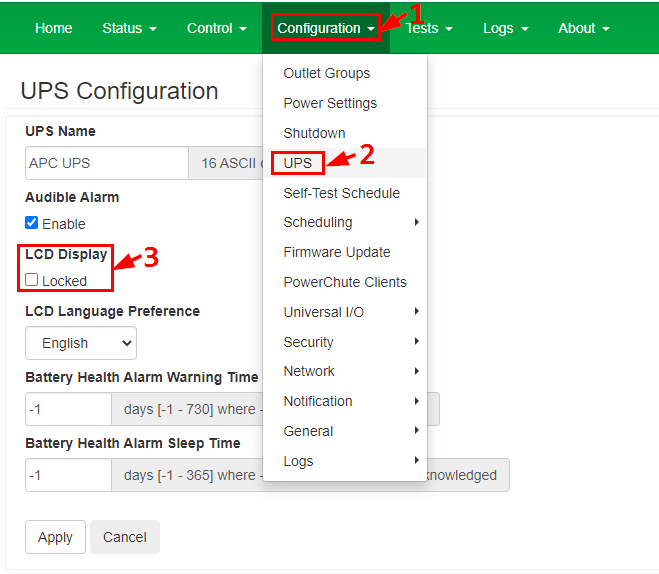
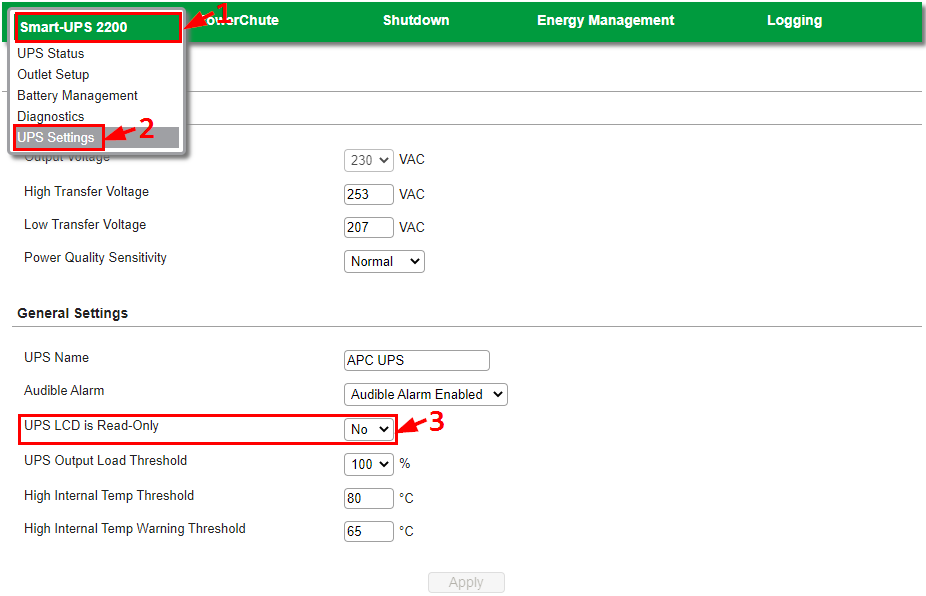
Note: Certain UPS models managed by an NMC or PowerChute software allow the LCD display to be set to read-only mode. If the LCD display is in read-only mode, this setting will need to be disabled to allow any changes to be made to the Firmware Update Interfaces settings.
To allow configuration changes using the LCD display, ensure that the "LCD Display: Locked" setting is not selected in the Configuration - UPS menu of the NMC web interface, or the "UPS LCD is Read-Only" is not selected in the UPS Settings menu of PowerChute.
Once the firmware update is completed, the access control settings for the firmware update interfaces can be disabled if desired, and the LCD display may be re-locked.
Product Line: Certain Smart-UPS models with the prefixes SMC, SMT, and SMX
Resolution: Follow the steps below to enable or disable which methods are allowed to install UPS firmware.
SMC UPS Models:
The Firmware Update Interfaces setting can be changed by putting the UPS into Configuration Mode.
To enter Configuration Mode, press, and hold the MUTE
While in Configuration Mode the DISPLAY button cycles through the available settings and the MUTE button cycles through the options for each setting.
Once in Configuration Mode, Press the DISPLAY button repeatedly until the Firmware Update (abbreviated FU) setting appears. Use the MUTE button to cycle between the available options shown below.
This option disables firmware installation from all interfaces.
This option enables firmware installation from all interfaces.
This option indicates that certain interfaces are disabled.
Note: This option is the default for some UPS units, and it is not possible to manually select it.
Once your desired option is shown on the LCD display, press and hold the MUTE and DISPLAY buttons for 2 seconds until the system emits a short beep, saves your selection, and exits Configuration Mode.
If you encounter difficulties while updating the firmware of your UPS, we recommend you set the Firmware Update Interfaces setting to FU.1 and retry the firmware update. Once the firmware update is completed, the Firmware Update Interfaces setting can be set to FU.0 if desired.
SMT and SMX UPS models:
To view and change the Firmware Update Interfaces setting, the UPS Menu Type must be set to Advanced Mode.
Use the UP/DOWN arrow buttons and scroll through the Main Menu options and select Configuration:
Press ENTER to view the Configuration menu and use the UP/DOWN arrow buttons to navigate to Menu Type:
If the Menu Type is Standard, press ENTER and use the UP/DOWN arrow buttons to select Advanced, and press ENTER.
If the Menu Type is already Advanced, no change is necessary.
Use the UP/DOWN arrow buttons to navigate to Firmware Update Interfaces setting and press ENTER:
Use the UP/DOWN arrow buttons to scroll through the settings for each interface:
These options control the installation of UPS firmware updates using the serial port.
These options control the installation of UPS firmware updates using the SmartConnect cloud portal.
These options control the installation of UPS firmware updates using the NMC.
These options control the installation of UPS firmware updates using the USB port.
To select an option, press ENTER, then use the UP/DOWN arrow buttons to cycle between Enabled or Disabled, and press ENTER to apply the desired option.
If you encounter difficulties while updating the firmware of your UPS, we recommend you enable the corresponding firmware update interface:
- To update the UPS firmware using the Firmware Upgrade Wizard, enable either Serial, or USB, depending on the connection used between the computer and the UPS
- To update the UPS firmware using the SmartConnect cloud portal, enable SmartConnect
- To update the UPS firmware using the NMC, enable SmartSlot
Note: Certain UPS models managed by an NMC or PowerChute software allow the LCD display to be set to read-only mode. If the LCD display is in read-only mode, this setting will need to be disabled to allow any changes to be made to the Firmware Update Interfaces settings.
To allow configuration changes using the LCD display, ensure that the "LCD Display: Locked" setting is not selected in the Configuration - UPS menu of the NMC web interface, or the "UPS LCD is Read-Only" is not selected in the UPS Settings menu of PowerChute.
Once the firmware update is completed, the access control settings for the firmware update interfaces can be disabled if desired, and the LCD display may be re-locked.