


Чим ми можемо вам допомогти сьогодні?
How to change the displayed colors for the IL section window.
Issue
How to change the displayed colors for the IL section window.
Product Line
Unity
Environment
Windows 10
Resolution
The following steps can be used to change the display colors for the IL section window in Unity.
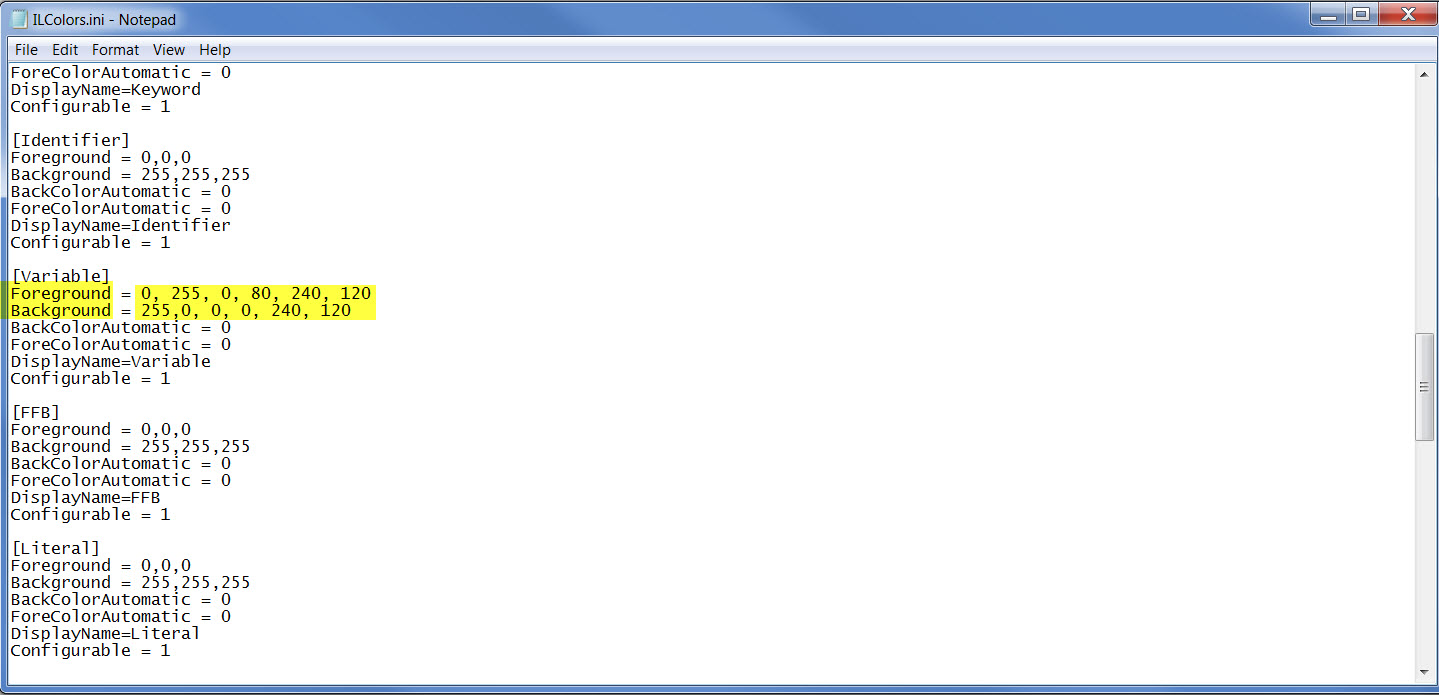
How to change the displayed colors for the IL section window.
Product Line
Unity
Environment
Windows 10
Resolution
The following steps can be used to change the display colors for the IL section window in Unity.
- Close Unity if it is running.
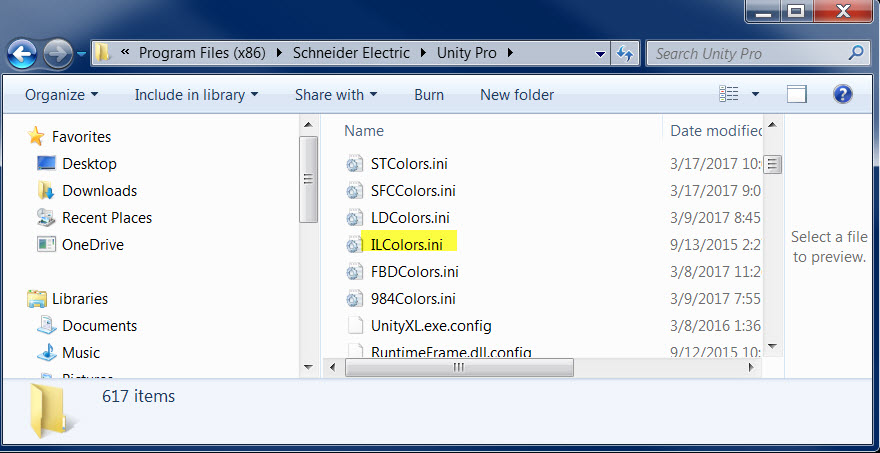
- Open the folder named 'C:\Program Files (x86)\Schneider Electric\Unity Pro'.
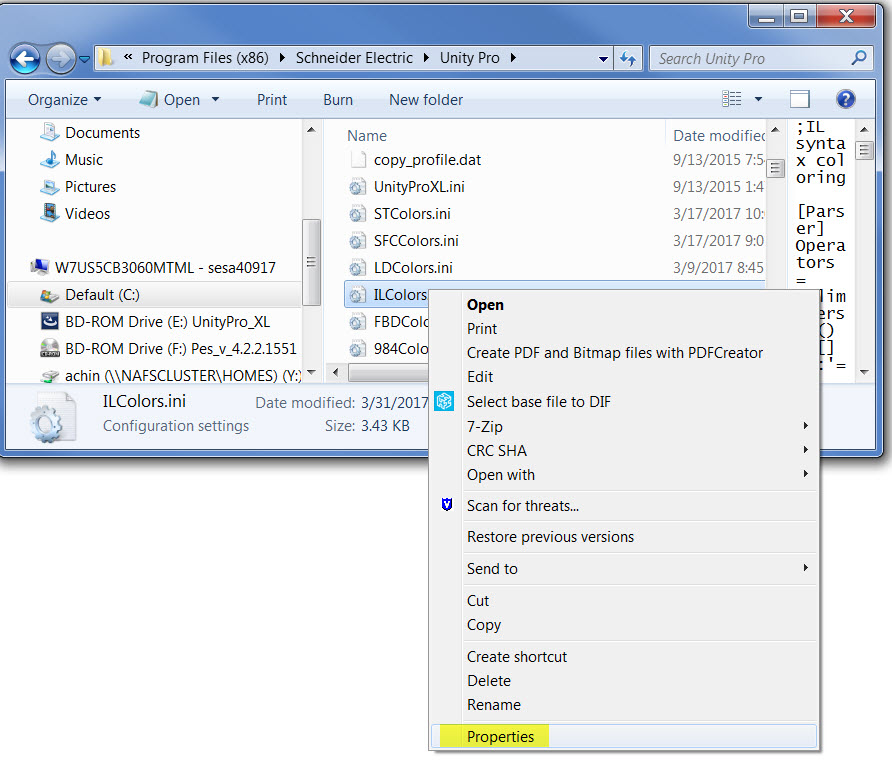
- Right click on the filename.
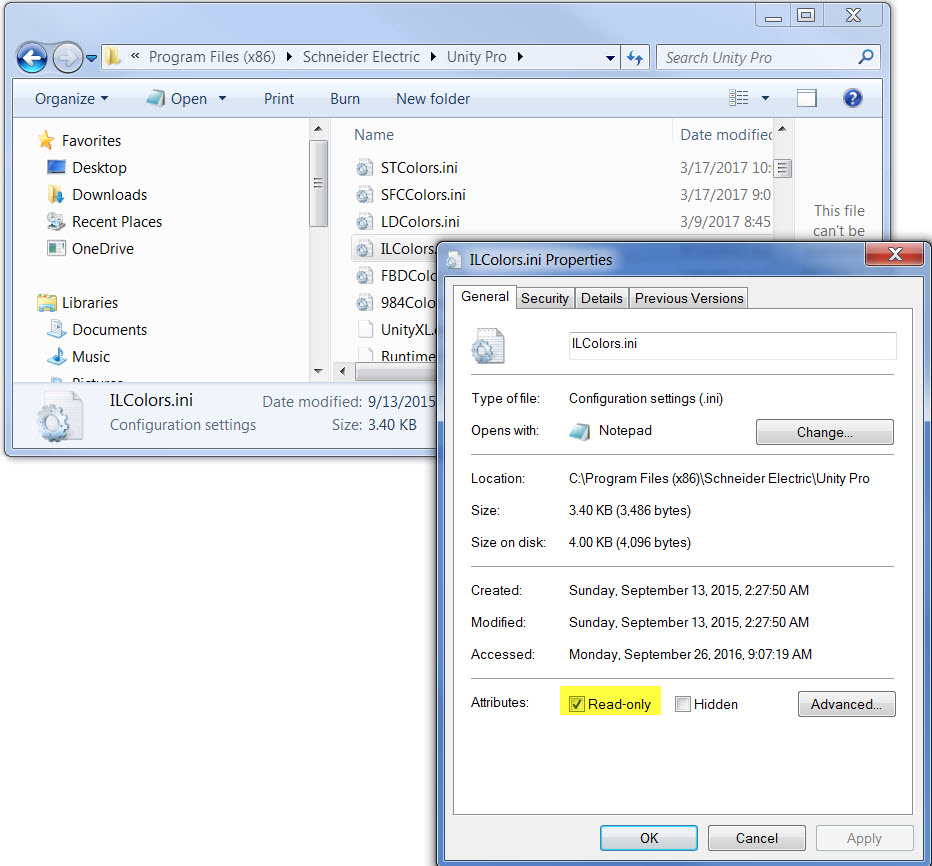
- Click on 'Properties'.
- Change the attribute from '.Read Only' by unchecking the box in the 'General' of the tab file 'Properties' window.
- Click on 'Apply'.
- Close the file properties window.
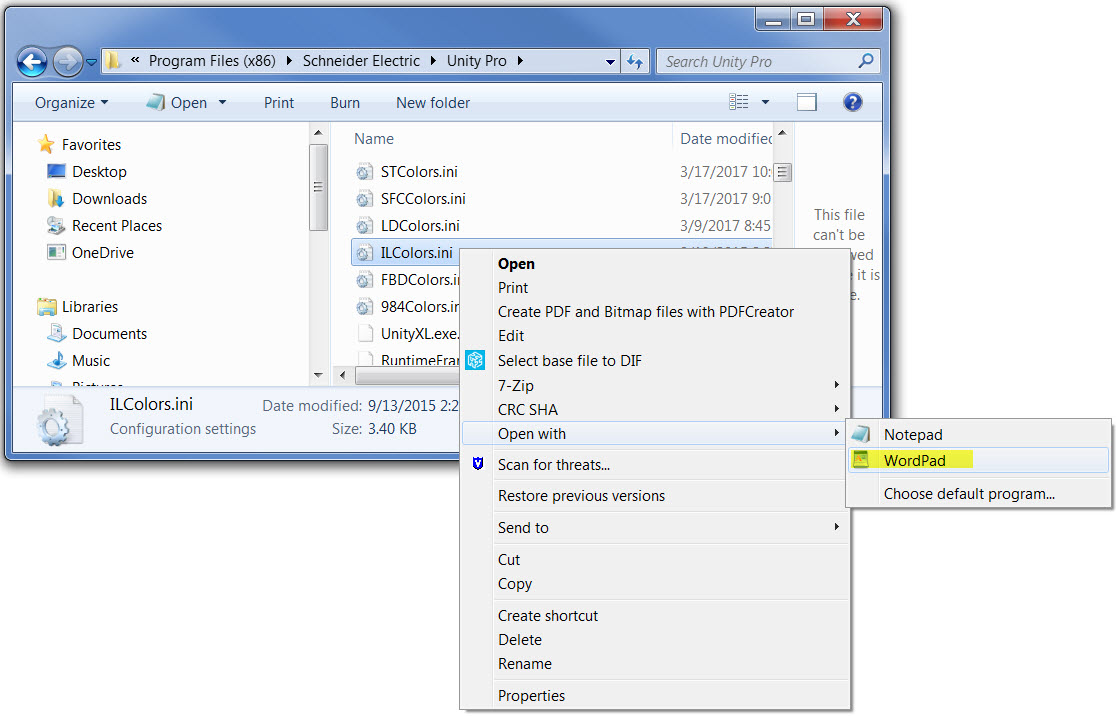
- Open the file named 'STColors.ini' using Wordpad.
- Open Paint
- Click on 'Edit colors'
- Find the values of the color to be used:
- Go back to the open file named ILColors.ini'
- Scroll down and find the lines for the 'Foreground and Background colors of 'IL' window component that is to be changed.
- Change the color values to the new color values
- Save the changes.
- Close Wordpad.
- Change the file attribute back to 'ReadOnly'.
- Test the changes.
Опубліковано для: Schneider Electric Україна
Досліджуйте більше
Серія:
Досліджуйте більше
Серія:
Потрібна допомога?
Почніть тут!
Знайдіть відповіді зараз. Шукайте рішення самостійно або зверніться до нашого експерта.
Звернутися до служби підтримки
Якщо вам потрібна допомога, додаткова інформація чи технічна підтримка або ви хочете подати скаргу, зв’яжіться з нашою командою з обслуговування клієнтів.
Де придбати?
Зручний пошук найближчого дистриб’ютора, магазина або спеціалізованого партнера Schneider Electric у вашому регіоні.
Переглянути відповіді на поширені запитання
Отримайте необхідну інформацію, переглянувши відповіді на поширені запитання за відповідними темами.