


How to fix the problems related to the loading circle when displaying objects created by Industrial Graphics
When running a project that includes screens based on the objects created by Industrial Graphics, sometimes the screen does not display correctly, and the loading animation appears or, an HTTP error message, in EcoStruxure Machine SCADA Expert v2020.
In this FAQ, we are going to explore 3 ways to solve this issue to solve this annoying problem when you use Industrial Graphic.
If you encountered this issue then it seems that you are missing the prerequisites to work with Industrial Graphics in EMSE v2020.
To solve your concern, verify these three points:


Some additional features may be selected by default, but you do not need to clear them. You only need to make sure the features listed above are selected.
You must either configure one of the processes to listen to a different port or use Task Manager to end the conflicting process.
If you cannot identify the conflicting process, run Command Prompt and then enter the following command “netstat -a -o” to get a list of all networking processes.
In this FAQ, we are going to explore 3 ways to solve this issue to solve this annoying problem when you use Industrial Graphic.
If you encountered this issue then it seems that you are missing the prerequisites to work with Industrial Graphics in EMSE v2020.
To solve your concern, verify these three points:
- The Mobile Access must be installed before you can use Industrial Graphics.
the installation package is available in:
C:\Program Files (x86)\EMSE 2020\Redist\WebAddOn\IIS\MobileAccessSetup.exe
- Internet Information Services (IIS) is also required to be installed and enable.
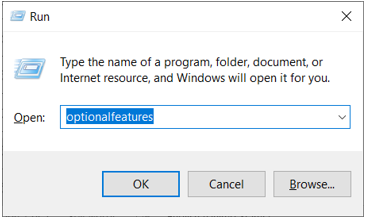
To do that follow the steps below:- Click on Windows+R to open the Run commande window and write “Optionalfeatures”, and click Enter to acces windows features window.
- Expand Internet Information Services > World Wide Web Services > Application
- Development Features, and then make sure all of the following features are checked (like in picture).
Some additional features may be selected by default, but you do not need to clear them. You only need to make sure the features listed above are selected.
- TCP/IP Server and Mobile Access tasks should be running.
You must either configure one of the processes to listen to a different port or use Task Manager to end the conflicting process.
If you cannot identify the conflicting process, run Command Prompt and then enter the following command “netstat -a -o” to get a list of all networking processes.
Đã phát hành cho: Schneider Electric Việt Nam

Bạn cần trợ giúp?
Công cụ chọn sản phẩm
Nhanh chóng và dễ dàng tìm được sản phẩm và phụ kiện phù hợp cho các ứng dụng của bạn.
Nhận báo giá
Bắt đầu gửi yêu cầu bán hàng trực tuyến và chuyên gia sẽ liên hệ với bạn.
Nơi mua hàng?
Dễ dàng tìm nhà phân phối Schneider Electric gần bạn nhất.
Trung tâm Hỗ trợ
Tìm sự hỗ trợ cho mọi nhu cầu của bạn tại một nơi.