Issue: Understanding the operation of the Back‑UPS self‑test and what happens during the test.
Product Line: Back‑UPS/Back-UPS Pro products
Cause: Users may need to test the battery inside the UPS to check battery condition.
Resolution:
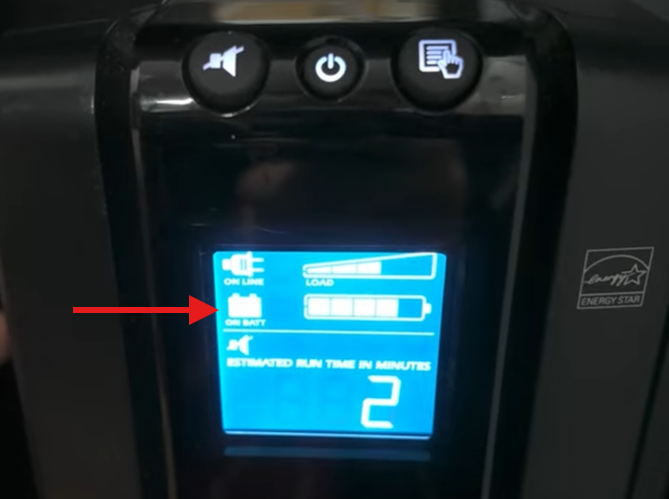
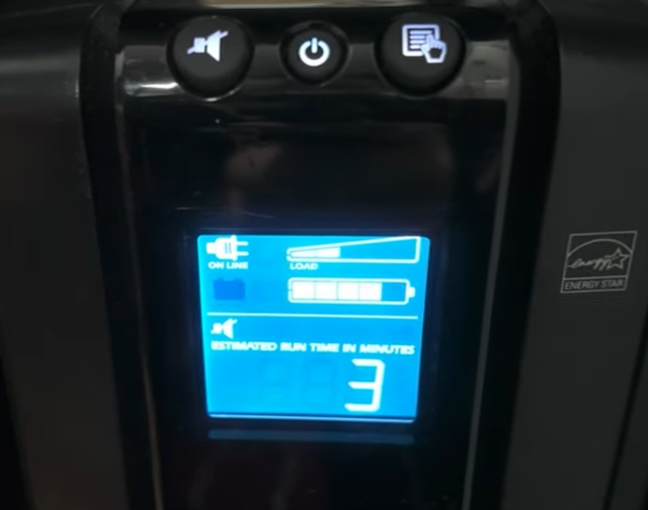
By default, Back‑UPS units automatically perform a self‑test each time they are powered on to check battery condition and estimate runtime. During the self‑test, the UPS briefly switches to battery power for about 10 seconds, then returns to normal AC operation. For accurate results, the connected load should be between 10% and 30% of the UPS’s rated capacity, as lighter or heavier loads may lead to inaccurate runtime estimates.
For more details, see Back‑UPS Basic Self‑Test Theory Explained.
DISCLAIMER: If the self‑test is performed incorrectly or if unsupported methods are used, there is a risk of dropping the connected load.
There are two self‑test methods that can be performed while the UPS is powered on without dropping the load:
1. Manual Self-Test
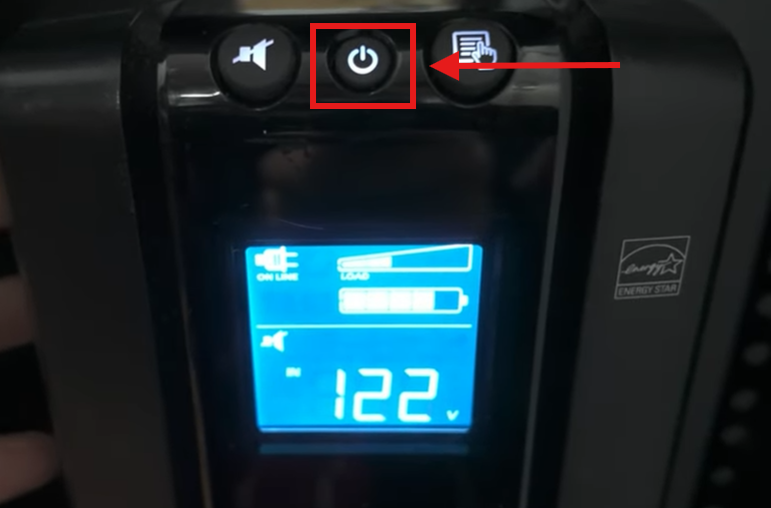
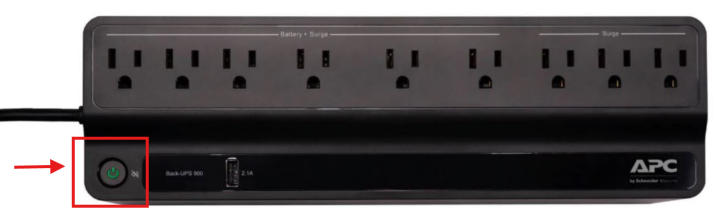
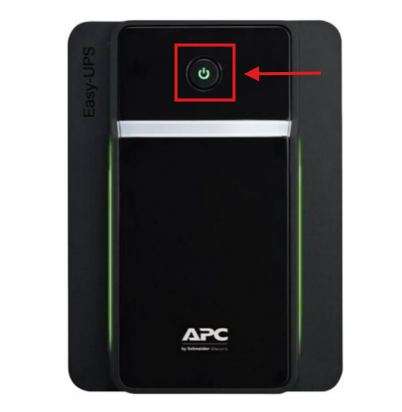
Make sure the Back‑UPS is plugged into a power source and turned on. Press and hold the power button. Keep holding the button until you hear two beeps or see the online LED start blinking, then release the button. This starts the manual self‑test.
2. PowerChute Serial Shutdown (PCSS)
This method uses software. Use this option if your Back‑UPS is connected to a computer that has PowerChute Serial Shutdown (PCSS) software installed.
a. Open a web browser on the computer connected to the UPS and log in to PowerChute Serial Shutdown.
b. Click the UPS Model Name, then select Diagnostics.
c. On the Diagnostics page, locate Initiate Diagnostics. From the select diagnostic action drop‑down menu, select Self Test.
d. Click
Apply to start the self‑test.

e. Monitor the Self‑Test Status and confirm whether the result shows Passed, or Failed.
Note: Self‑test procedures may vary by UPS model. Always refer to the applicable UPS user manual guide for specific instructions.
If you have any clarifications, please feel free to contact us at 1-800-800-4272 or
chat with our technical support representatives.
Đã phát hành cho: Schneider Electric Việt Nam


