


Чим ми можемо вам допомогти сьогодні?
How to start the TCSEGPA23F14F Profibus module connected to an M580.
Issue
How to start the TCSEGPA23F14F Profibus module.
Product Line
EcoStruxure Control Expert (formerly known Unity Pro), TCSEGPA23F14F, M580
Environment
Unity Pro v13.1, Windows 10 version 1902, BMEP586040 v2.70, TCSEGPA23F14F
Resolution
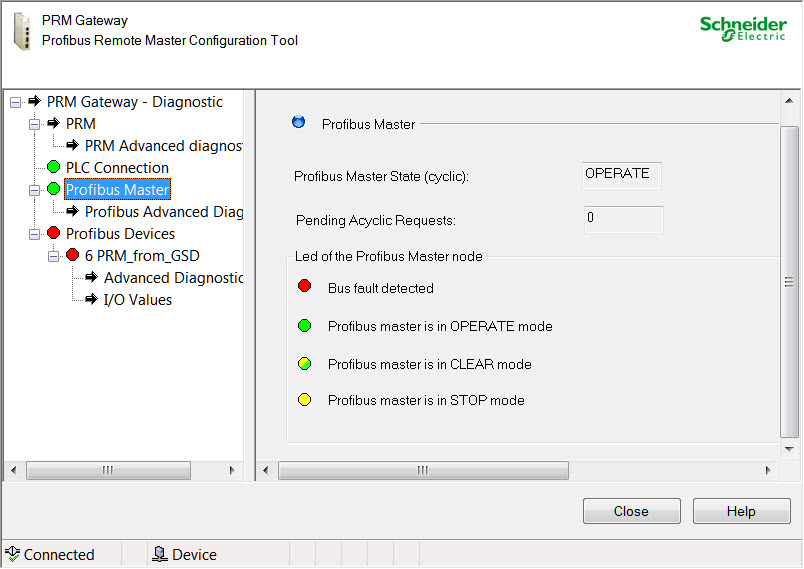
If you connect to the 'TCSEGPA23F14F Profibus' module after configuring and storing the data to it using Unity, the DTM will show
that the module is stopped and no options can be found for starting module.
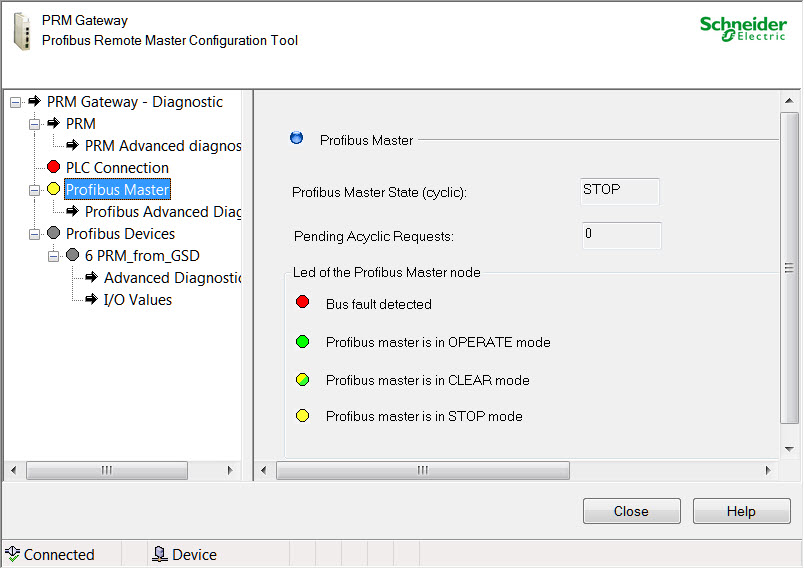
The only way that the 'TCSEGPA23F14F' Profibus module can be started is by using the 'PRM_MGT_M' block.
The block is added to Unity during the installation of the DFB library that is provided on the installation CD for the module..
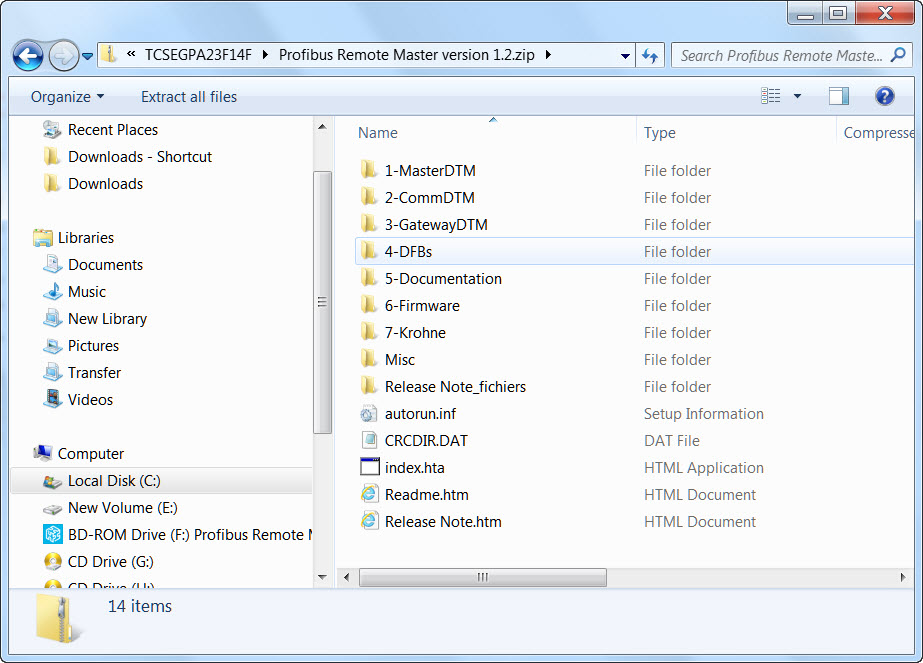
Use the following steps to add the block to the application: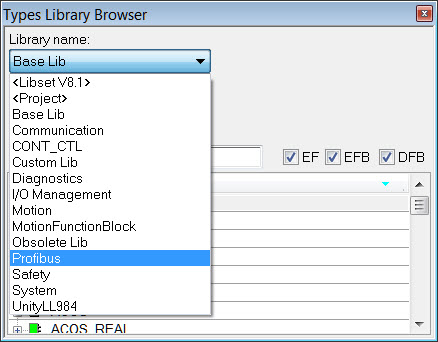
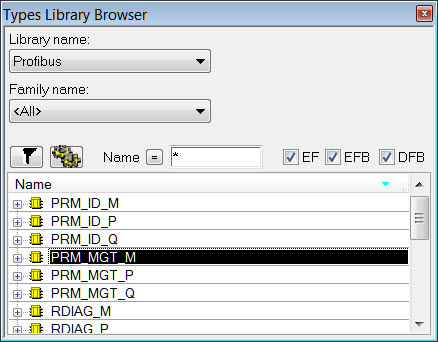
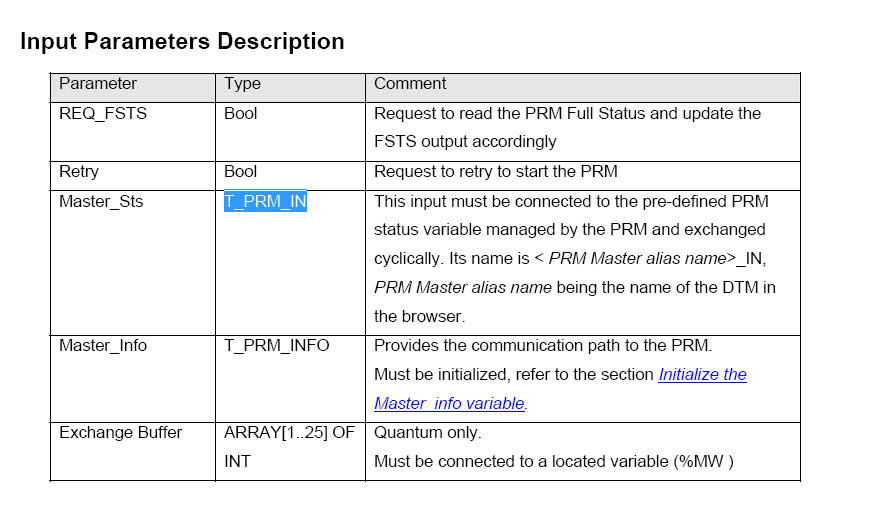
The user manual states the following comment for the 'Master_Sts' input parameter
This input must be connected to the pre-defined PRM status variable managed
by the PRM and exchanged cyclically. Its name is < PRM Master alias name>_IN,
PRM Master alias name being the name of the DTM in the browser.
It has been found that this will not work.
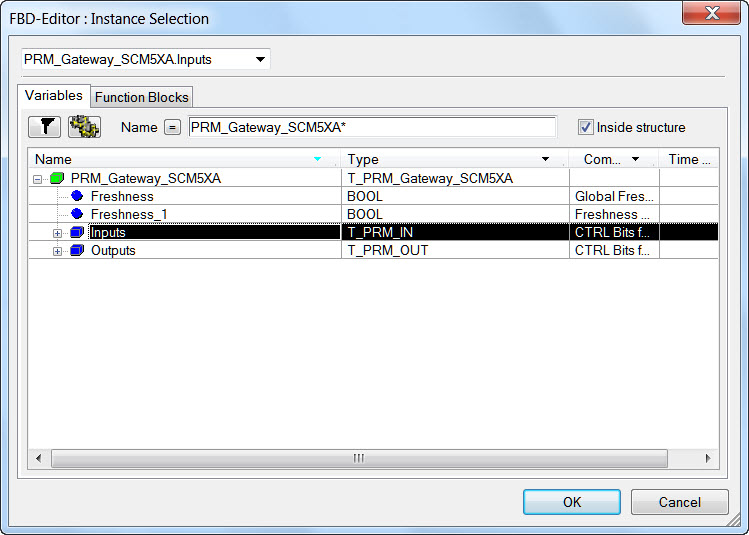
In order to start the module, The 'Master_Sts' input must point to the 'PRM Master alias name>_inputs'.
variable which is created by the DTM.
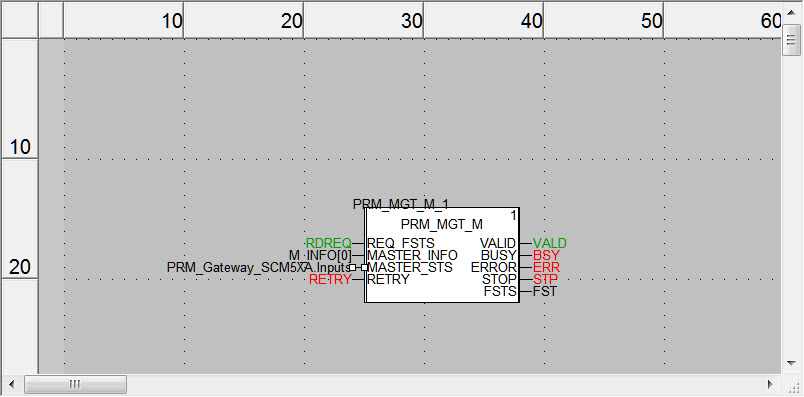
To start the module, toggle the 'REQ_FSTS' input.
.
.
How to start the TCSEGPA23F14F Profibus module.
Product Line
EcoStruxure Control Expert (formerly known Unity Pro), TCSEGPA23F14F, M580
Environment
Unity Pro v13.1, Windows 10 version 1902, BMEP586040 v2.70, TCSEGPA23F14F
Resolution
If you connect to the 'TCSEGPA23F14F Profibus' module after configuring and storing the data to it using Unity, the DTM will show
that the module is stopped and no options can be found for starting module.
The only way that the 'TCSEGPA23F14F' Profibus module can be started is by using the 'PRM_MGT_M' block.
The block is added to Unity during the installation of the DFB library that is provided on the installation CD for the module..
Use the following steps to add the block to the application:
- Open the Types Library Browser.
- Click on the Profibus library.
- Locate the 'PRM_MGT_M' block and add it to the application logic.
- Configure the parameters as described in the user manual with the exception of the MSTR_STS variable.
The user manual states the following comment for the 'Master_Sts' input parameter
This input must be connected to the pre-defined PRM status variable managed
by the PRM and exchanged cyclically. Its name is < PRM Master alias name>_IN,
PRM Master alias name being the name of the DTM in the browser.
It has been found that this will not work.
In order to start the module, The 'Master_Sts' input must point to the 'PRM Master alias name>_inputs'.
variable which is created by the DTM.
To start the module, toggle the 'REQ_FSTS' input.
.
.
Опубліковано для: Schneider Electric Україна
Досліджуйте більше
Серія:
Досліджуйте більше
Серія:
Потрібна допомога?
Почніть тут!
Знайдіть відповіді зараз. Шукайте рішення самостійно або зверніться до нашого експерта.
Звернутися до служби підтримки
Якщо вам потрібна допомога, додаткова інформація чи технічна підтримка або ви хочете подати скаргу, зв’яжіться з нашою командою з обслуговування клієнтів.
Де придбати?
Зручний пошук найближчого дистриб’ютора, магазина або спеціалізованого партнера Schneider Electric у вашому регіоні.
Переглянути відповіді на поширені запитання
Отримайте необхідну інформацію, переглянувши відповіді на поширені запитання за відповідними темами.