


PME - How to delete/disable IIS logs
Issue
Log files for Internet Information Services (IIS) that runs the PME Web Applications are filling up the C: drive.
Product Line
Power Monitoring Expert 7.x
Power Monitoring Expert 8.x
Power Monitoring Expert 9.0
Power Monitoring Expert 2020
Power Monitoring Expert 2021
Power Monitoring Expert 2022
Power Monitoring Expert 2023
Resolution
After confirming the IIS logs are not needed for troubleshooting any active issues, you can follow the steps below to delete and/or disable the logs.
Where to delete: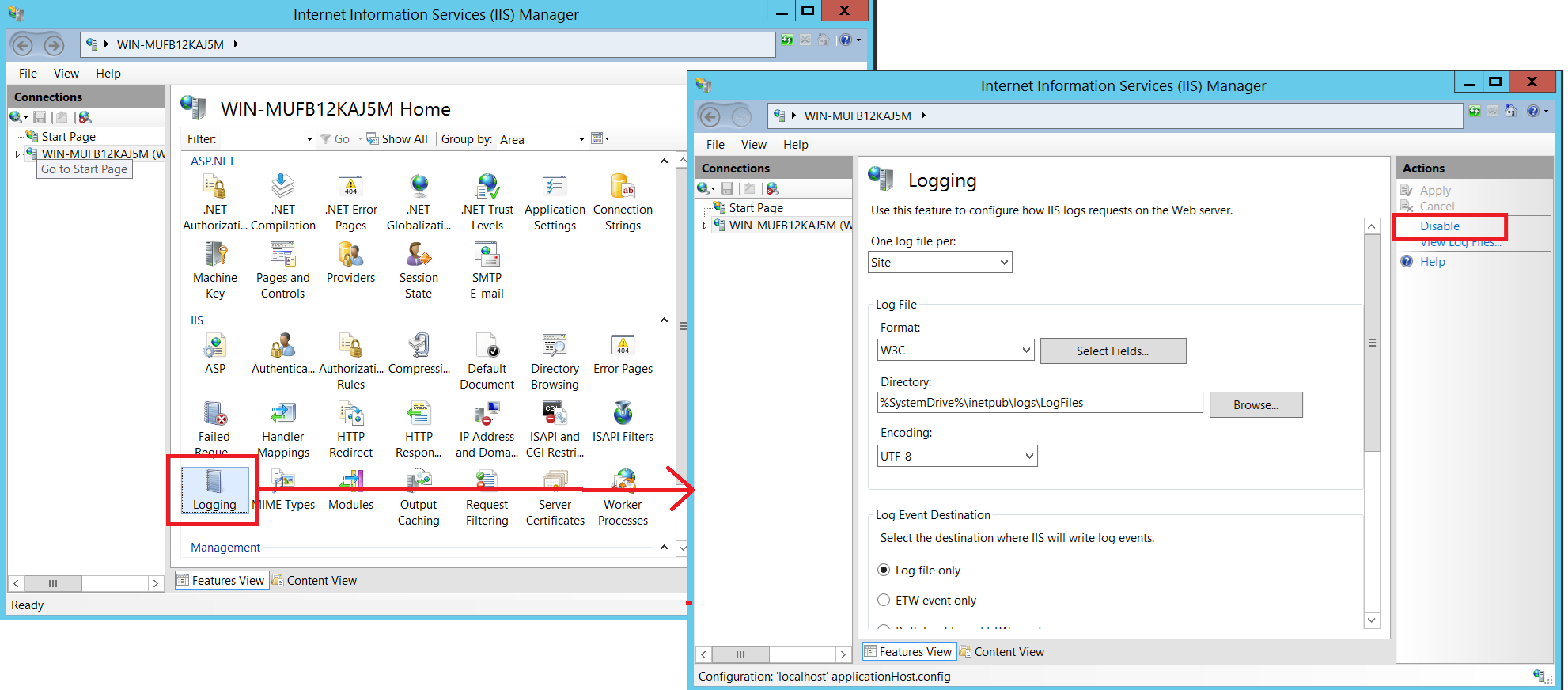
Log files for Internet Information Services (IIS) that runs the PME Web Applications are filling up the C: drive.
Product Line
Power Monitoring Expert 7.x
Power Monitoring Expert 8.x
Power Monitoring Expert 9.0
Power Monitoring Expert 2020
Power Monitoring Expert 2021
Power Monitoring Expert 2022
Power Monitoring Expert 2023
Resolution
After confirming the IIS logs are not needed for troubleshooting any active issues, you can follow the steps below to delete and/or disable the logs.
Where to delete:
- On the PME server, navigate to C:\inetpub\logs\LogFiles
- You may safely delete any files under folders named W3SVC1, W3SVC2, W3SVC3, etc.
- On the PME server, open the Windows Start menu and search "IIS"
- Open Internet Information Services (IIS)
- In the left pane, select the server name (note: if no server name is listed, the Windows account being used does not have sufficient permissions)
- In the center pane, double-click on Logging
- In the right Actions pane, click Disable